How do I change the Photos destination location in Windows 11 when importing photos from an iPhone 16?

Anonymous
2025-01-25T22:43:55+00:00

How do I change the Photos destination location in Windows 11 when importing photos from an iPhone 16? The default is onedrive which I do not want to use. I want to import to my Pictures folder on the C:drive. I have not found a way to change it. Thanks. I've also tried Photos Legacy but after it seemingly accessed the photos on the iPhone, the app closes.

Windows for home | Windows 11 | Files, folders, and storage

Locked Question. This question was migrated from the Microsoft Support Community. You can vote on whether it's helpful, but you can't add comments or replies or follow the question.

0 comments No comments
Answer accepted by question author
Manoel Barros 22,045 Reputation points Independent Advisor
2025-01-27T23:30:07+00:00

I did some tests on my personal computer and found out how you can do this easily.

  1. First add your Pictures folder. Open File Explorer (WINDOWS + E) > Click on Gallery > Click on "Collection" in the top menu > Manage Collection.
  2. Click on Add > Add your Pictures folder or any other folder you want. Click OK.
  3. Close and Open the Photos app > The folder you added will be there. When you import your pictures, the folder will appear.

Was this answer helpful?

10 people found this answer helpful.
0 comments No comments

6 additional answers

Sort by: Most helpful
  1. Manoel Barros 22,045 Reputation points Independent Advisor
    2025-01-26T01:26:15+00:00

    Hello! I'm Manoel Barros!

    To change the destination location of any user folder, do this:

    1. Open Explorer Files (WINDOWS + E) > In the Left Tab, right-click on "Pictures" folder > Properties > Location.
    2. Click on Move > Choose the destination localtion

    You can also use iCloud to store your photos. You can choose iCloud as the destination location for the Pictures folder.

    Was this answer helpful?

    3 people found this answer helpful.
    0 comments No comments
  2. Anonymous
    2025-01-28T14:55:00+00:00

    Short version: This helped me fix my issue. Thanks.

    Longer, a bit surprising, version:

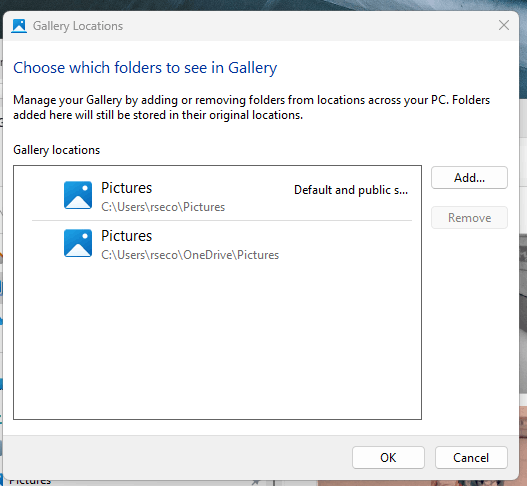
    When I clicked on Manage Collection using your instruction, it opened the Window below. What was surprising was that the folder I wanted to use in Photos was already there PLUS it was designated as the default. It made me wonder why it was not showing up in the import process. I had not done anything (that I know of) since your prior post to change anything. I just did Step 1 in your last post.

    Then, the only thing I did upon seeing this Window was to delete the User\rseco*OneDrive*\Pictures path. When I then opened Photos and started the import from my phone, I saw I had the correct path, and I could switch it to any subfolders I have in rseco\Pictures folder. Yah!

    I suppose I could go back and put the OneDrive version path back in Gallery (not as a default) and reopen Photos to see if it goes back to OneDrive, but I think I will leave it as is for now.

    Thanks again. This has been a big help.
    Was this answer helpful?

    2 people found this answer helpful.
    0 comments No comments
  3. Anonymous
    2025-01-27T17:55:56+00:00

    I saw the steps you sent in the link prior to my posting. I cannot do Step 8 Select the location of the destination folder for import. It does not let me change circled destination path when I click on it. Nor can I find anyway to change that.

    If I click on Create Folder, it will create a folder on OneDrive, which I do not want to do.

    Clicking on This PC in the left column doesn't help either.

    Thanks for trying to help.

    Was this answer helpful?

    1 person found this answer helpful.
    0 comments No comments
  4. Anonymous
    2025-01-26T15:23:47+00:00

    Thanks for your reply. I am not trying to change the destination folder of any user folder; I am trying to change the destination folder in the Photos app. It does not let me change it from the C:\user\myxxx\OneDrive\Pictures.

    When I followed your directions, it wants to MOVE what's in the OneDrive\Pictures folder to the folder I picked, which is my Pictures folder on my C: drive. I do not want to do this. I simply want to import my iPhone photos directly to a folder of my choice on my C:drive., and NOT to the unchangeable (evidently default) OneDrive\Pictures folder in the Photos app. Nor do I want to import them to iCloud.

    I would think this would be a simple matter, but I guess not or I'm missing something simple.

    Was this answer helpful?

    1 person found this answer helpful.
    0 comments No comments