Short version: This helped me fix my issue. Thanks.
Longer, a bit surprising, version:
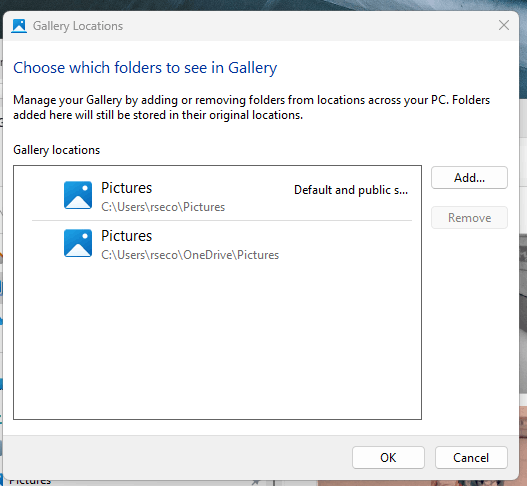
When I clicked on Manage Collection using your instruction, it opened the Window below. What was surprising was that the folder I wanted to use in Photos was already there PLUS it was designated as the default. It made me wonder why it was not showing up in the import process. I had not done anything (that I know of) since your prior post to change anything. I just did Step 1 in your last post.
Then, the only thing I did upon seeing this Window was to delete the User\rseco*OneDrive*\Pictures path. When I then opened Photos and started the import from my phone, I saw I had the correct path, and I could switch it to any subfolders I have in rseco\Pictures folder. Yah!
I suppose I could go back and put the OneDrive version path back in Gallery (not as a default) and reopen Photos to see if it goes back to OneDrive, but I think I will leave it as is for now.
Thanks again. This has been a big help.
' cx='32' cy='32' r='32' /%3E%3Ctext x='50%25' y='55%25' dominant-baseline='middle' text-anchor='middle' fill='%23FFF' %3EA%3C/text%3E%3C/svg%3E)

