Hello @Arnold MIshaev
Many thanks for that great info.
I would like to give you this step below and I hope you can confirm the settings or do what is necessary.
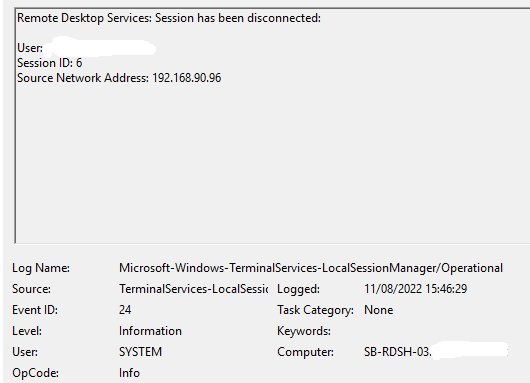
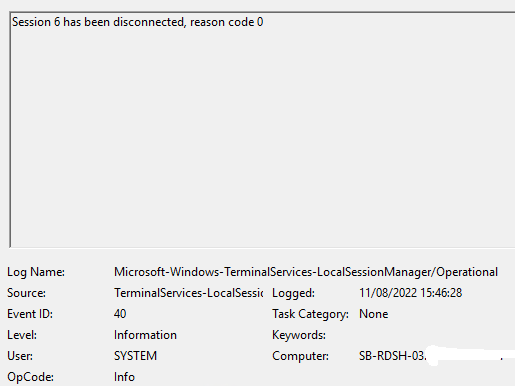
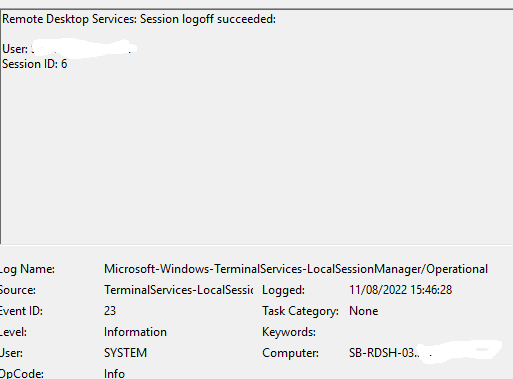
When the Remote Desktop client reconnects, the RDSH server reconnects the client to a new session instead of the original session. However, when you check the RDSH server, it says that the original session is still active and didn't enter a disconnected state.
To work around this issue, you can enable the Configure keep-alive connection interval policy in the Computer Configuration\Administrative Templates\Windows Components\Remote Desktop Services\Remote Desktop Session Host\Connections group policy folder. If you enable this policy, you must enter a keep-alive interval. The keep-alive interval determines how often, in minutes, the server checks the session state.
This issue can also be fixed by reconfiguring your authentication and configuration settings. You can reconfigure these settings at either the server level or by using group policy objects (GPOs). Here's how to reconfigure your settings: Computer Configuration\Administrative Templates\Windows Components\Remote Desktop Services\Remote Desktop Session Host\Security group policy folder.
On the RD Session Host server, open Remote Desktop Session Host Configuration.
Under Connections, right-click the name of the connection, then select Properties.
In the Properties dialog box for the connection, on the General tab, in Security layer, select a security method.
Go to Encryption level and select the level you want. You can select Low, Client Compatible, High, or FIPS Compliant.
Looking forward to your feedback,
Cheers,
Please "Accept the answer" if the information helped you. This will help us and others in the community as well.
' cx='32' cy='32' r='32' /%3E%3Ctext x='50%25' y='55%25' dominant-baseline='middle' text-anchor='middle' fill='%23FFF' %3EAM%3C/text%3E%3C/svg%3E)




' cx='32' cy='32' r='32' /%3E%3Ctext x='50%25' y='55%25' dominant-baseline='middle' text-anchor='middle' fill='%23FFF' %3EBL%3C/text%3E%3C/svg%3E)