Hello,
I have an existing MS Project mpp file.
I have an Excel Spreadsheet with task durations that I want to import into the existing mpp file.
I have both the Task Name and Work field names in the Excel file matching those (native) defaults in the mpp file.
When I try to use the MS Project Import Wizard, I select New Map and then "Merge the data into the active project" since I want to keep everything in the mpp file as is except for updating the Work fields.
I then select Tasks as the type of data for import and specify the import includes headers.
In the Import Wizard Task Mapping dialog I then select the desired worksheet.
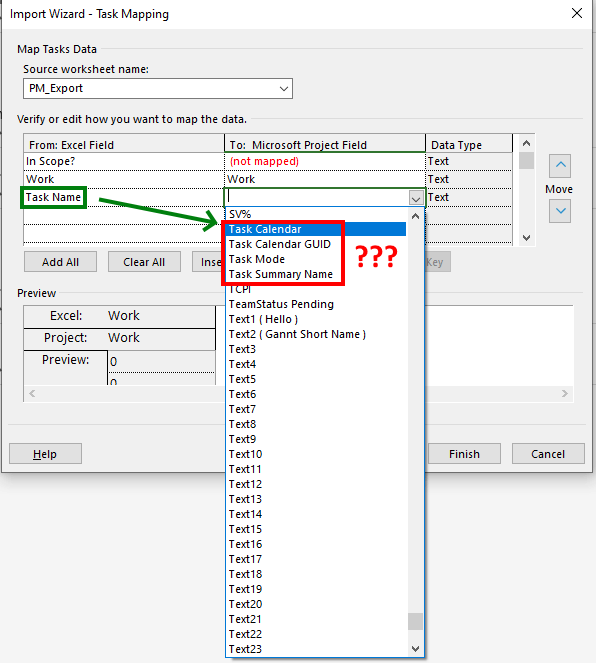
Everything in the "From: Excel Field" shows up correctly.
When I scroll down, I can see that the wizard correctly mapped "Work" in the Excel file to "Work" in the mpp.
However, it does not map the Excel "Task Name" to anything.
This should be mapped to "Task Name" in the mpp.
When I try to manually select "Task Name" in the "To: Microsoft Project Field" the option for "Task Name" is not present.
So, I cannot map the Task Name and hence can't Set Merge Key to Task Name.
What am I doing wrong here?
Thank you in advance!
Chris
' cx='32' cy='32' r='32' /%3E%3Ctext x='50%25' y='55%25' dominant-baseline='middle' text-anchor='middle' fill='%23FFF' %3EA%3C/text%3E%3C/svg%3E)

' cx='32' cy='32' r='32' /%3E%3Ctext x='50%25' y='55%25' dominant-baseline='middle' text-anchor='middle' fill='%23FFF' %3EJP%3C/text%3E%3C/svg%3E)