Unable to playback of MP4 files in PPTX

Anonymous
2024-11-12T05:54:03+00:00

Hello,

Until recently I was able to playback mp4 files within PPTX (Microsoft 360) but today these files will not playback. Also when I do a screen recording in PPT, this also does not playback. AVI files work OK in ppt and I am able tpo play the mp4 files in other video media players. They just do not work in PPT.

I am assuming that it is a codec issue but cannot figure out why this is happening today but was OK 1 week ago??

Please help!

Microsoft 365 and Office | PowerPoint | For business | Windows

Locked Question. This question was migrated from the Microsoft Support Community. You can vote on whether it's helpful, but you can't add comments or replies or follow the question.

0 comments No comments
Answer accepted by question author
Anonymous
2024-11-13T23:04:25+00:00

thank you. None of those things worked. What did seem to work is a Reset BIOS to defaults (I have a HP Spectre x360 laptop).

I was working on another issue - i.e. no audio from laptop, while it hasn't fixed my audio, PPT MP4 files are now working!!

Now I just have to fix my laptop audio....

Was this answer helpful?

0 comments No comments

5 additional answers

Sort by: Most helpful
  1. Anonymous
    2024-11-13T11:20:35+00:00

    Hi B Anderss,

    Thanks for posting back.

    Based on your reply, I suggest you try the following suggestions and then check again. You can share the test results with us.

    1. Check the PowerPoint setting

    Go to File> Options> Advanced> under the Display section, make sure that the "Disable Slide Show hardware graphics acceleration" option is unchecked.

    If it is checked, please uncheck it and then restart PowerPoint and play the video again.

    1. Check the relevant registry key

    Close and quit PowerPoint first

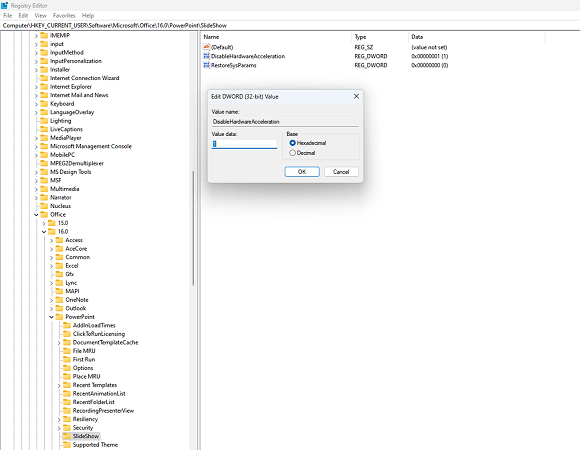
    Press Win + R, in the Run box, type regedit, click OK to open Registry Editor, then go to the following location

    HKEY_CURRENT_USER\SOFTWARE\Microsoft\Office\16.0\PowerPoint\SlideShow

    • If you can see the  DisableHardwareAcceleration value, please double-click it and make sure its value data is 1.
    • If you don't see such a value, right-click in the right-hand pane and add a DWORD value 1 with name DisableHardwareAcceleration.

    Additionally, I suggest you disable hardware graphics acceleration for the entire Office.

    Go to the following location

    HKEY_CURRENT_USER\SOFTWARE\Microsoft\Office\16.0\Common\

    Right-click on the Common key> New> Key. Name the new key as "Graphics". Select the "Graphics" key, right-click in the right-hand pane> New> DWORD (32-bit) Value. Rename the value as DisableHardwareAcceleration and set its value to 1.

    After that, restart PowerPoint and check again.

    WARNING*: Using Registry Editor incorrectly can cause serious problems that may require you to reinstall your operating system. Microsoft cannot guarantee that problems resulting from the incorrect use of Registry Editor can be solved. Use Registry Edit at your own risk.*
    Image

    1. I suggest you perform a clean boot in Windows, then run PowerPoint and check again. This can help us to troubleshoot if it is caused by any startup items in Windows. 
    2. . Switch to another Windows user profile

    If you don’t have another Windows user profile, please try the steps in the "Switch user" section and sign into another account, such as your personal account), run PowerPoint, and check again. This can help us to troubleshoot whether the issue is caused by the local environment in your original Windows user profile.

    If none of the above suggestions help, I would like to gather more information to troubleshoot.

    1. You mentioned that you have tried uninstalling and reinstalling but it didn't work. May I know how you uninstalled Office? I would like to double-check whether you uninstall it through "Windows settings> Apps & features (Apps)" or through the uninstall support tool.
    2. Are your colleagues experiencing the same problem? I suggest you transfer the presentation containing the MP4 video to their device and check if the problem occurs.

    We look forward to your response. Thanks for your cooperation.

    Sincerely,

    George | Microsoft Community Moderator

    Was this answer helpful?

    1 person found this answer helpful.
    0 comments No comments
  2. Anonymous
    2024-11-13T02:55:58+00:00

    Further to this issue.... PPT will not play .mp3 files either.

    It will play .avi, .mpeg and stock media videos

    This might narrow done the issue.

    Thanks

    Was this answer helpful?

    0 comments No comments
  3. Anonymous
    2024-11-12T21:57:56+00:00

    Hello

    I opened in powerpnt /safe and the problem still exists. When I clicked to play the mp4 within ppt, I got a message box as below. I followed this link. It advised to uncheck the 'Disable Slide Show hardware graphics acceleration' but this was already unchecked**.**

    I have uninstalled and reinstalled ‘Microsoft 365 Apps for enterprise’ as the next step but the problem still exists (mp4 won't play in ppt). Please note that it is an issue only on one of my laptops (i.e. no problems playing the mp4 on other laptops).

    Also please note that I can play the mp4 files outside on PPT on this laptop, they just won’t play within PPT.

    Maybe there was an update that change the video graphics on this particular laptop??

    Thanks for your help with this

    ![](https://learn-attachment.microsoft.com/api/attachments/c53b38d1-73e0-4cd4-8ff7-869073715ab2?platform=QnA

    Was this answer helpful?

    0 comments No comments
  4. Anonymous
    2024-11-12T12:47:57+00:00

    Hello B Anderss, Thanks for using Microsoft products and posting in the community. About the problem you encountered that PowerPoint suddenly cannot play MP4 video;

    Please try the following regular programs first:

    1. Press Win + R, type: 
       powerpnt /safe
      
    2. and then Enter, open the safe mode into the PowerPoint program to see if the problem still exists.  If the problem does not exist in safe mode, please follow the steps below to close your add-ins, which may be useful:
    3. Open PowerPoint;
    4. Click on the upper left corner of the “File”, and then click on the lower left corner of the “Options”, click on “Add-Ins”, click on “COM Add-Ins Click on “COM Add-ons” next to “Go To”.
    5. Inside the add-ons are removed from the checkbox state, click “OK”.
    6. Re-open PowerPoint to see if the problem is solved.

    If the above program does not work, please try to use the official tool to uninstall and reinstall office (the official tool will not have uninstallation residue):Uninstall Office from a PC - Microsoft Support

    I look forward to your reply and I will give you further support as soon as possible based on your reply.  Best Regards,Arthur - MSFT | Microsoft Community Support Specialist

    Was this answer helpful?

    0 comments No comments