Touch Keyboard in Windows 11 number pad version removed with recent update?

Anonymous
2022-01-23T10:58:40+00:00

I use my Surface Pro 7 for work, I do not have a physical keyboard, I rely solely on the on-screen touch keyboard. In Windows 10, and after the upgrade to Windows 11 the Touch Keyboard offered a version/option to have a number pad on the right of a keyboard. The numbers and direction/navigation buttons were on the primary touch keyboard every time it popped up.

In the past week, with no action by me, the touch keyboard opened up with no number pad on the right. All options for a keyboard format with a number pad have been removed, and only this new useless version is available. This is completely unusable for the primary function of my job using excel documents with customers. I cannot navigate in excel, and I cannot enter more than one number without having to press the shift button to access numbers and direction keys.

This happened a couple of years ago and took several months for Microsoft to fix. Microsoft continually removes/"improves" core items that power users have come to rely on that completely destroy the user experience of their signature platform and Surface experience. I have 10 employees using Surface Pros and something as simple as eliminating the option for different keyboard layouts makes them useless.

Does anyone know how to get the touch keyboard with the number pad on the right back in Windows 11?

“***Post moved by the moderator to the appropriate forum category.***”

Surface | Surface Pro | Performance and maintenance

Locked Question. This question was migrated from the Microsoft Support Community. You can vote on whether it's helpful, but you can't add comments or replies or follow the question.

0 comments No comments

20 answers

Sort by: Oldest
  1. Anonymous
    2022-02-07T15:59:36+00:00

    Hi PhillipSheppard,

    Thank you for reaching Microsoft Community. I'm sorry to hear about the inconvenience that the update on the touch keyboard has caused you.

    I would like to confirm first, do you happen to have a screenshot of this number pad version of the touch keyboard? If yes, please share it with us here.

    If I may suggest also, how about using the On-Screen Keyboard (OSK) and see if this option works for you. Search OSK on the search bar of your Taskbar then select the OSK (Run command) option. you will have this keyboard then:
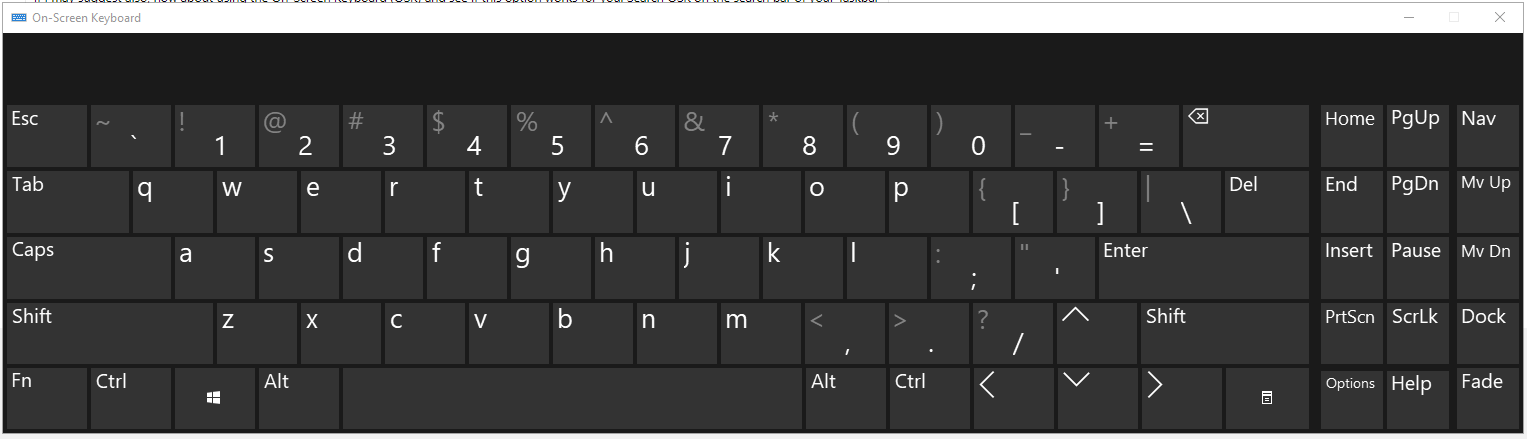
    Select the Options key, check the box next to Turn on numeric keypad option then click OK. It should then provide you with this keyboard layout:
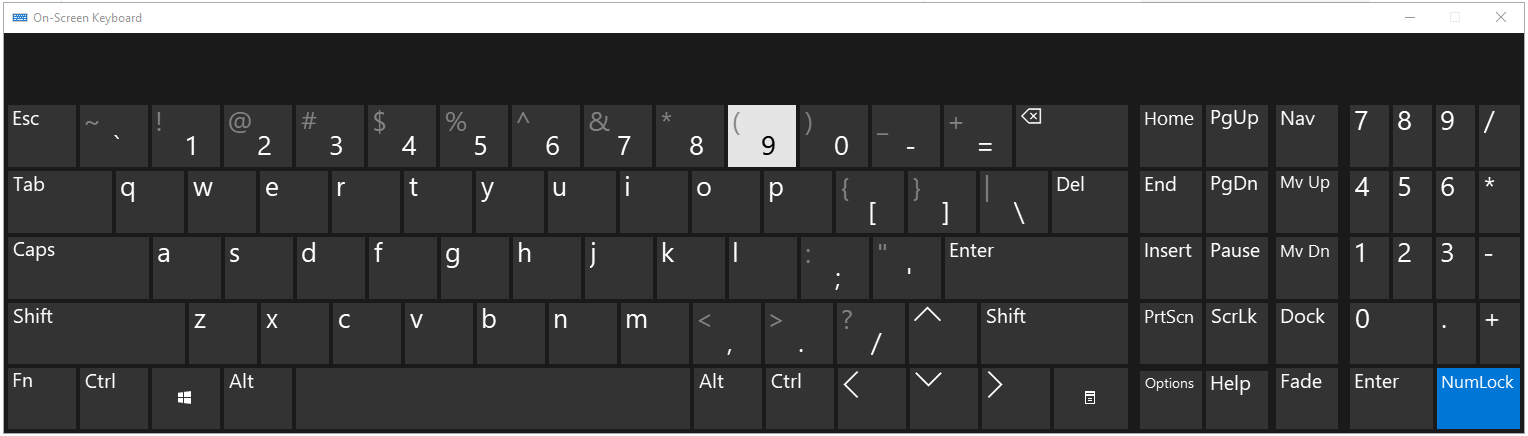
    For easy access of the On-Screen Keyboard, you may pin it to your Taskbar.

    Hope this helps.

    Kind regards,

    Marrion

    Was this answer helpful?

    10 people found this answer helpful.
    0 comments No comments
  2. Anonymous
    2022-02-07T19:13:03+00:00

    Hi PhillipSheppard,

    Thank you for reaching Microsoft Community. I'm sorry to hear about the inconvenience that the update on the touch keyboard has caused you.

    I would like to confirm first, do you happen to have a screenshot of this number pad version of the touch keyboard? If yes, please share it with us here.

    If I may suggest also, how about using the On-Screen Keyboard (OSK) and see if this option works for you. Search OSK on the search bar of your Taskbar then select the OSK (Run command) option. you will have this keyboard then:

    Image

    Select the Options key, check the box next to Turn on numeric keypad option then click OK. It should then provide you with this keyboard layout:

    Image

    For easy access of the On-Screen Keyboard, you may pin it to your Taskbar.

    Hope this helps.

    Kind regards,

    Marrion

    No, this is not helpful because the on-screen keyboard is not as useful as the touch keyboard was. The Touch Keyboard is designed to work with Microsoft software and pops up when you enter Microsoft software and senses when it is needed. The OSK blocks the aps, does not automatically pop up and is significantly harder to use than the Touch Keyboard. The touch screen keyboard worked perfectly, with the number pad option enabled, but with one of the recent Microsoft updates it went away. And the ability to activate it was removed from the options.

    The size of the number pad keys on the touch keyboard were significantly larger and easier to use. The OSK has tiny keys and using my fingers to enter as much as I use them makes it an unacceptable option.

    I cannot provide a screen capture because the update changed the Touch Keyboard and reverted it to the basic form. Google searches show in pre-update versions how to activate it, but when you follow those instructions, Microsoft has changed the menus and removed the option.

    It wasn't broken, I cannot be the only person that found this useful and was part of the daily usage of my Microsoft Surface. My entire company team all use Microsoft Surface with the keyboard and it has gone away. I do not understand why Microsoft would remove a feature that changes the ability to use use the Surface to it's full capability. And offering an OSK that does not recognize when it is needed, or blocks the bottom third of the screen is a total waste.

    Extremely frustrated,

    Phillip

    Was this answer helpful?

    40+ people found this answer helpful.
    0 comments No comments
  3. Anonymous
    2022-02-07T20:44:54+00:00

    Hi PhillipSheppard,

    Thank you for the response and I'm sorry to hear that the On-Screen Keyboard won't help and replace what was taken out from the Touch Keyboard which was useful on your end and your company. For this case, I would suggest submitting a feedback to Microsoft through the Feedback Hub app to let our engineers and developers know about the need for the feature. This will also helps us to improve and do better on our products. Please see: Send feedback to Microsoft with the Feedback Hub app.

    With the Touch keyboard open you can also get to this by selecting Give Feedback from the settings menu.

    Image

    Again, apologies for the inconvenience this has caused you and your colleagues.

    King regards,

    Marrion

    Was this answer helpful?

    2 people found this answer helpful.
    0 comments No comments
  4. Anonymous
    2022-03-17T03:38:34+00:00

    Access the registry settings and navigate to:

    HKEY_LOCAL_MACHINE\SOFTWARE\Microsoft\TabletTip\1.7

    Add a new DWORD (32 bit), name it DisableNewKeyboardExperience

    Give it a value of 1. Sign out and back in and you should have a number pad back when using the touch keyboard.

    Was this answer helpful?

    6 people found this answer helpful.
    0 comments No comments
  5. Anonymous
    2022-03-17T16:41:55+00:00

    Access the registry settings and navigate to:

    HKEY_LOCAL_MACHINE\SOFTWARE\Microsoft\TabletTip\1.7

    Add a new DWORD (32 bit), name it DisableNewKeyboardExperience

    Give it a value of 1. Sign out and back in and you should have a number pad back when using the touch keyboard.

    Unfortunately, I tried this, I made the suggested change to the registry, rebooted, and the touch keyboard remains unchanged. I also went to the place in the settings where previously you could select number pad, but that option which disappeared when this update happened, still does not appear.

    If you are sure this works, I would love to see a screen capture showing that it works, maybe I did something wrong?

    This is still a major problem, affecting my day-to-day use of the Surface and making navigating in Excel very challenging. I really wish this could be fixed.

    Was this answer helpful?

    3 people found this answer helpful.
    0 comments No comments