' cx='32' cy='32' r='32' /%3E%3Ctext x='50%25' y='55%25' dominant-baseline='middle' text-anchor='middle' fill='%23FFF' %3ETH%3C/text%3E%3C/svg%3E)

Yes. Since sign-in is no longer available, the supported ways to reset a Surface Pro 4 are:
- Try password recovery first if access to the Microsoft account may still be possible. If sign-in cannot be restored, continue with reset.
- From the sign-in screen, hold Shift and select Power > Restart.
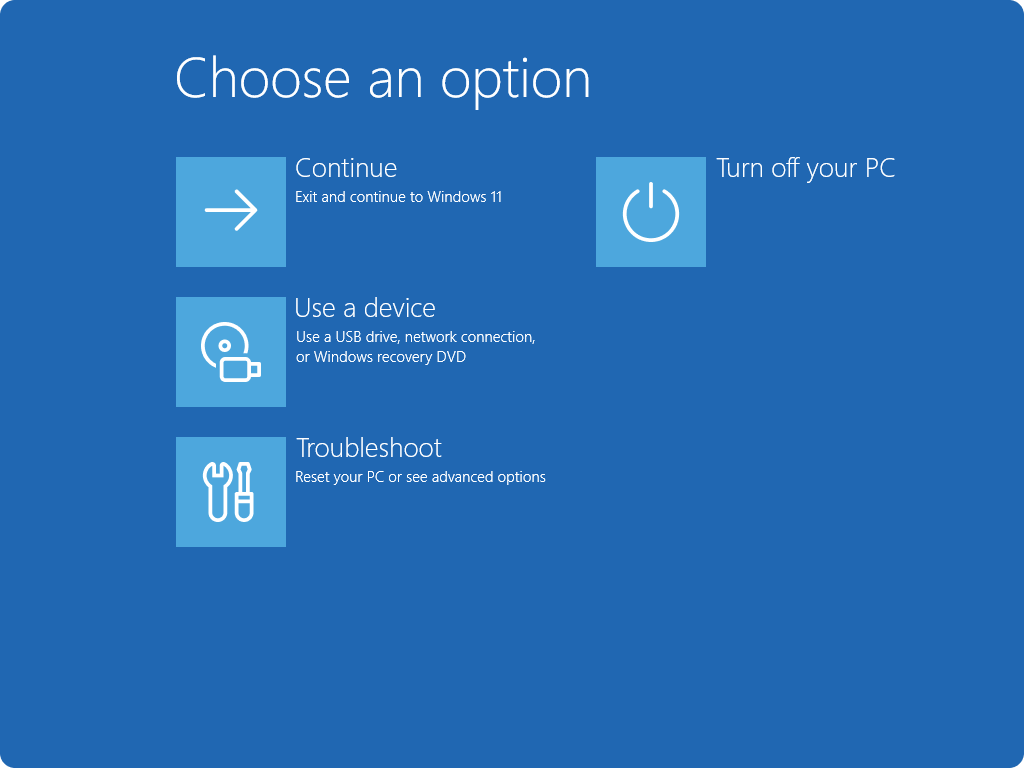
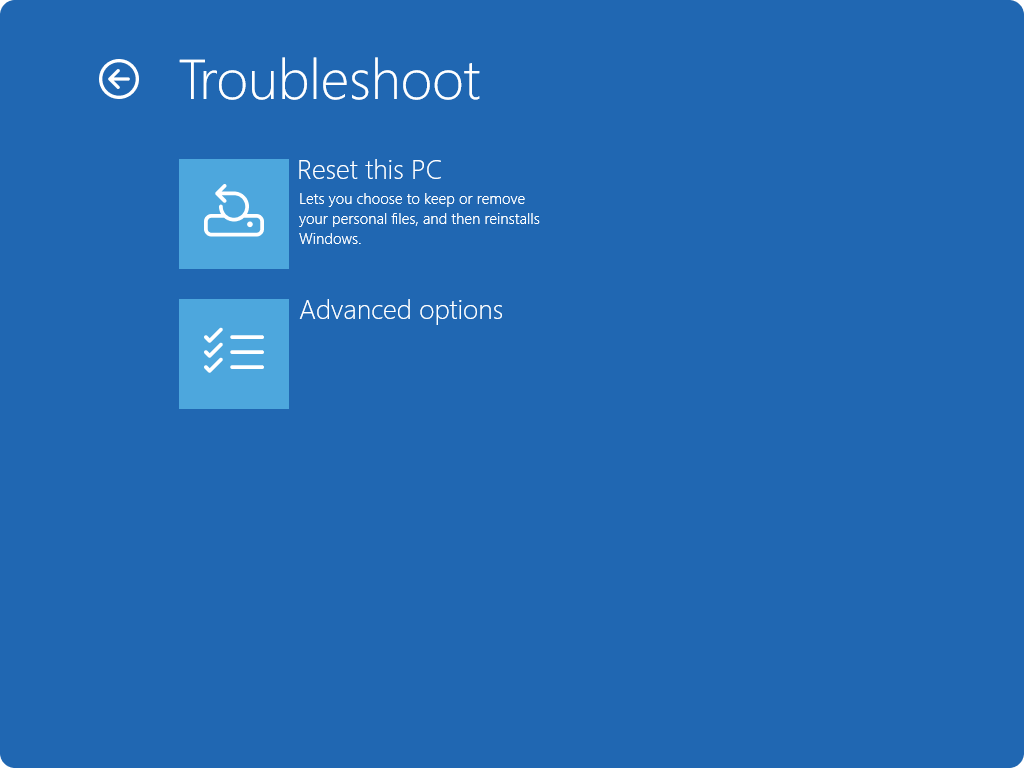
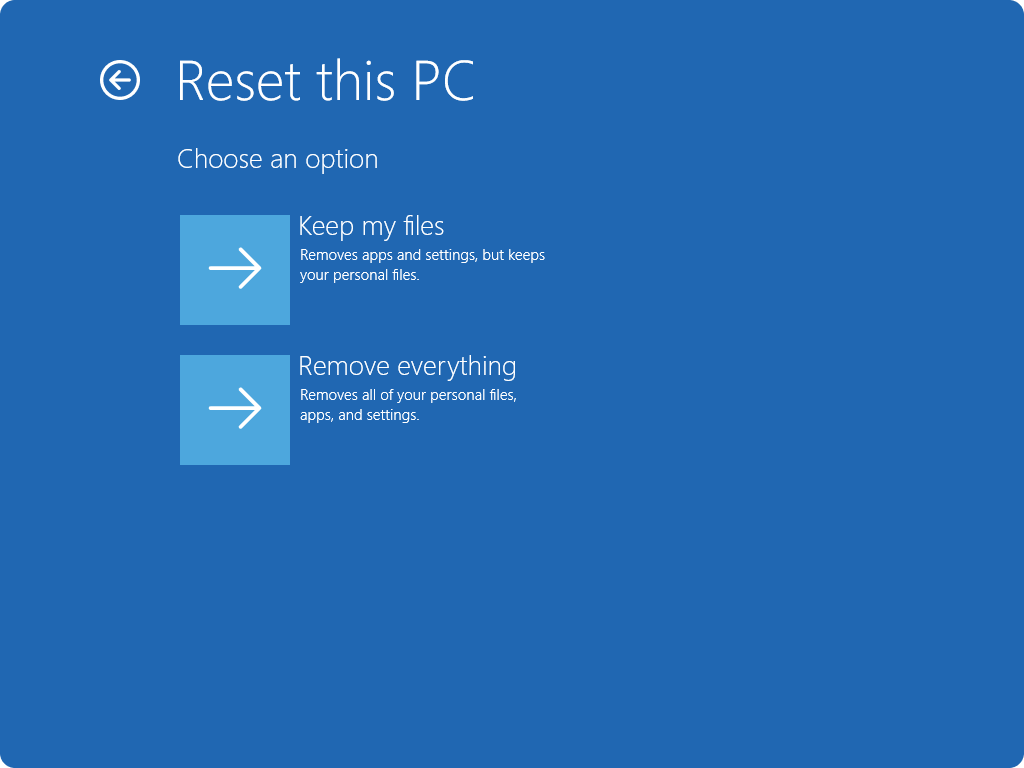
- After the device restarts to Choose an option, select Troubleshoot > Reset this PC.
- Choose Remove everything.
- If prompted, choose to fully clean the drive. This is the recommended option when donating, recycling, or selling the device because it makes removed files harder for other people to recover.
If the normal reset path does not work, use a Surface USB recovery drive instead. Important: this reinstalls Windows, deletes all personal files, resets settings, and removes installed apps.
USB recovery steps:
- Make sure the Surface is turned off and plugged in.
- Insert the USB recovery drive.
- Press and hold Volume Down, then press and release Power.
- When the Microsoft or Surface logo appears, release Volume Down.
- Select the language and keyboard layout.
- Select Recover from a drive or Troubleshoot > Recover from a drive.
- If prompted for a recovery key, select Skip this drive.
- Choose Just remove my files or Fully clean the drive.
- Select Recover.
Notes:
- A reset removes personal files, installed apps, and settings.
- Before resetting, make sure product keys and installation files are available for any desktop apps that may need to be reinstalled later.
- If the device returns to the Choose an option screen again after reset and Windows still does not start, the Surface needs service.
' cx='32' cy='32' r='32' /%3E%3Ctext x='50%25' y='55%25' dominant-baseline='middle' text-anchor='middle' fill='%23FFF' %3EMP%3C/text%3E%3C/svg%3E)