Note
Foundry IQ(Azure AI 搜尋服務)提供直接的索引與查詢 API,並搭配高階知識來源與知識庫 API 用於受控檢索。 使用 Azure 入口網站、REST API 或 Azure SDK 來設定這些功能,或將代理連線到 Microsoft Foundry 入口網站 中的知識庫。
Important
這些功能支援與其他 Microsoft 服務 及第三方服務的連結。 使用這些服務須遵守其各自的條款,可能導致資料處理或儲存超出 Azure 合規邊界,以及資料流入 Azure 合規邊界。
你有責任管理資料是否會超出組織的合規與地理邊界及相關影響,並確保適當的權限、邊界與核准被提供。
你有責任仔細審查並測試你在特定使用情境中所建置的應用程式,並做出所有適當的決策與客製化。 這包括實施你自己負責任的 AI 緩解措施,例如元提示、內容過濾器或其他安全系統,並確保你的應用程式符合適當的品質、可靠性、安全性與可信度標準。 欲了解更多資訊,請參閱 Foundry IQ (Azure AI 搜尋服務) 透明度說明。
提示
本文適用於使用文件版面配置技能的現有管線。 對於新的技能集,請使用 Azure Content Understanding 技能。 此技能提供較新的功能,如語意分塊、AI 生成的影像描述,以及改良的文件嵌入資料表擷取,集中於單一技能中。 要開始,請參考Chunk,並利用Azure內容理解技能將內容向量化。
文字數據區塊化策略在優化RAG回應和效能方面扮演重要角色。 透過使用 文件版面配置 技能,您可以根據文件結構對內容進行分塊、擷取標題並根據語意一致性(例如段落和句子)對內容主體進行分塊。 區塊會獨立處理。 由於 LLM 會使用多個區塊,因此當這些區塊品質較高且語意一致時,查詢的整體相關性就會改善。
[文件版面配置] 技能會呼叫 Foundry Tools 中來自 Azure 文件智慧服務的版面配置模型。 該模型使用 Markdown 語法(標題與內容)以 JSON 表達內容結構,標題與內容欄位則儲存在 Foundry IQ 的搜尋索引中。 從檔版面配置技能產生的可搜尋內容是純文本,但您可以套用整合式向量化,為源檔中的任何字段產生內嵌,包括影像。
在本文中,了解如何:
- 使用檔版面配置技能來辨識文件結構
- 使用文字分割技能來限制每個 Markdown 區塊大小
- 產生每個區塊的內嵌
- 使用索引投影將內嵌對應至搜尋索引中的欄位
為了說明,本文將使用上傳至 Azure Blob 儲存體並使用匯入資料精靈索引的樣本健康方案 PDF。
此程序使用文件版面配置,而非內容理解。 關於獨立的內容理解語意分塊功能,該功能通常在搜尋 REST API 2026-10-01中提供,請參閱 「使用內容理解分區與向量化」。 這兩種技能的處理與輪詢限制不同。
必要條件
一個基於索引器的索引管線 ,其索引可接受輸出。 索引必須有欄位才能接收標題和內容。
一對多索引的索引投影。
支援的資料來源 ,包含您想要分割的文字內容。
具有這兩個技能的技能集:
文件版面配置技能,可依段落邊界分割文件。 若使用基於金鑰的計費,這項技能要求 Microsoft Foundry 必須與 Foundry IQ 處於相同區域,才能進行 AI 豐富化。 無鑰匙計費的區域要求已放寬。
Azure OpenAI 嵌入技能,可產生向量嵌入。 此技能 沒有 區域需求。
準備數據檔
原始輸入必須使用 支援的資料來源 ,且檔案格式必須符合 文件排版技能的支援。
支援的檔案格式包括 PDF、JPEG、JPG、PNG、BMP、TIFF、DOCX、XLSX、PPTX 及 HTML。
支援的索引器是指任何能處理所支援檔案格式的索引器。 這些索引器包括 Blob 索引器、Microsoft OneLake 索引器,以及檔案索引器(預覽版)。
此功能入口網站體驗支援的區域包括美國東部、西歐及美國中北部。 如果你是以程式方式設定技能組,可以使用任何同時提供 Foundry IQ AI 強化功能的 Azure 文件智慧區域。 欲了解更多資訊,請參閱 文件版面技能的支援區域。
您可以使用 Azure 入口網站、REST API 或 Azure SDK 套件來建立數據源。
提示
若要在您自己的 Foundry IQ 服務中嘗試文件版面配置技能與結構感知區塊,請將 健康保險計畫的 PDF 範例檔案上傳至您支援的資料來源。 匯入資料精靈是一個簡單且無程式碼的嘗試方法。 請務必選取 預設剖析模式 ,以使用結構感知區塊處理。 否則,會使用 Markdown 剖析模式 (部分內容可能是機器或 AI 翻譯)。
建立一對多編製索引的索引
以下範例展示了一個以區塊為核心設計的單一搜尋文件。 當你處理區塊時,你需要一個區塊欄位和一個父欄位來識別區塊的起點。 在這個例子中,父欄位是 text_parent_id 欄位。 子欄位是 Markdown 區塊中的向量區塊和非向量區塊。
檔版面配置技能會輸出標題和內容。 在此範例中,header_1 透過 header_3 儲存文件標題,如技能偵測到。 其他內容,例如段落,會儲存在 中 chunk。 欄位 text_vector 是區塊欄位內容的向量表示法。
你可以使用 Azure 入口網站的 匯入資料 嚮導、REST API 或 Azure SDK 來 建立索引。 下列索引與精靈預設建立的內容非常類似。 如果您新增影像向量化,您可能會有更多的欄位。
如果你沒有使用精靈,則在建立技能組或執行索引器之前,索引必須已存在於 Foundry IQ 服務中。
{
  "name": "my_consolidated_index",
  "fields": [
    {
      "name": "chunk_id",
      "type": "Edm.String",
      "searchable": true,
      "filterable": false,
      "retrievable": true,
      "stored": true,
      "sortable": true,
      "facetable": false,
      "key": true,
      "analyzer": "keyword"
    },
    {
      "name": "text_parent_id",
      "type": "Edm.String",
      "searchable": false,
      "filterable": true,
      "retrievable": true,
      "stored": true,
      "sortable": false,
      "facetable": false,
      "key": false
    },
    {
      "name": "chunk",
      "type": "Edm.String",
      "searchable": true,
      "filterable": false,
      "retrievable": true,
      "stored": true,
      "sortable": false,
      "facetable": false,
      "key": false
    },
    {
      "name": "title",
      "type": "Edm.String",
      "searchable": true,
      "filterable": false,
      "retrievable": true,
      "stored": true,
      "sortable": false,
      "facetable": false,
      "key": false
    },
    {
      "name": "header_1",
      "type": "Edm.String",
      "searchable": true,
      "filterable": false,
      "retrievable": true,
      "stored": true,
      "sortable": false,
      "facetable": false,
      "key": false
    },
    {
      "name": "header_2",
      "type": "Edm.String",
      "searchable": true,
      "filterable": false,
      "retrievable": true,
      "stored": true,
      "sortable": false,
      "facetable": false,
      "key": false
    },
    {
      "name": "header_3",
      "type": "Edm.String",
      "searchable": true,
      "filterable": false,
      "retrievable": true,
      "stored": true,
      "sortable": false,
      "facetable": false,
      "key": false
    },
    {
      "name": "text_vector",
      "type": "Collection(Edm.Single)",
      "searchable": true,
      "filterable": false,
      "retrievable": true,
      "stored": true,
      "sortable": false,
      "facetable": false,
      "key": false,
      "dimensions": 1536,
      "stored": false,
      "vectorSearchProfile": "profile"
    }
  ],
  "vectorSearch": {
    "profiles": [
      {
        "name": "profile",
        "algorithm": "algorithm"
      }
    ],
    "algorithms": [
      {
        "name": "algorithm",
        "kind": "hnsw"
      }
    ]
  }
}
定義結構感知區塊化和向量化的技能集
以下範例展示了一套技能組定義,將個別 Markdown 區塊及其向量對應物投影為搜尋索引中的欄位。 它會使用 檔版面配置技能 ,根據源檔中語意一致的段落和句子來偵測標題並填入內容欄位。 它會使用 文字分割技能 將 Markdown 內容分割成區塊。 它會使用 Azure OpenAI 內嵌技能 來向量化區塊,以及您想要內嵌的任何其他字段。
除了技能之外,技能集還包括 indexProjections 和 cognitiveServices:
indexProjections用於含有已分塊文件的索引。 投影會指定父子內容如何對應至搜尋索引中的欄位,以進行一對多索引編製。 如需詳細資訊,請參閱 定義索引投影。cognitiveServices附加一個 Microsoft Foundry 資源以供計費用途。 文件排版技能可透過 標準定價取得。
POST {endpoint}/skillsets?api-version=2026-10-01

{
  "name": "my_skillset",
  "description": "A skillset for structure-aware chunking and vectorization with an index projection around markdown section",
  "skills": [
    {
      "@odata.type": "#Microsoft.Skills.Util.DocumentIntelligenceLayoutSkill",
      "name": "my_document_intelligence_layout_skill",
      "context": "/document",
      "outputMode": "oneToMany",
      "inputs": [
        {
          "name": "file_data",
          "source": "/document/file_data"
        }
      ],
      "outputs": [
        {
          "name": "markdown_document",
          "targetName": "markdownDocument"
        }
      ],
      "markdownHeaderDepth": "h3"
    },
    {
      "@odata.type": "#Microsoft.Skills.Text.SplitSkill",
      "name": "my_markdown_section_split_skill",
      "description": "A skill that splits text into chunks",
      "context": "/document/markdownDocument/*",
      "inputs": [
        {
          "name": "text",
          "source": "/document/markdownDocument/*/content",
          "inputs": []
        }
      ],
      "outputs": [
        {
          "name": "textItems",
          "targetName": "pages"
        }
      ],
      "defaultLanguageCode": "en",
      "textSplitMode": "pages",
      "maximumPageLength": 2000,
      "pageOverlapLength": 500,
      "unit": "characters"
    },
    {
      "@odata.type": "#Microsoft.Skills.Text.AzureOpenAIEmbeddingSkill",
      "name": "my_azure_openai_embedding_skill",
      "context": "/document/markdownDocument/*/pages/*",
      "inputs": [
        {
          "name": "text",
          "source": "/document/markdownDocument/*/pages/*",
          "inputs": []
        }
      ],
      "outputs": [
        {
          "name": "embedding",
          "targetName": "text_vector"
        }
      ],
      "resourceUri": "https://<subdomain>.openai.azure.com",
      "deploymentId": "text-embedding-3-small",
      "apiKey": "<Azure OpenAI api key>",
      "modelName": "text-embedding-3-small"
    }
  ],
  "cognitiveServices": {
    "@odata.type": "#Microsoft.Azure.Search.CognitiveServicesByKey",
    "key": "<Cognitive Services api key>"
  },
  "indexProjections": {
    "selectors": [
      {
        "targetIndexName": "my_consolidated_index",
        "parentKeyFieldName": "text_parent_id",
        "sourceContext": "/document/markdownDocument/*/pages/*",
        "mappings": [
          {
            "name": "text_vector",
            "source": "/document/markdownDocument/*/pages/*/text_vector"
          },
          {
            "name": "chunk",
            "source": "/document/markdownDocument/*/pages/*"
          },
          {
            "name": "title",
            "source": "/document/title"
          },
          {
            "name": "header_1",
            "source": "/document/markdownDocument/*/sections/h1"
          },
          {
            "name": "header_2",
            "source": "/document/markdownDocument/*/sections/h2"
          },
          {
            "name": "header_3",
            "source": "/document/markdownDocument/*/sections/h3"
          }
        ]
      }
    ],
    "parameters": {
      "projectionMode": "skipIndexingParentDocuments"
    }
  }
}
設定和執行索引子
建立完資料來源、索引和技能組後,再 建立並執行索引器。 此步驟會將管線放入執行中。
使用 文件版面技能時,請在索引器定義上設定以下參數:
- 將
allowSkillsetToReadFileData參數設定為true。 - 將
parsingMode參數設定為default。
在這種情況下你不需要設定 outputFieldMappings ,因為 indexProjections 只需處理來源欄位來搜尋欄位關聯。 索引投影會處理文件版面配置技能的欄位關聯,也會使用匯入和向量化資料工作負載的分割技能進行一般區塊化。 對於需要進行轉換,或是涉及使用函式的複雜資料對應等其他情境,您仍然需要設定輸出欄位對應。 不過,對於每個檔的 n 區塊,索引投影會以原生方式處理這項功能。
以下是索引器建立要求的範例。
POST {endpoint}/indexers?api-version=2026-10-01

{
  "name": "my_indexer",
  "dataSourceName": "my_blob_datasource",
  "targetIndexName": "my_consolidated_index",
  "skillsetName": "my_skillset",
  "parameters": {
    "batchSize": 1,
    "configuration": {
        "dataToExtract": "contentAndMetadata",
        "parsingMode": "default",
        "allowSkillsetToReadFileData": true
    }
  },
  "fieldMappings": [
    {
      "sourceFieldName": "metadata_storage_path",
      "targetFieldName": "title"
    }
  ],
  "outputFieldMappings": []
}
當您將請求送至 Foundry IQ 服務時,索引器會執行。
驗證結果
您可以在處理結束后查詢搜尋索引,以測試您的解決方案。
若要檢查結果,請對索引執行查詢。 使用搜尋總管做為搜尋用戶端,或任何傳送 HTTP 要求的工具。 下列查詢會選取包含 Markdown 區段非向量內容及其向量輸出的欄位。
針對 Search Explorer,您可以只複製 JSON,並將它貼到 JSON 檢視中以執行查詢。
POST /indexes/[index name]/docs/search?api-version=[api-version]
{
  "search": "copay for in-network providers",
  "count": true,
  "searchMode": "all",
  "vectorQueries": [
    {
      "kind": "text",
      "text": "*",
      "fields": "text_vector,image_vector"
    }
  ],
  "queryType": "semantic",
  "semanticConfiguration": "healthplan-doc-layout-test-semantic-configuration",
  "captions": "extractive",
  "answers": "extractive|count-3",
  "select": "header_1, header_2, header_3"
}
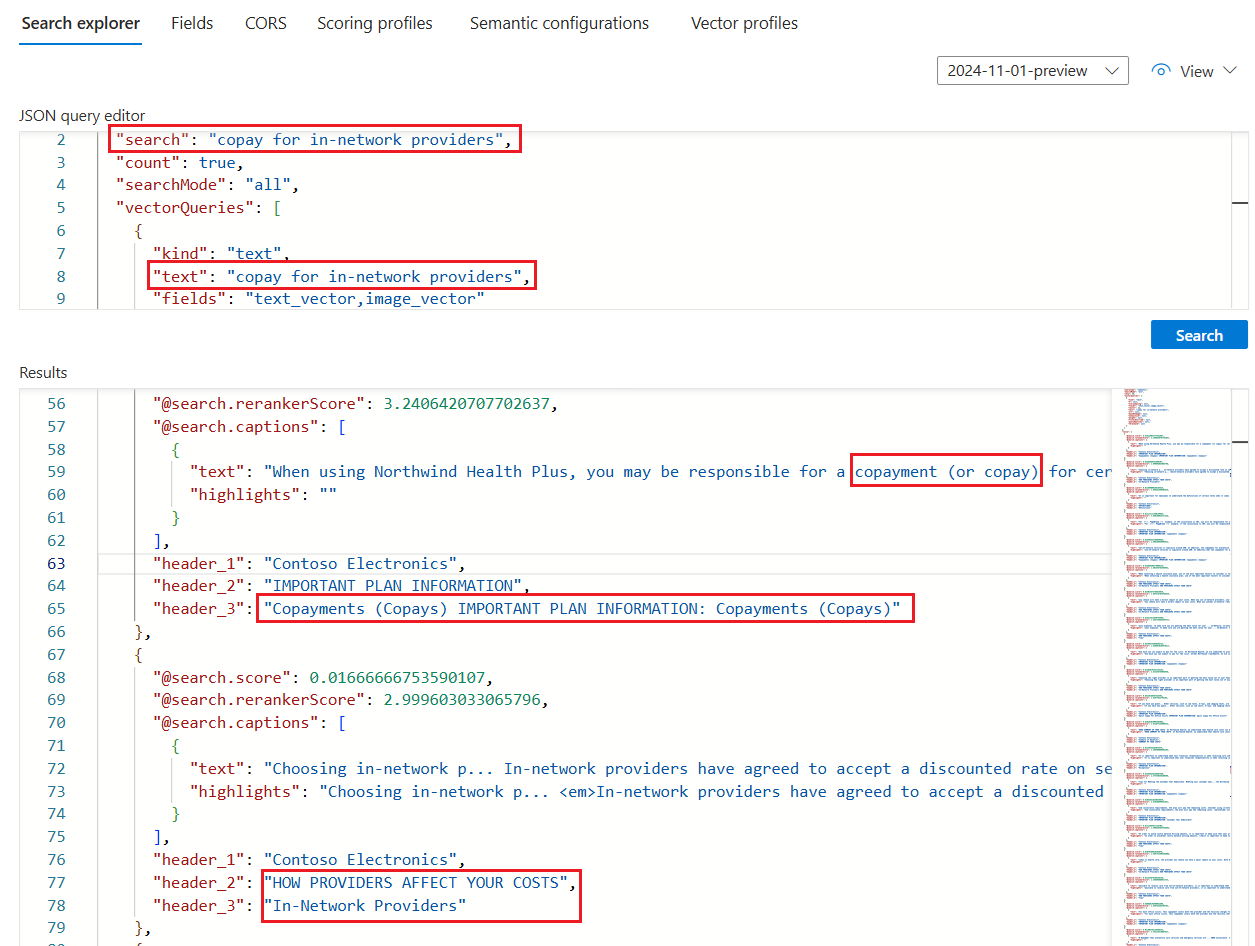
如果您使用健康計劃 PDF 來測試此技能,範例查詢的搜尋資源管理器結果應該看起來類似於下列螢幕快照中的結果。
此查詢是 文字和向量上的混合式查詢 ,因此您會看到
@search.rerankerScore和 結果依該分數進行排名。searchMode=all表示 所有 查詢字詞都必須納入比對條件(預設為 任一)。查詢使用語意排序,所以你會看到
captions。 它也有answers,但它們在截圖中沒有顯示出來。 結果與查詢輸入最有語意相關,由 語意排名器決定。select語句 (未顯示在螢幕快照中) 會指定檔版面配置技能偵測並填入的標頭字段。 您可以將更多欄位新增至 select 子句,以檢查區塊、標題或任何其他人類可讀取字段的內容。