Hello Maria,
Thank you for posting question on Microsoft Windows Forum.
Based on your query of not being able to type "L" on the keyboard.
Well! You can follow below suggested steps to narrow down whether it is a physical hardware failure or a software glitch.
For Physical Troubleshooting.
- Turn the keyboard (or laptop) upside down and gently shake it to dislodge crumbs. If you have a can of compressed air, spray it under the "L" key while holding the keyboard at an angle.
- Check for physical obstruction: Press the key repeatedly. Does it feel "mushy" or sticky? If so, something may be spilled underneath.
- Sometimes a switch contact is dirty. Pressing the key significantly harder than usual a few times might break through a layer of oxidation.
For Software Troubleshooting.
- Try to restart your Computer. A reboot often clears temporary driver glitches.
- Check "Filter Keys" (Windows). This setting ignores brief or repeated keystrokes and often causes single keys to appear unresponsive. Go to Settings > Accessibility > Keyboard. Ensure Filter Keys is turned OFF.
-
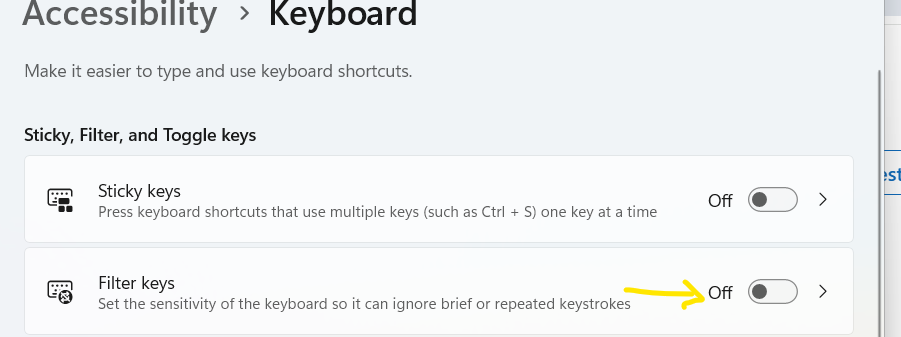
- Reinstall Keyboard Drivers (Windows). Right-click the Start button and select Device Manager. Expand Keyboards. Right-click your keyboard device and select Uninstall device. Restart your computer. Windows will automatically reinstall the driver upon reboot.
Otherwise, you try an immediate workaround by by using the On-Screen Keyboard. Go to Start > Settings > Accessibility > Keyboard and toggle on On-Screen Keyboard. (Or press Win + Ctrl + O).
Hope the above information is helpful! If it is. Free feel to hit "Accepted" for benefitting others in community having the same issue too
' cx='32' cy='32' r='32' /%3E%3Ctext x='50%25' y='55%25' dominant-baseline='middle' text-anchor='middle' fill='%23FFF' %3EMF%3C/text%3E%3C/svg%3E)


' cx='32' cy='32' r='32' /%3E%3Ctext x='50%25' y='55%25' dominant-baseline='middle' text-anchor='middle' fill='%23FFF' %3ECT%3C/text%3E%3C/svg%3E)