Hello,
The website may be reloading because of cached data or cookies stored in your browser. Clearing your browser's cache and cookies may resolve the issue.
Alternatively, open an InPrivate window, visit the Family Safety website, and check whether the page loads without repeatedly refreshing.
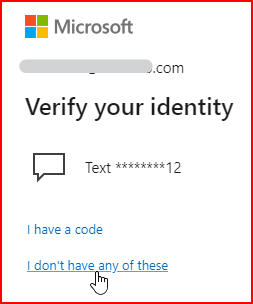
Regarding the second issue, Microsoft is asking you to verify your identity using a phone number that you no longer have access to.
- Could you please confirm whether phone verification is the only verification method available to you?
- Do you have another verification method available, such as an email address or an authenticator app?
If phone verification is the only method you previously added and no other options are available, you will need to replace your security information.
Note:
If you remove all of your previous security information and replace it with something new, your account will be put into a restricted state for 30 days.
' cx='32' cy='32' r='32' /%3E%3Ctext x='50%25' y='55%25' dominant-baseline='middle' text-anchor='middle' fill='%23FFF' %3EYZ%3C/text%3E%3C/svg%3E)

