Microsoft 365 and Office | SharePoint | For business | Windows
A group of Microsoft Products and technologies used for sharing and managing content, knowledge, and applications.

This browser is no longer supported.
Upgrade to Microsoft Edge to take advantage of the latest features, security updates, and technical support.
' cx='32' cy='32' r='32' /%3E%3Ctext x='50%25' y='55%25' dominant-baseline='middle' text-anchor='middle' fill='%23FFF' %3EA3%3C/text%3E%3C/svg%3E)
So I thought this would be easy, but apparently there is a detail I am missing. We recently setup OneDrive with an existing tenant and after a couple of installs we decided we didn't like the name format of the folder displayed in Windows Explorer that OneDrive automatically created.
It was using "Company Name, LLC" for example. Not only was the display name in Windows Explorer showing this, but also the user folder under "C:\users\username\OneDrive - Company Name, LLC"
The goal is to trim the ",LLC" from the end. So after some google'ing I found that you can change the Organization "Name" in the Microsoft 365 admin center. Under "Org settings > Organization profile"
Did that and now on new systems that have never had OneDrive setup, the Windows explorer name and related c:\users folder displays correctly. However, on systems where OneDrive was setup prior to the org name change, it still displays ",LLC".
Nothing I can do seems to change this. I have uninstalled/re-installed OneDrive client. I even went as far as to delete the user profile from one of the Windows systems entirely. Even with a fresh Windows profile and fresh connection of OneDrive, ",LLC" is still displayed.
Can someone shed some light on this please?
Regards,
Adam Tyler
A group of Microsoft Products and technologies used for sharing and managing content, knowledge, and applications.
A Microsoft file hosting and synchronization service.
' cx='32' cy='32' r='32' /%3E%3Ctext x='50%25' y='55%25' dominant-baseline='middle' text-anchor='middle' fill='%23FFF' %3ERG%3C/text%3E%3C/svg%3E)
Hola, a mí me funciono cambiar en el registro los siguientes datos
PASOS:
1.
Nota: S-1-5-21-1912403541-9691325140-3198946145-1001 = les aparecerá uno diferente, ingresan en ese
*Equipo\HKEY_USERS\S-1-5-21-1912403541-9691325140-3198946145-1001\SOFTWARE\Microsoft\OneDrive\Accounts\Business1\Tenants
UpdatedTenantValue = 910 = >CAMBIE POR ESTE VALOR
*Equipo\HKEY_USERS\
S-1-5-21-1912403541-9691325140-31989461451001\SOFTWARE\Microsoft\OneDrive\Accounts\Business1\Tenants\OneDrive - (EMPRESA)
C:\Users(usuario)\OneDrive - (EMPRESA) = 910 => CAMBIE POR ESTE VALOR
este procedimiento permitió que actualizara el Tenant de la empresa el cual se cambió por tener un nombre largo.
Espero les sirva, como a mí.**
' cx='32' cy='32' r='32' /%3E%3Ctext x='50%25' y='55%25' dominant-baseline='middle' text-anchor='middle' fill='%23FFF' %3EHC%3C/text%3E%3C/svg%3E)
Follow below steps to change the name of the Onedrive Folder in windows Explorer:

	• Quite OneDrive
	• Create a folder(give the name you want for your onedrive) at a location where you want your onedrive data to be synced
	• Go to "%LOCALAPPDATA%\Microsoft\OneDrive\settings"
	• Open folder Business1 (it could be Business2 or 3 based on how many accounts you have syncing via OneDrive)
	• Find ".ini" file with the long somewhat random name similar to this: 31c26d83-4db2-4503-a8g0-a3e14e7bcchd.ini

Right click edit - Find the path of your onedrive then change it to the desired path and name
E.g. if it c:\user\onedrive - company name then change it to the same as path of what you have created in 2nd step

Save it and close it
Run OneDrive app - it will throw an error - click try again
' cx='32' cy='32' r='32' /%3E%3Ctext x='50%25' y='55%25' dominant-baseline='middle' text-anchor='middle' fill='%23FFF' %3EAS%3C/text%3E%3C/svg%3E)
I had the same question and the solution mentioned by Himansukh Chauhan did the job perfectly for me.
' cx='32' cy='32' r='32' /%3E%3Ctext x='50%25' y='55%25' dominant-baseline='middle' text-anchor='middle' fill='%23FFF' %3EJS%3C/text%3E%3C/svg%3E)
solution mentioned by Himansukh Chauhan WORKED FOR ME TOO! Thank God.
' cx='32' cy='32' r='32' /%3E%3Ctext x='50%25' y='55%25' dominant-baseline='middle' text-anchor='middle' fill='%23FFF' %3EL%3C/text%3E%3C/svg%3E)
@Himansukh Chauhan you are a lifesaver. I had a previous outdated OneDrive folder named "OneDrive" which contained 99% of my files. When I connected to my new organization, it changed that file to be "OneDrive - organization". This bricked every software or code which referenced anything in the original path. Thank you

Hi @AdamTyler-3751 ,
Good day!
As mentioned in the similar posts:
Changing the OneDrive for Business folder name in Windows 10?
How do I change my OneDrive name?
It is not feasible to change the name of OneDrive folder in the File Explorer.
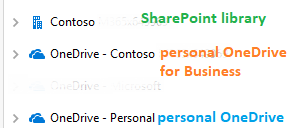
All the personal OneDrive for Business name is like OneDrive - Tenant
All the personal OneDrive(not owned or managed by organizations) is like OneDrive - Personal.
==============================================
As a workaround, you could try the following steps to rename the OneDrive folder:
If the answer is helpful, please click "Accept Answer" and kindly upvote it. If you have extra questions about this answer, please click "Comment".
Note: Please follow the steps in our documentation to enable e-mail notifications if you want to receive the related email notification for this thread.
Thanks @Elsie Lu_MSFT , but I am not trying to change the default behavior of the OneDrive folder. I've changed the tenant name, but only after installing OneDrive for two users. We realized the OneDrive folder name wasn't right after initial tests and changed it. Now for all new users, the name is displayed correctly. For the testing users before rollout, it is still wrong. I've opened a case with Microsoft on this too, they have no idea. Strange something so basic is this challenging.
Regards,
Adam Tyler
' cx='32' cy='32' r='32' /%3E%3Ctext x='50%25' y='55%25' dominant-baseline='middle' text-anchor='middle' fill='%23FFF' %3EG%3C/text%3E%3C/svg%3E)
Hello @Elsie Lu_MSFT ,
how can we ensure, that the org name change can be applied at large scale across an entire organization with thousands of client devices?
Instructing thousands of users to disconnect and reconnect to their OneDrive won't work in our case.
best regards
Gottfried
' cx='32' cy='32' r='32' /%3E%3Ctext x='50%25' y='55%25' dominant-baseline='middle' text-anchor='middle' fill='%23FFF' %3ETF%3C/text%3E%3C/svg%3E)
This doesn't work.
The default name in the org settings in Office 365 was My Company, Inc. making the folder OneDrive - My Company, Inc
This is stupidly verbose, and bad practice for including the comma (lots of potential compatibility problems).
Following the steps above, I unlinked the account, changed the company name in the web portal, changed the folder name in Explorer, then relinked. But step 4 simply doesn't work. When you change the folder location to the modified shorter name ( c:\users\me\OneDrive - Company ), settings attempts to force use of the old name inside the selected path, so you get c:\users\me\OneDrive - Company\OneDrive - My Company, Inc
Obviously this is worse.
Either the company name (with , Inc.) is in the 365 settings in more than one hard-to-discover place, or it's baked in permanently once set.
' cx='32' cy='32' r='32' /%3E%3Ctext x='50%25' y='55%25' dominant-baseline='middle' text-anchor='middle' fill='%23FFF' %3EMA%3C/text%3E%3C/svg%3E)
Thank you Elsie Lu_MSFT, at least your Tutorial is helpful for me. Even though i have to adjustment my way out for this issue.
My Own Steps (For my issue ) are :
' cx='32' cy='32' r='32' /%3E%3Ctext x='50%25' y='55%25' dominant-baseline='middle' text-anchor='middle' fill='%23FFF' %3EHC%3C/text%3E%3C/svg%3E)
Did you get a solution on this mate?
Have the same issue, I have updated my Org Name and even when I Unsync and Resync an existing clinet the old name still appears? - all new machines use the new name, so it's replicated in the cloud...
' cx='32' cy='32' r='32' /%3E%3Ctext x='50%25' y='55%25' dominant-baseline='middle' text-anchor='middle' fill='%23FFF' %3ESM%3C/text%3E%3C/svg%3E)
Working on the same thing here. @AdamTyler-3751 I am finding the same as you did, once you update your Org display name, new users do get the new name. For existing users, it seems the name updates when they get issued a new computer. I haven't been able to dig too deep into this yet for the specific fix but you will likely just need to delete their windows user profile and that should take care of it hopefully. If not, then I guess its deeper in the OS and a reinstall is needed.
' cx='32' cy='32' r='32' /%3E%3Ctext x='50%25' y='55%25' dominant-baseline='middle' text-anchor='middle' fill='%23FFF' %3EJC%3C/text%3E%3C/svg%3E)
I was having a similar issue after an automated azure process changed our organization name. I figured out a fix:
Hope this helps
' cx='32' cy='32' r='32' /%3E%3Ctext x='50%25' y='55%25' dominant-baseline='middle' text-anchor='middle' fill='%23FFF' %3EDM%3C/text%3E%3C/svg%3E)
Jesse - You are a legend, I am in this weekend to reset up a load of devices for a client and rename their org to bring down the number characters in their OneDrive folder and was battering my head against a wall trying to get it to pull through.
The reg change did it first time.
Thank you!
Also I did find an article that stated it takes 24/48 hours for this to happen normally. You still have to re-sync though.
' cx='32' cy='32' r='32' /%3E%3Ctext x='50%25' y='55%25' dominant-baseline='middle' text-anchor='middle' fill='%23FFF' %3EPL%3C/text%3E%3C/svg%3E)
Omg this actually worked. After countless tries, Jesse's instructions worked. Thank you.
' cx='32' cy='32' r='32' /%3E%3Ctext x='50%25' y='55%25' dominant-baseline='middle' text-anchor='middle' fill='%23FFF' %3ER%3C/text%3E%3C/svg%3E)
Hi @Jesse Cook , I tried your solution, but this did not work for me. Interestingly, I unlinked and relinked OneDrive for the same organization on another desktop and it did not have this issue. Any additional insight you have on this would be appreciated.