Outlook | Windows | Classic Outlook for Windows | For business
Using classic Outlook for Windows in business environments

This browser is no longer supported.
Upgrade to Microsoft Edge to take advantage of the latest features, security updates, and technical support.
' cx='32' cy='32' r='32' /%3E%3Ctext x='50%25' y='55%25' dominant-baseline='middle' text-anchor='middle' fill='%23FFF' %3EA%3C/text%3E%3C/svg%3E)
Outlook now automatically adds a Teams Meeting link to any meeting I schedule using Outlook - I would like to permanently disable this for my Outlook as my team only uses Zoom for meetings. There does not seem to be any documentation about this and I have been unable to find anything in preferences that changes it permanently.
Using classic Outlook for Windows in business environments
Additional features, settings, or issues not covered by specific Microsoft Teams categories

' cx='32' cy='32' r='32' /%3E%3Ctext x='50%25' y='55%25' dominant-baseline='middle' text-anchor='middle' fill='%23FFF' %3EJM%3C/text%3E%3C/svg%3E)
Hi @Anonymous
Outlook now automatically adds a Teams Meeting link to any meeting I schedule using Outlook
How did you schedule meeting in Outlook client? Do you mean if you schedule "Any meeting" in Outlook, it will add Teams meeting link?
Based on my knowledge, if you don't want to schedule Teams meeting in Outlook client, you could try to disable it by following these steps:
It has been a while, how is everything going?
If you have any update about this issue, please feel free to post back.
' cx='32' cy='32' r='32' /%3E%3Ctext x='50%25' y='55%25' dominant-baseline='middle' text-anchor='middle' fill='%23FFF' %3EDM%3C/text%3E%3C/svg%3E)
I find it disturbing that MS just went ahead and started assuming that I would use MS Teams for all of my meetings. Believe it or not, people still have face-to-face meetings and use other online meeting software products. This feature turning on by default caused a lot of confusion. The solution below completely disables MS Teams in Outlook. I would still like it as an option, but don't assume that every meeting I schedule will use MS Teams. It's a big overstep.
' cx='32' cy='32' r='32' /%3E%3Ctext x='50%25' y='55%25' dominant-baseline='middle' text-anchor='middle' fill='%23FFF' %3ESR%3C/text%3E%3C/svg%3E)
I couldnt agree more. This is very poor product management.
' cx='32' cy='32' r='32' /%3E%3Ctext x='50%25' y='55%25' dominant-baseline='middle' text-anchor='middle' fill='%23FFF' %3ECM%3C/text%3E%3C/svg%3E)
Didn't this sort of anti-competitive behavior already cost Microsoft a boat load of money 20 years ago? Its exactly what is in their DNA.
' cx='32' cy='32' r='32' /%3E%3Ctext x='50%25' y='55%25' dominant-baseline='middle' text-anchor='middle' fill='%23FFF' %3EGE%3C/text%3E%3C/svg%3E)
First thing I tried before coming here was disabling the add-in but Teams re-enables it automatically the next time you launch a Teams meeting.
' cx='32' cy='32' r='32' /%3E%3Ctext x='50%25' y='55%25' dominant-baseline='middle' text-anchor='middle' fill='%23FFF' %3ETT%3C/text%3E%3C/svg%3E)
Can someone help me find this setting on the Mac version of Outlook?
Mac Outlook is doing the same now.
' cx='32' cy='32' r='32' /%3E%3Ctext x='50%25' y='55%25' dominant-baseline='middle' text-anchor='middle' fill='%23FFF' %3EDS%3C/text%3E%3C/svg%3E)
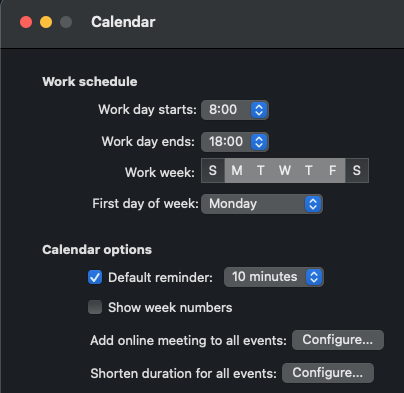
It looks like MS finally added it to the New Outlook for Mac's settings.
I hate that I cannot pick to have a Teams meeting or not. I would like to send meeting request and be able to either ADD a Teams meeting. I do NOT want all of my meeting invites to have a Teams meeting. Disabling this means it is totally disabled. JUNK!
' cx='32' cy='32' r='32' /%3E%3Ctext x='50%25' y='55%25' dominant-baseline='middle' text-anchor='middle' fill='%23FFF' %3ESS%3C/text%3E%3C/svg%3E)
' cx='32' cy='32' r='32' /%3E%3Ctext x='50%25' y='55%25' dominant-baseline='middle' text-anchor='middle' fill='%23FFF' %3EMT%3C/text%3E%3C/svg%3E)
The first recommendation not works for me, and I found below way through a PDF from Uni of Maryland.
Turning Off the Addition of MS Teams Meeting From the Outlook client:
' cx='32' cy='32' r='32' /%3E%3Ctext x='50%25' y='55%25' dominant-baseline='middle' text-anchor='middle' fill='%23FFF' %3EJL%3C/text%3E%3C/svg%3E)
Three things:
What an arrogant, self-serving approach to customers!
Found it for Mac in May 2023 update, no thanks to Jimmy Yang.
Select "Outlook" in upper left top menu
Select "Preferences"
Select "Other, subitem "Calendar"
Look under "Calendar Options" for "Add online meeting to all events"
Click the "Configure" button
Uncheck "Add online meetings to all meetings"
You're welcome.
' cx='32' cy='32' r='32' /%3E%3Ctext x='50%25' y='55%25' dominant-baseline='middle' text-anchor='middle' fill='%23FFF' %3EDG%3C/text%3E%3C/svg%3E)
We're running Office LTSC Pro Plus 2021 and its version is 2108 and I think that's before the "Add online meeting to all events" option was introduced. So I'm finding we have to disable the Teams Add-in in Outlook to stop the behavior but of course that removes all ability in Outlook to schedule a Teams meeting. Any suggestions?
' cx='32' cy='32' r='32' /%3E%3Ctext x='50%25' y='55%25' dominant-baseline='middle' text-anchor='middle' fill='%23FFF' %3EEA%3C/text%3E%3C/svg%3E)
How do we disable automatic Teams meetings in duplicated meeting invitations on Outlook OWA? In my settings, I've unchecked the "automatically add online meeting to all meetings" (seriously do you not employ any copy editors?), but every time I duplicate a meeting invitation, it overrides the existing zoom links and attaches Teams links within the body, along with a "join Teams meeting" button. Even after I once again switch off the "add Teams meeting" button in the Duplication dialog box. Please make it stop.
' cx='32' cy='32' r='32' /%3E%3Ctext x='50%25' y='55%25' dominant-baseline='middle' text-anchor='middle' fill='%23FFF' %3EW%3C/text%3E%3C/svg%3E)
For those of you looking to push a fix to all users via GPO. Put in a Group Policy preference for a delete and change to the HKCU and have the users log off then back on again after running GPUpdate.
Delete the key below from the users registry HKCU(AS THE USER)
HKEY_CURRENT_USER\SOFTWARE\Microsoft\Office\16.0\Outlook\Addins\TeamsAddin.FastConnect
Edit the following key to a value of 1 from 3
HKEY_CURRENT_USER\SOFTWARE\Microsoft\Office\Outlook\Addins\TeamsAddin.FastConnect
' cx='32' cy='32' r='32' /%3E%3Ctext x='50%25' y='55%25' dominant-baseline='middle' text-anchor='middle' fill='%23FFF' %3EKH%3C/text%3E%3C/svg%3E)
Hi Will, sure that will fix the issue because you deactivate the Teams Plugin. But I still wanna use Teams and only don't want to create the meetings automatically

' cx='32' cy='32' r='32' /%3E%3Ctext x='50%25' y='55%25' dominant-baseline='middle' text-anchor='middle' fill='%23FFF' %3EPR%3C/text%3E%3C/svg%3E)
Appreciate the update but this doesn't work for me. First on a practical level, I don't want to disable the Teams add-in, I just want to be allowed to control what appears in video call invites I send out: if I choose Zoom, which I have to for some clients, I don't want there to be a Teams link at the bottom since it confuses the client. On other occasions, I do want to use Teams.
Second, when I go into Preferences-Calendar, under Calendar Options, the box for "add online meetings to all meetings" is already unchecked. (I'm on a Mac, if that makes any difference)
Please advise
Thanks