SQL Server Integration Services
A Microsoft platform for building enterprise-level data integration and data transformations solutions.
This browser is no longer supported.
Upgrade to Microsoft Edge to take advantage of the latest features, security updates, and technical support.
' cx='32' cy='32' r='32' /%3E%3Ctext x='50%25' y='55%25' dominant-baseline='middle' text-anchor='middle' fill='%23FFF' %3EAF%3C/text%3E%3C/svg%3E)
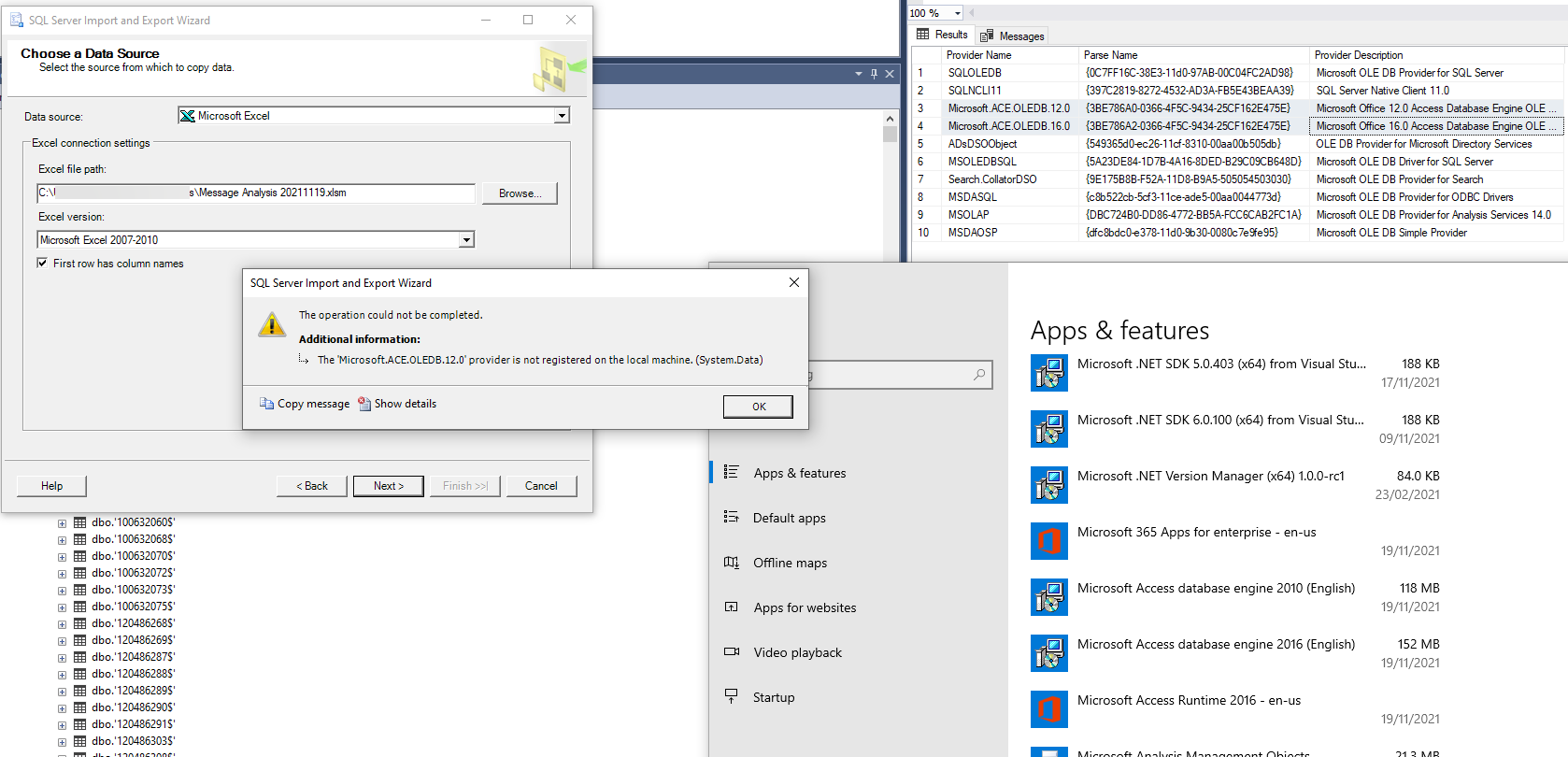
I'm trying to do a simple Excel import into a local SQL Server instance installed on my machine (to do some analysis), I'm attempting to use the wizard through SSMS. This worked a few days ago and I imported a couple of thousand tabs into tables in SQL using the same method. Now when I try to import I get this error:
The 'Microsoft.ACE.OLEDB.12.0' provider is not registered on the local machine. (System.Data)
Looking at other similar questions I've installed the Microsoft Access Database Engine 2010 Redistributable:
https://www.microsoft.com/en-gb/download/details.aspx?id=13255
Also the Microsoft Access Database Engine 2016 Redistributable:
https://www.microsoft.com/en-us/download/details.aspx?id=54920
And finally the Microsoft 365 Access Runtime
execute master.dbo.xp_enum_oledb_providers returns these rows:
Provider Name Parse Name Provider Description
Microsoft.ACE.OLEDB.12.0 {3BE786A0-0366-4F5C-9434-25CF162E475E} Microsoft Office 12.0 Access Database Engine OLE DB Provider
Microsoft.ACE.OLEDB.16.0 {3BE786A2-0366-4F5C-9434-25CF162E475E} Microsoft Office 16.0 Access Database Engine OLE DB Provider
Yet still the same message.
What else can I try?
A Microsoft platform for building enterprise-level data integration and data transformations solutions.
Additional SQL Server features and topics not covered by specific categories
' cx='32' cy='32' r='32' /%3E%3Ctext x='50%25' y='55%25' dominant-baseline='middle' text-anchor='middle' fill='%23FFF' %3EJL%3C/text%3E%3C/svg%3E)
Essentially the SQL Import Wizard requires MDAC. Here: https://www.microsoft.com/en-us/download/confirmation.aspx?id=13255 . Note that you need the plain 32 bit one AccessDatabaseEngine.exe, The x64 one is useless because the Wizard is still 32 bit.
' cx='32' cy='32' r='32' /%3E%3Ctext x='50%25' y='55%25' dominant-baseline='middle' text-anchor='middle' fill='%23FFF' %3EAH%3C/text%3E%3C/svg%3E)
Thanks @Janya Lee Erwin I have been on this for over 24hrs. You are a life saver. Cheers
' cx='32' cy='32' r='32' /%3E%3Ctext x='50%25' y='55%25' dominant-baseline='middle' text-anchor='middle' fill='%23FFF' %3ELU%3C/text%3E%3C/svg%3E)
@Janya Lee Erwin, thanks a lot. It solved my problem. :)
' cx='32' cy='32' r='32' /%3E%3Ctext x='50%25' y='55%25' dominant-baseline='middle' text-anchor='middle' fill='%23FFF' %3ELB%3C/text%3E%3C/svg%3E)
@Janya Lee Erwin super thanks! Such a great help!
' cx='32' cy='32' r='32' /%3E%3Ctext x='50%25' y='55%25' dominant-baseline='middle' text-anchor='middle' fill='%23FFF' %3ERB%3C/text%3E%3C/svg%3E)
@Janya Lee Erwin THANK YOU!! A year+ later and this is still valuable.
' cx='32' cy='32' r='32' /%3E%3Ctext x='50%25' y='55%25' dominant-baseline='middle' text-anchor='middle' fill='%23FFF' %3EIH%3C/text%3E%3C/svg%3E)
I spent a whole day trying to fix this, tried so many solutions, ended up messing up my entire setting and I was about to give up.
Wish I saw this earlier. You're such a hero my brother!
' cx='32' cy='32' r='32' /%3E%3Ctext x='50%25' y='55%25' dominant-baseline='middle' text-anchor='middle' fill='%23FFF' %3ECE%3C/text%3E%3C/svg%3E)
Thank you, after a few tries with the x64 version, I finally found this Q&A and it worked!
' cx='32' cy='32' r='32' /%3E%3Ctext x='50%25' y='55%25' dominant-baseline='middle' text-anchor='middle' fill='%23FFF' %3ESG%3C/text%3E%3C/svg%3E)

' cx='32' cy='32' r='32' /%3E%3Ctext x='50%25' y='55%25' dominant-baseline='middle' text-anchor='middle' fill='%23FFF' %3EAK%3C/text%3E%3C/svg%3E)
Thanks @Janya Lee Erwin , you saved lot of googling time for the fix.
' cx='32' cy='32' r='32' /%3E%3Ctext x='50%25' y='55%25' dominant-baseline='middle' text-anchor='middle' fill='%23FFF' %3EFU%3C/text%3E%3C/svg%3E)
Thank you @Janya Lee Erwin super helpful
' cx='32' cy='32' r='32' /%3E%3Ctext x='50%25' y='55%25' dominant-baseline='middle' text-anchor='middle' fill='%23FFF' %3ECX%3C/text%3E%3C/svg%3E)
This worked perfectly, I used 48hours to search for an answer. wish i found this earlier
' cx='32' cy='32' r='32' /%3E%3Ctext x='50%25' y='55%25' dominant-baseline='middle' text-anchor='middle' fill='%23FFF' %3EAO%3C/text%3E%3C/svg%3E)
@Janya Lee Erwin Thank you so much from me as well! This just saved me after several hours of doing all the original fixes in the OP.
' cx='32' cy='32' r='32' /%3E%3Ctext x='50%25' y='55%25' dominant-baseline='middle' text-anchor='middle' fill='%23FFF' %3EAA%3C/text%3E%3C/svg%3E)
@Janya Lee Erwin Thank you so much!
' cx='32' cy='32' r='32' /%3E%3Ctext x='50%25' y='55%25' dominant-baseline='middle' text-anchor='middle' fill='%23FFF' %3EMO%3C/text%3E%3C/svg%3E)
Many thanks. Solved my problem immediately!
' cx='32' cy='32' r='32' /%3E%3Ctext x='50%25' y='55%25' dominant-baseline='middle' text-anchor='middle' fill='%23FFF' %3ETO%3C/text%3E%3C/svg%3E)
@Janya Lee Erwin Thank you so much. It worked
' cx='32' cy='32' r='32' /%3E%3Ctext x='50%25' y='55%25' dominant-baseline='middle' text-anchor='middle' fill='%23FFF' %3EPA%3C/text%3E%3C/svg%3E)
Thank you @Janya Lee Erwin This worked for me as well. After getting discouraged to proceed with my project for over 2 weeks.
From now on, I am approaching errors with a different mindset.
Bless you!!
' cx='32' cy='32' r='32' /%3E%3Ctext x='50%25' y='55%25' dominant-baseline='middle' text-anchor='middle' fill='%23FFF' %3ERN%3C/text%3E%3C/svg%3E)
' cx='32' cy='32' r='32' /%3E%3Ctext x='50%25' y='55%25' dominant-baseline='middle' text-anchor='middle' fill='%23FFF' %3ESW%3C/text%3E%3C/svg%3E)
@Janya Lee Erwin Thank you so much. I want to do my first portfolio project & you saved from from this pain!!!
' cx='32' cy='32' r='32' /%3E%3Ctext x='50%25' y='55%25' dominant-baseline='middle' text-anchor='middle' fill='%23FFF' %3EA%3C/text%3E%3C/svg%3E)
' cx='32' cy='32' r='32' /%3E%3Ctext x='50%25' y='55%25' dominant-baseline='middle' text-anchor='middle' fill='%23FFF' %3EK%3C/text%3E%3C/svg%3E)
Awesome! I had the 64 Bit version installed and was struggling to get this fixed. Once I uninstalled the 64-bit version and install the 32-bit version, it worked perfectly. Thank you.
' cx='32' cy='32' r='32' /%3E%3Ctext x='50%25' y='55%25' dominant-baseline='middle' text-anchor='middle' fill='%23FFF' %3EBR%3C/text%3E%3C/svg%3E)
I tried using the link provided but received an error "We're sorry, this download is no longer available.". Any ideas? Thanks.
An alternate way around is to save the Excel File as Excel 97-2003 Workbook (.xls)* format and import that xls file instead.
' cx='32' cy='32' r='32' /%3E%3Ctext x='50%25' y='55%25' dominant-baseline='middle' text-anchor='middle' fill='%23FFF' %3ECL%3C/text%3E%3C/svg%3E)
Thank you! This worked for me! But if you have a different solution to this, please let us know (again). :D
' cx='32' cy='32' r='32' /%3E%3Ctext x='50%25' y='55%25' dominant-baseline='middle' text-anchor='middle' fill='%23FFF' %3EAP%3C/text%3E%3C/svg%3E)
I tried using the link provided but received an error "We're sorry, this download is no longer available.". Any ideas? Thanks.
Try running this:
"c:\Program Files\Microsoft SQL Server{your version 140, 150, 160, etc}\DTS\Binn\DTSWizard.exe"
' cx='32' cy='32' r='32' /%3E%3Ctext x='50%25' y='55%25' dominant-baseline='middle' text-anchor='middle' fill='%23FFF' %3EYK%3C/text%3E%3C/svg%3E)
Hi @Alex Fletcher ,
Very possible that it is 32-bit vs. 64-bit issue.
Microsoft ACE Provider has both.
So you can try both options.
There is another way to launch the wizard.
Not inside the SSMS, but via the OS menu.
Here is how to do it:
' cx='32' cy='32' r='32' /%3E%3Ctext x='50%25' y='55%25' dominant-baseline='middle' text-anchor='middle' fill='%23FFF' %3ER%3C/text%3E%3C/svg%3E)
Hi there,
I cannot see Select SQL Server 2017 Export and Import Data (32-bit)
Or SQL Server 2017 Export and Import Data (64-bit)
Do I need to install something else first. Please advise.
' cx='32' cy='32' r='32' /%3E%3Ctext x='50%25' y='55%25' dominant-baseline='middle' text-anchor='middle' fill='%23FFF' %3EWA%3C/text%3E%3C/svg%3E)
Thanks a ton,
it did work..., May Allah ease your way and increase your knowledge.
' cx='32' cy='32' r='32' /%3E%3Ctext x='50%25' y='55%25' dominant-baseline='middle' text-anchor='middle' fill='%23FFF' %3ERG%3C/text%3E%3C/svg%3E)
Thank you very much, this actually works on my end. I already installed Access Database Engine 2010, 2016, and 2014 and it still doesn't work, So thankful I've found your comment!
' cx='32' cy='32' r='32' /%3E%3Ctext x='50%25' y='55%25' dominant-baseline='middle' text-anchor='middle' fill='%23FFF' %3EFS%3C/text%3E%3C/svg%3E)
It is the single good answer for this issue. But very strange, If try to import from SSMS, is not working, but using import from MS SQL Start Menu, works fine.
' cx='32' cy='32' r='32' /%3E%3Ctext x='50%25' y='55%25' dominant-baseline='middle' text-anchor='middle' fill='%23FFF' %3EWM%3C/text%3E%3C/svg%3E)