Microsoft Security | Microsoft Authenticator
A Microsoft app for iOS and Android devices that enables authentication with two-factor verification, phone sign-in, and code generation

This browser is no longer supported.
Upgrade to Microsoft Edge to take advantage of the latest features, security updates, and technical support.
' cx='32' cy='32' r='32' /%3E%3Ctext x='50%25' y='55%25' dominant-baseline='middle' text-anchor='middle' fill='%23FFF' %3EI%3C/text%3E%3C/svg%3E)
Hello everyone
I was able to transfer my office 365 records to a new phone, using a cloud backup.
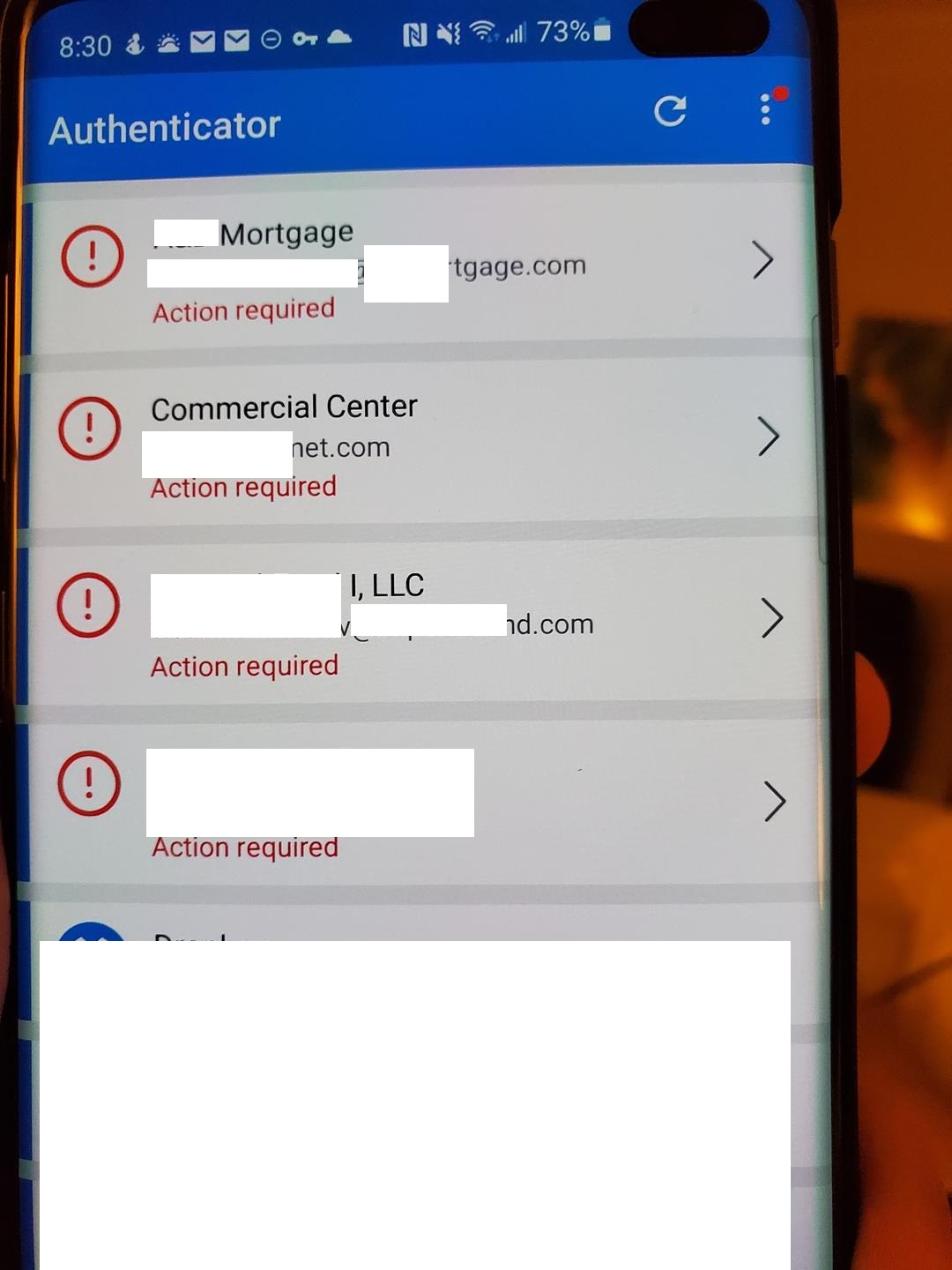
But I see an error that I need to activate them all again, that is, go through the full setup again. I have a lot of such records, the question is, what is the point of a backup if you need to configure everything again?
Is there any way to turn off this setting so that activation is not required again after the backup?
See attachments
A Microsoft app for iOS and Android devices that enables authentication with two-factor verification, phone sign-in, and code generation

@Ilya
Thank you for your post!
When it comes to the screenshots you uploaded are you able to try re-uploading them so I can gain a better understanding of your issue.
If you have any other questions, please let me know.
Thank you for your time and patience throughout this issue.
@Ilya
Thank you for the follow up on this!
Since you switched to a new phone, adding the Microsoft Authenticator to your new device doesn't automatically remove the app from your old device. Even deleting the app from your old device isn't enough. You must both delete the app from your old device AND tell Microsoft or your organization to forget and unregister the old device.
For more info - Common problems with the Microsoft Authenticator app
If you have any other questions, please let me know.
Thank you for your time and patience throughout this issue.
Hello James!
I think we misunderstood each other.
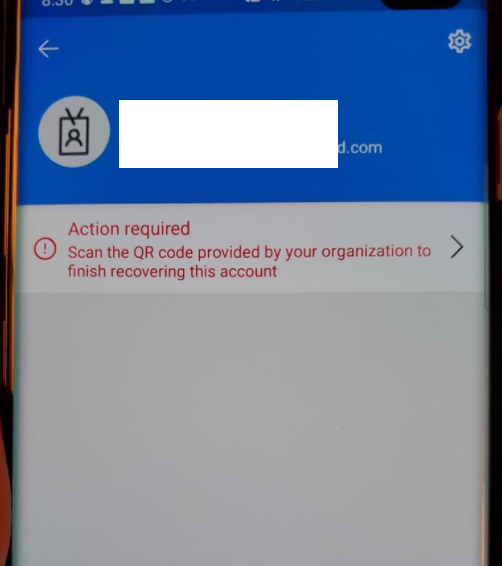
My question is why, when transferring data to a new phone, I see an error on my office 365 accounts - An action is required. Scan the QR code provided by your organization to complete the recovery of this account. Because of this error, I have to completely re-configure all office 365 accounts. From the very beginning
How to avoid this? Where is it possible to disable it? Or where to get a QR code?
I'm from the IT department, you can write to me directly.
' cx='32' cy='32' r='32' /%3E%3Ctext x='50%25' y='55%25' dominant-baseline='middle' text-anchor='middle' fill='%23FFF' %3EBG%3C/text%3E%3C/svg%3E)
I normally use Aegis Authenticator, but for a specific need of my office I had to use Microsoft Authenticator. Some stupid authentication thing where instead of asking for a 6 digit code the web app displays a 2 digit code that I type on Ms Authenticator on the phone and it communicates behind the scenes to unlock the web app. Convenient, but when I had a problem the only fix was to waste a day going through support at my office so that someone would reset the account. Needless to say they weren't amused by my consuming their time. And now that I need to transfer between phones (at least twice over the next month) I will need to do request it for several accounts twice. Stupid to say the least.
What I expected from Microsoft Authenticator:
And to add insult to injury... Ms Authenticator demands very elevated access rights. Talk about a security nightmare, from an app that is supposed to be protecting your security.
@Ilya
Thank you for the clarification on this!
Based off our Back up and recover account credentials in the Authenticator app documentation, what you're seeing within your app - Scan the QR code provided by your organization..., is by design, and is needed in order to recover your account. You can only disable this by removing your account from the authenticator app via the Account Security or My Apps page, along with from within your App. To find the QR code you can reference our Set up the Microsoft Authenticator app or Set up Security info from a sign-in page documentation.
Recover accounts requiring more verification:
If you use push notifications with your personal or work or school accounts, you'll get an on-screen alert that says you must provide additional verification before you can recover your information. Because push notifications require using a credential that's tied to your specific device and never sent over the network, you must prove your identity before the credential is created on your device.
For personal Microsoft accounts, you can prove your identity by entering your password along with an alternate email or phone number. For work or school accounts, you must scan a QR code given to you by your account provider.
If you have any other questions, please let me know.
Thank you for your time and patience throughout this issue.
----------
Please remember to "Accept Answer" if any answer/reply helped, so that others in the community facing similar issues can easily find the solution.
' cx='32' cy='32' r='32' /%3E%3Ctext x='50%25' y='55%25' dominant-baseline='middle' text-anchor='middle' fill='%23FFF' %3ERS%3C/text%3E%3C/svg%3E)
If a different organization/company has given you access to a sharepoint/onedrive and now you have switched to a new phone using the back up option described in "Back up and recover account credentials in the Authenticator app" you will receive the message "Scan the QR code provided by your organization..." under all the external accounts.
Under My Account click organizations on the top right and follow Set up the Microsoft Authenticator app as your verification method for each organization you need to verify by scanning the QR code.
' cx='32' cy='32' r='32' /%3E%3Ctext x='50%25' y='55%25' dominant-baseline='middle' text-anchor='middle' fill='%23FFF' %3ERG%3C/text%3E%3C/svg%3E)
Hello,
Im about to change my work phone but i have around 60 accounts setup within the microsoft authenticator app. Reading the answere above, it means i will have to re-setup all of the MFA on the phone? Can you image how long will it take to re-setup all the accounts on it? Is there any way to transwer this to the new phone and O365 tenancy will update automatically with the new phone details?
Thanks
Roland
' cx='32' cy='32' r='32' /%3E%3Ctext x='50%25' y='55%25' dominant-baseline='middle' text-anchor='middle' fill='%23FFF' %3EF%3C/text%3E%3C/svg%3E)
Actually, if I recall correctly, you only need to do it for the master account the backup is done through. It's weird that they show it on all of the entries as if each one needs it individually, but in reality doing it for the primary account the app is using will fix them all.

I did same mistake, during first start you need to select retrieve from backup and not go futher. But I found out that if you just delete identities from old phone, you still can logon later to MS services and re-register MS Auth App again.
' cx='32' cy='32' r='32' /%3E%3Ctext x='50%25' y='55%25' dominant-baseline='middle' text-anchor='middle' fill='%23FFF' %3EEM%3C/text%3E%3C/svg%3E)
Wow, this has been a problem for over 2 years? I also have about 80 accounts for which Microsoft Authenticator is now broken. Dashlane and LastPass have ZERO problems. Google Authenticator has ZERO problems. Authy, zero problems.
Which app is a preposterous POS? Microsoft Authenticator. Microsoft's concept of a "backup" is a list of broken accounts? Absurd.
I would go farther and say Microsoft Authenticator is a trap. It tricks you into putting accounts into a POS which will become a future time vampire. How many of its users have discovered its backup is not a backup?
Your MFA codes backup is literally garbage with Microsoft--let that sink in. Your backup of your MFA codes is not sufficient to recover your keys--think again about what this really means.
Get Google Authenticator or literally any other product and never Microsoft. Lesson learned.
Hi, it's been a while since I've had to do it, but if I recall correctly, it's only the master account the backup is performed through that needs to be verified. Doing this should automatically fix the rest. At least, that's what I remember for me. It is weird, though, that it shows the error on all of the accounts and I fully agree that it shouldn't.
' cx='32' cy='32' r='32' /%3E%3Ctext x='50%25' y='55%25' dominant-baseline='middle' text-anchor='middle' fill='%23FFF' %3ERM%3C/text%3E%3C/svg%3E)
Same issue here , we need a solution I’m an IT admin with over 50 accounts and it will take me multiple days to get this fixed . No issues with Google Authenticator but ofcourse an issue with Microsoft