Hello Gregory Hart,
Thank you for providing the detailed information.
Since the installer continues to install Project Professional 2019, the first point to verify is whether the Project Professional 2024 product key was fully redeemed and linked to the Microsoft account you are currently checking.
For a new retail product key, Microsoft recommends redeeming it at www.office.com/setup or Microsoft365.com/setup while signed in with the Microsoft account you want to associate with the license. After redemption, the same account should be used to download, install, and activate the product.
Could you please confirm the following?
- Did you redeem the key through www.office.com/setup or Microsoft365.com/setup?
- Did the redemption page clearly identify the product as Project Professional 2024?
- Did you receive a confirmation email showing Project Professional 2024?
- Do you have another Microsoft account that may have been used during the redemption?
- If you enter the key again, does Microsoft display a message stating that the product key has already been used?
Since your purchase included a product key, you may also try changing the license directly in Project:
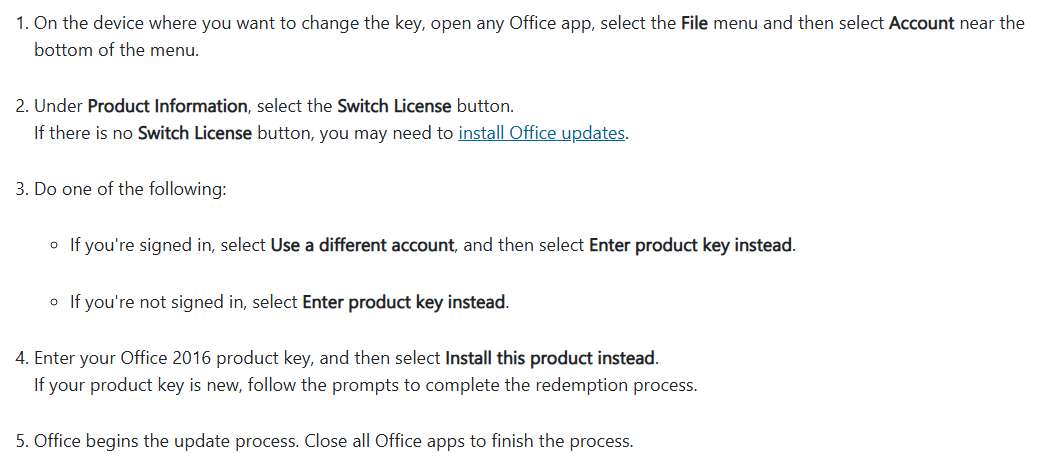
Microsoft’s instructions for changing a product key apply to Project Professional 2024. If the Switch License option is not available, install the latest Office updates and check again: Change your Office product key | Microsoft Support
Please note that switching the license changes the license used by the locally installed application. It may not resolve the issue if Project Professional 2024 was redeemed under another Microsoft account or if the redemption was not completed correctly.
If Microsoft reports that the key has already been used, do not continue entering the key. Instead, sign in to the Microsoft account originally used to redeem it and install the product from that account. Microsoft states that once a key has been redeemed, the linked Microsoft account is used for future installations.
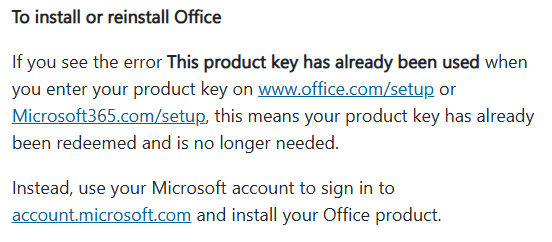
You can refer to the following Microsoft documentation: Where to enter your Office product key | Microsoft Support
If the key was redeemed successfully to your current Microsoft account but Project Professional 2024 still does not appear under Products you’ve purchased, I recommend contacting Microsoft Support to have the redemption and license entitlement checked. If Microsoft cannot validate the key or confirms that it belongs to a different licensing channel, you may need to contact the retailer again.
Please do not post the full product key publicly.
I hope this information helps.
Best regards,
' cx='32' cy='32' r='32' /%3E%3Ctext x='50%25' y='55%25' dominant-baseline='middle' text-anchor='middle' fill='%23FFF' %3EGH%3C/text%3E%3C/svg%3E)

' cx='32' cy='32' r='32' /%3E%3Ctext x='50%25' y='55%25' dominant-baseline='middle' text-anchor='middle' fill='%23FFF' %3EDN%3C/text%3E%3C/svg%3E)