Outlook | Web | Outlook.com | Calendar
Scheduling and managing events using Outlook.com calendar

This browser is no longer supported.
Upgrade to Microsoft Edge to take advantage of the latest features, security updates, and technical support.
' cx='32' cy='32' r='32' /%3E%3Ctext x='50%25' y='55%25' dominant-baseline='middle' text-anchor='middle' fill='%23FFF' %3EMC%3C/text%3E%3C/svg%3E)
How to change date and time bi weekly meeting on outlook.
Scheduling and managing events using Outlook.com calendar
' cx='32' cy='32' r='32' /%3E%3Ctext x='50%25' y='55%25' dominant-baseline='middle' text-anchor='middle' fill='%23FFF' %3EMP%3C/text%3E%3C/svg%3E)
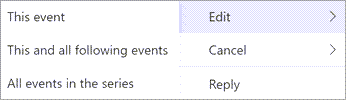
Open your Outlook Calendar and locate the bi-weekly meeting. Double-click the meeting to open it. Next, choose to edit a single event, the entire series, or this and all following events. Editing a single event changes only that occurrence. Editing the series changes the meeting time or recurrence pattern for all occurrences, including past meetings. Editing this and all following events changes the selected occurrence and future meetings while leaving past meetings unchanged.
Adjust the date or time fields as needed. If you need to change the recurrence interval, click the Recurrence button on the ribbon and verify that the meeting is set to repeat every two weeks.
On the calendar grid, double-click a meeting you've created to open it.
You'll have the following options:
You also have the option to press and hold (or right-click) the event to select Edit or Cancel from the context menu.
If the above response helps answer your question, remember to "Accept Answer" so that others in the community facing similar issues can easily find the solution. Your contribution is highly appreciated.
hth
Marcin
AI answer
To change the day and time of a bi-weekly Outlook.com meeting, open it from Calendar, select Edit, choose which part of the recurring series to change, update the date and time, and select Send.^1^
Only the meeting organizer can change and send updates for a meeting with attendees.^2^
If the new schedule should start from a particular date, select that occurrence and use This and all following events. This avoids changing meetings that already occurred.
References