How to set white SVG file visible in PPT Brand Image Bank

Laura M 0 Reputation points
2026-10-20T06:26:41.4666667+00:00

Problem
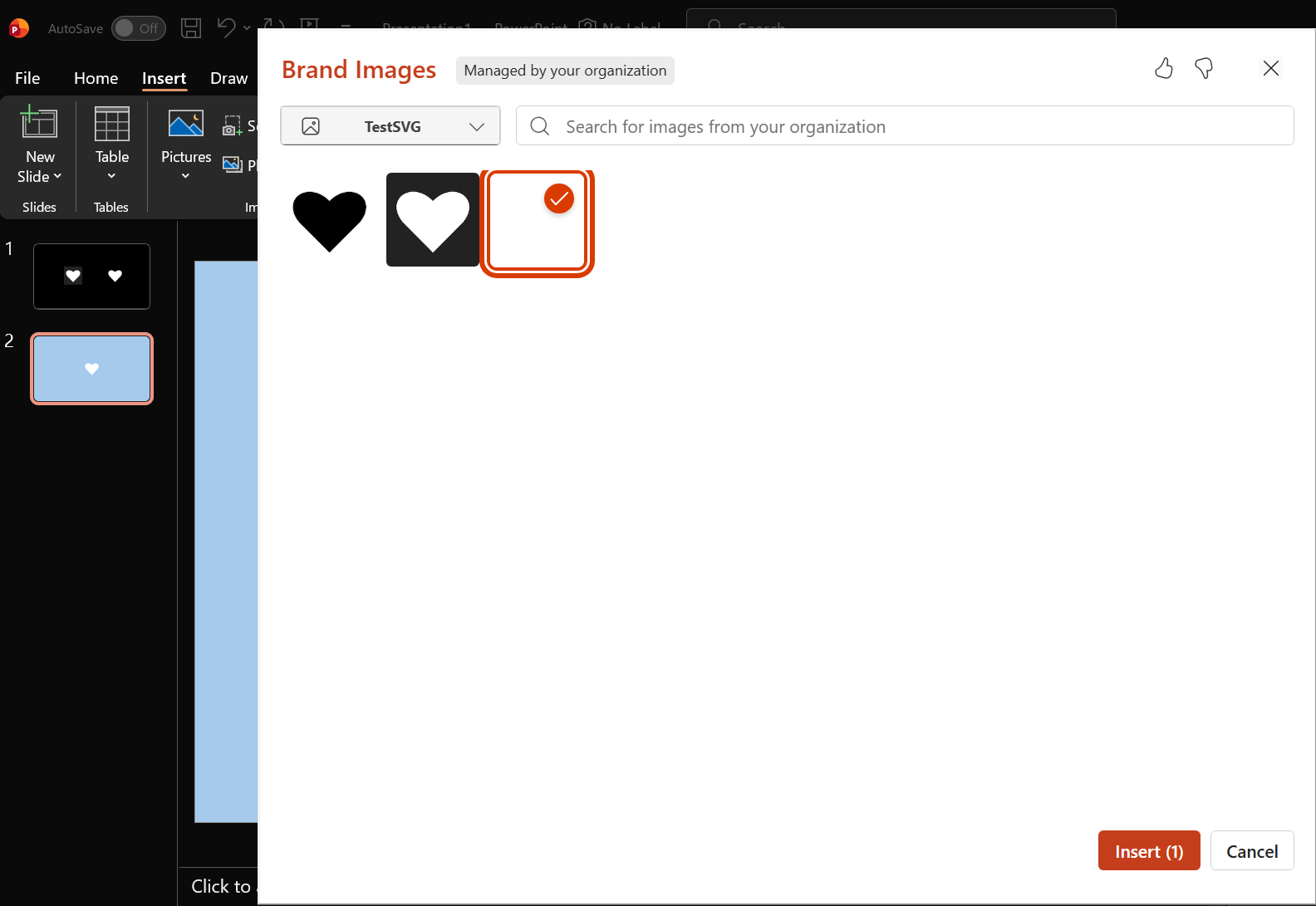
We have encountered a problem with white vector SVG files that are not visible at PPT's Brand Image Bank. See the image attached. In order to use them people should be able to see which one to pick.

What I have tried all ready

  • I tried solid colour in the background of the SVG but of course that comes along when I place it in PPT, so that is not an option.
  • I have also tried to set the Microsoft theme to black with no result.

More info

  • All SVG's are in our organisations sharepoint.
  • The SVG files should work for over 100 people and editing the SVG file in PPT is not an option.
  • We are using the latest MS365 and desktop PPT.
  • We are using PC

Is there any way to fix this problem?
Thank you in advance for any help!

Näyttökuva 2026-10-20 091847

Microsoft 365 and Office | PowerPoint | For business | Windows
0 comments No comments

1 answer

Sort by: Oldest
  1. Dora-T 2,075 Reputation points Independent Advisor
    2026-10-20T07:30:56.57+00:00

    Hi @Laura M

    I tested this scenario in my own environment using Brand Images in PowerPoint and observed the same behavior. Based on my testing and research, I couldn't find a setting to customize the background color of SVG thumbnails in the Brand Images picker. The available Microsoft documentation doesn't mention this option either.

    As a result, there doesn't appear to be a supported way to change the thumbnail background to make white SVG assets more visible.
    User's image

    If this makes it difficult for users to identify white SVG assets, I recommend submitting feedback through https://feedbackportal.microsoft.com/feedback so the product team can review your feedback.

    I know this may not be the answer you were hoping for, but I hope this information helps clarify the situation.

    Was this answer helpful?

    2 people found this answer helpful.

Your answer

Answers can be marked as 'Accepted' by the question author and 'Recommended' by moderators, which helps users know the answer solved the author's problem.