Hello, thank you for reaching out to Microsoft Q&A.
Method 1
Run the System File Checker utility scan.
Open the Command Prompt administrator window. Run these commands one by one and click Enter for each command.
dism /online /cleanup-image /restorehealth

sfc /scannow
See if this resolves the issue.
Method 2
Check the Registry editor -
Click Windows + R, type regedit, and click ok.
Navigate to
Computer\HKEY_LOCAL_MACHINE\SOFTWARE\Microsoft\Windows\CurrentVersion\Policies\Explorer.
On the right side, check that the value data of the 'No Close' registry entry is set to 0.
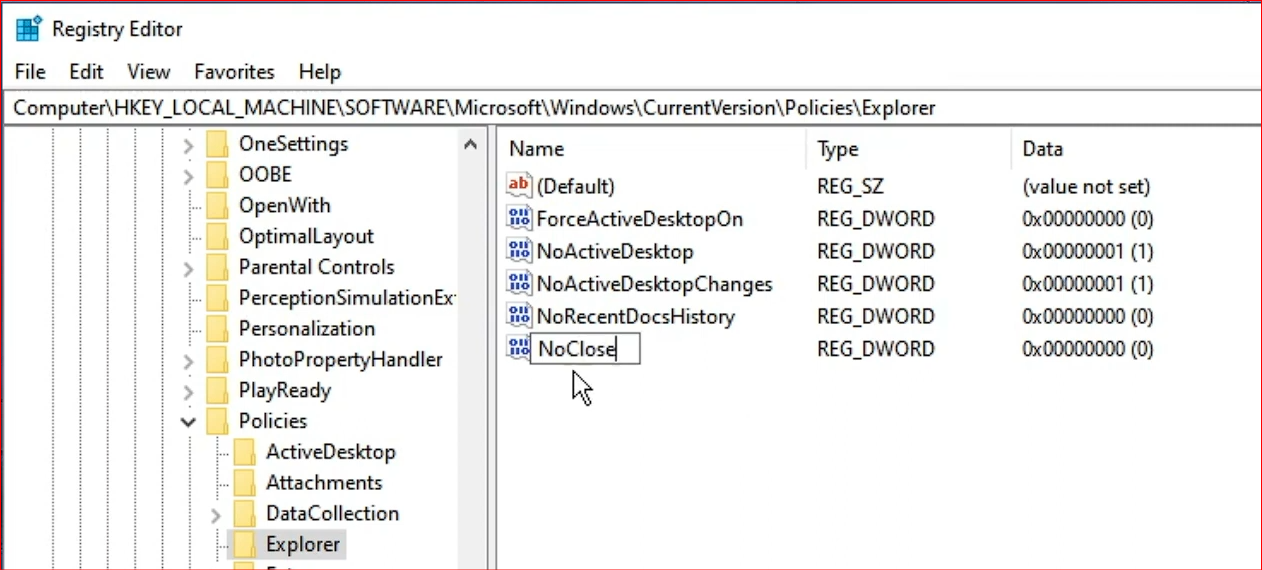
If the 'NoClose' registry is missing, right-click the empty area, select New > DWORD(32-bit value) > Name the registry as NoClose.
Set the value data to 0.
Click Ok.
Close the Registry Editor.
Then, open Command prompt as Administrator.
Run the commands one by one.
taskkill /im explorer.exe /f

explorer.exe
Check the power options on your system.
Disclaimer: Generally, modifying registry subkeys or work group is intended for advanced users, administrators, and IT Professionals. It can help fix some problems, however, serious problems might occur if you modify the registry incorrectly. Therefore, make sure that you follow these steps carefully. For further protection, back up the registry before you modify it. Then, you can restore the registry if a problem occurs. For more information about how to back up and restore the registry, click How to back up and restore the registry in Windows - Microsoft Support to view the article.
How to back up and restore the registry in Windows
' cx='32' cy='32' r='32' /%3E%3Ctext x='50%25' y='55%25' dominant-baseline='middle' text-anchor='middle' fill='%23FFF' %3EDT%3C/text%3E%3C/svg%3E)

' cx='32' cy='32' r='32' /%3E%3Ctext x='50%25' y='55%25' dominant-baseline='middle' text-anchor='middle' fill='%23FFF' %3ETB%3C/text%3E%3C/svg%3E)


