
thanks for share, on my case, i change value on Regedit Path: HKEY_LOCAL_MACHINE\SYSTEM\CurrentControlSet\Services\LanmanWorkstation\Parameters
"RequireSecuritySignature" value 1 to 0
This browser is no longer supported.
Upgrade to Microsoft Edge to take advantage of the latest features, security updates, and technical support.
' cx='32' cy='32' r='32' /%3E%3Ctext x='50%25' y='55%25' dominant-baseline='middle' text-anchor='middle' fill='%23FFF' %3ERH%3C/text%3E%3C/svg%3E)
Hi Sir
i have two PCs:
PC-A: Windows 10 1909
PC-B: Windows 7 (have a shared folder)
everything working well when PC-A is Windows 10 1803, after upgrade to 1909,
i will get below error when accessing PC-B shared folder "You can’t access this shared folder because your organization’s security policies block unauthenticated guest access"
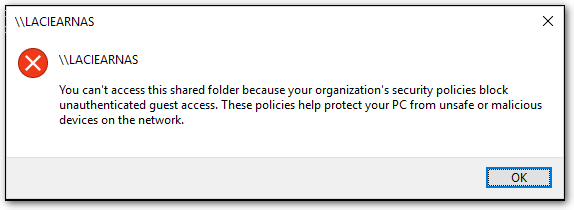
after search on google, get the common solution is enable "Insecure guest logons" in GPO.
https://support.microsoft.com/en-us/help/4046019/guest-access-in-smb2-disabled-by-default-in-windows-10-and-windows-ser
but i do not want to enable the insecure setting in GPO.
so the question is how can i config the PC-B that can meet the Win10-1909 security policy in order to allow me to access the PC-B shared folder?
Thanks,
Ray
Locked Question. You can vote on whether it's helpful, but you can't add comments or replies or follow the question.
' cx='32' cy='32' r='32' /%3E%3Ctext x='50%25' y='55%25' dominant-baseline='middle' text-anchor='middle' fill='%23FFF' %3EA%3C/text%3E%3C/svg%3E)
Just want to confirm the current situations.
Please feel free to let us know if you need further assistance.
' cx='32' cy='32' r='32' /%3E%3Ctext x='50%25' y='55%25' dominant-baseline='middle' text-anchor='middle' fill='%23FFF' %3EMM%3C/text%3E%3C/svg%3E)
I had same problem but I have fixed by this tutorial.... https://www.youtube.com/watch?v=vyatMj1Z2NQ&ab Hope it will help you
' cx='32' cy='32' r='32' /%3E%3Ctext x='50%25' y='55%25' dominant-baseline='middle' text-anchor='middle' fill='%23FFF' %3EMM%3C/text%3E%3C/svg%3E)
THANK YOU! After a few hours of struggle you just helped me solve my problem. Thanks for being a great lad. :)
' cx='32' cy='32' r='32' /%3E%3Ctext x='50%25' y='55%25' dominant-baseline='middle' text-anchor='middle' fill='%23FFF' %3END%3C/text%3E%3C/svg%3E)
Hello, I am facing this type of error. I've tried the listed and it still doesn't work. I was still okay doing it the other day. Might it be related to this updates? The numbers KB5004237 and KB5005539?
' cx='32' cy='32' r='32' /%3E%3Ctext x='50%25' y='55%25' dominant-baseline='middle' text-anchor='middle' fill='%23FFF' %3EJM%3C/text%3E%3C/svg%3E)
I don't know if I can get on board with this fix. It's bypassing security mechanisms, which is never a good thing.
' cx='32' cy='32' r='32' /%3E%3Ctext x='50%25' y='55%25' dominant-baseline='middle' text-anchor='middle' fill='%23FFF' %3ENN%3C/text%3E%3C/svg%3E)
this was i met wwhen i unsafe PC for that

I feel the same way Jamie, sacrifice one thing to save the other doesn't seem like a clever idea
' cx='32' cy='32' r='32' /%3E%3Ctext x='50%25' y='55%25' dominant-baseline='middle' text-anchor='middle' fill='%23FFF' %3EOM%3C/text%3E%3C/svg%3E)
thanks for share, on my case, i change value on Regedit Path: HKEY_LOCAL_MACHINE\SYSTEM\CurrentControlSet\Services\LanmanWorkstation\Parameters
"RequireSecuritySignature" value 1 to 0
' cx='32' cy='32' r='32' /%3E%3Ctext x='50%25' y='55%25' dominant-baseline='middle' text-anchor='middle' fill='%23FFF' %3EFF%3C/text%3E%3C/svg%3E)
Instead edit a regedit rule, you can edit a Local Group Policy. This only works on Windows 11 Pro
' cx='32' cy='32' r='32' /%3E%3Ctext x='50%25' y='55%25' dominant-baseline='middle' text-anchor='middle' fill='%23FFF' %3EQI%3C/text%3E%3C/svg%3E)
This is happening in mostly the newer version of windows 11 and windows server 2019 and above for security reasons. Here is the solution if you want to bypass this Unauthenticated Guest Access
https://blog.itgranules.com/how-to-fix-the-unauthenticated-guest-access-issue-in-shared-folders
' cx='32' cy='32' r='32' /%3E%3Ctext x='50%25' y='55%25' dominant-baseline='middle' text-anchor='middle' fill='%23FFF' %3EC%3C/text%3E%3C/svg%3E)
I believe I was seeing this issue when I tried to access a network share folder. I had the correct logon credentials for the network share, but it didn't allow me to enter the credentials when I tried to access the network share folder. Confusingly, a different account on the same machine was able to provide credentials and open the shared folder.
What ended up working for me was adding the credential information to the Windows Credential vault for the network location of the share. By just adding the username, I was able to enter the credentials when I attempted to open the shared folder. Adding the credential to the vault appears to satisfy the network logon requirement for non-guest access.
' cx='32' cy='32' r='32' /%3E%3Ctext x='50%25' y='55%25' dominant-baseline='middle' text-anchor='middle' fill='%23FFF' %3EA%3C/text%3E%3C/svg%3E)
1- Run and write GPEdit Enter
2- follow the graph
' cx='32' cy='32' r='32' /%3E%3Ctext x='50%25' y='55%25' dominant-baseline='middle' text-anchor='middle' fill='%23FFF' %3EE%3C/text%3E%3C/svg%3E)