Hello @AE,
With regard to your issue, I’d like to share a few insights.
When you copy and paste images from Snipping Tool into PowerPoint, the images are embedded directly inside the PPT file and are not linked to SharePoint or to any local folder. Because of this, if the PowerPoint file becomes corrupted, the embedded images inside the PPT can disappear, while the original screenshots in the local Screenshots folder remain completely unaffected and intact.
Your also mentioned that “after the PowerPoint gets corrupted, the images disappear entirely, even from the ZIP file, and the HTML file has no path to any of the images.” Could you please confirm if this was the result after following the steps outlined below:
1/ Navigate to the .pptx file
2/ Right‑click the file and select Rename
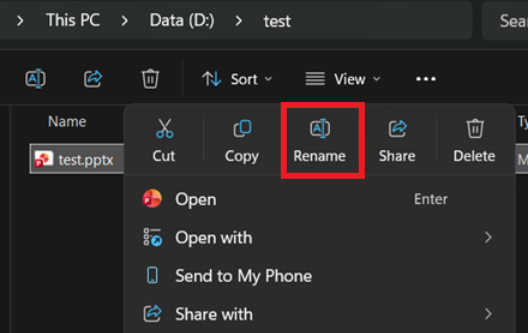
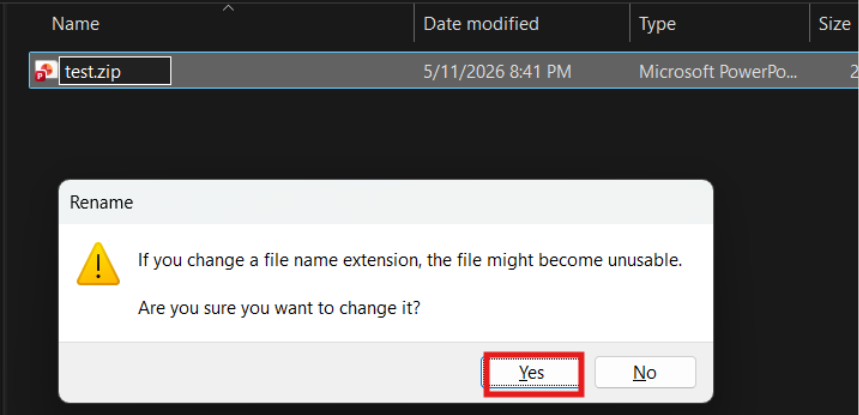
3/ Change the extension from .pptx (or .pptm) to .zip and confirm
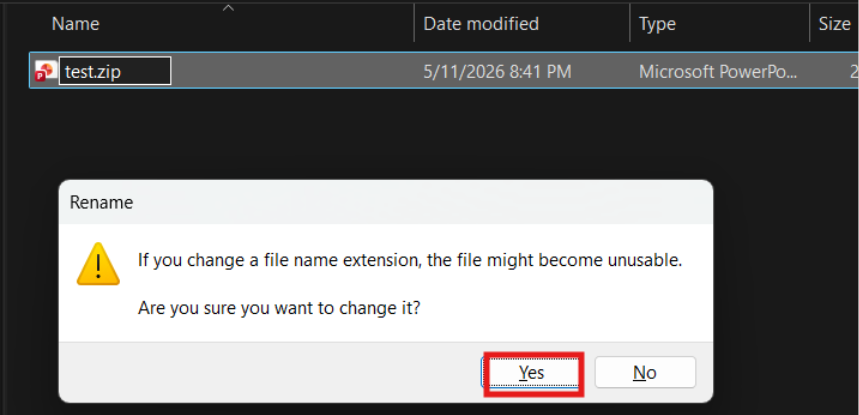
4/ Right‑click the ZIP file and select Extract All
5/ Open the extracted folder and go to ppt > media, images will locate here.
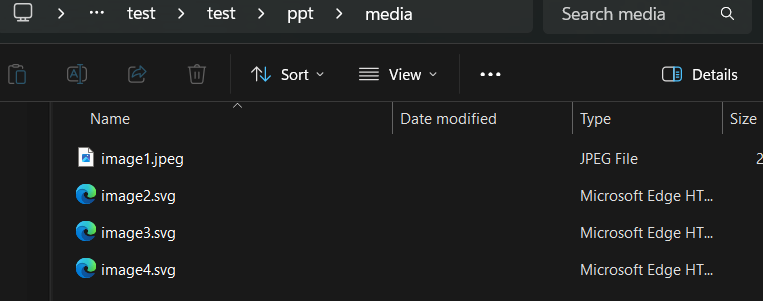
The embedded (inserted) images will locate here.
In addition, I noticed that you received the error of the file being locked and thus unable to be saved previously. Could you please share the screenshots of this issue (Kindly remove any personal information from the screenshot)?
Regarding to your question,
1/ Do you need SharePoint enabled to insert or keep images?
No. SharePoint is not required and disabling it does not cause this behavior if you are saving the image under local machine.
2/ If I have Nextcloud, which syncs both my Pictures and Desktop folders for backup, would this cause issues?
Once the image has been copied and pasted into PowerPoint, it is embedded inside the presentation and no longer depends on the original image file or its location.
3/ Would using PowerPoint on the web avoid this?
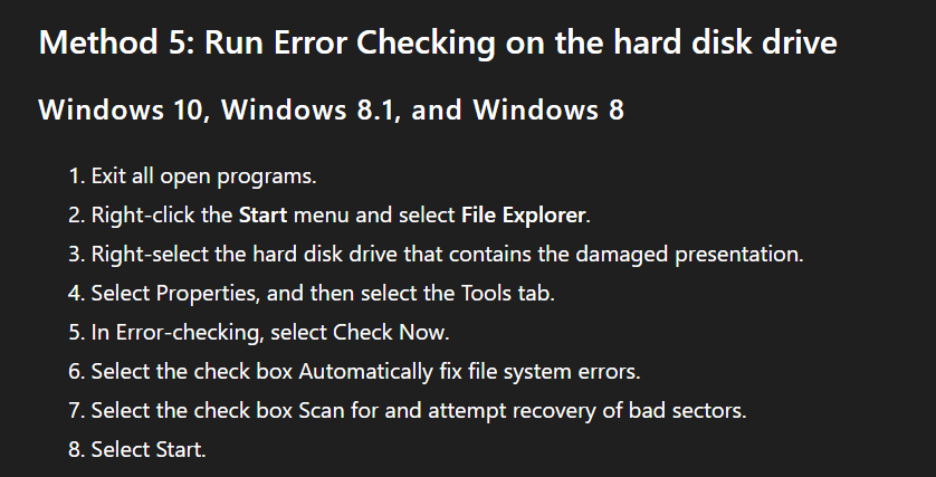
PowerPoint file corruption might link to local processes on the PC. There are Microsoft troubleshooting article that also mention checking the hard drive when PowerPoint files become corrupted: Troubleshoot a damaged presentation in PowerPoint - Microsoft 365 Apps | Microsoft Learn, which indicates the issue can be device related. For this reason, my recommendation is to use PowerPoint on the web, as it saves directly to the cloud and can help avoid problems caused by local storage or disk‑related issues.
I hope you find this information helpful. If anything is unclear, please don’t hesitate to reach out to me.
Note: If you have any extra questions about this answer, please click "Comment."
If you want to receive the related email notification for this thread, please follow the steps in our documentation to enable e-mail notifications.
' cx='32' cy='32' r='32' /%3E%3Ctext x='50%25' y='55%25' dominant-baseline='middle' text-anchor='middle' fill='%23FFF' %3EA%3C/text%3E%3C/svg%3E)


' cx='32' cy='32' r='32' /%3E%3Ctext x='50%25' y='55%25' dominant-baseline='middle' text-anchor='middle' fill='%23FFF' %3END%3C/text%3E%3C/svg%3E)