Hi B Anderss,
Thanks for posting back.
Based on your reply, I suggest you try the following suggestions and then check again. You can share the test results with us.
- Check the PowerPoint setting
Go to File> Options> Advanced> under the Display section, make sure that the "Disable Slide Show hardware graphics acceleration" option is unchecked.
If it is checked, please uncheck it and then restart PowerPoint and play the video again.
- Check the relevant registry key
Close and quit PowerPoint first
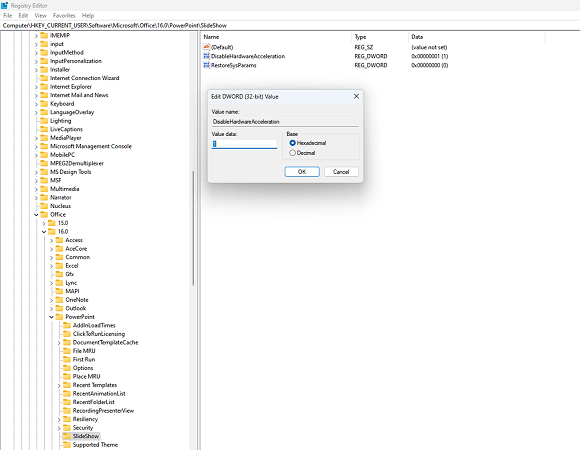
Press Win + R, in the Run box, type regedit, click OK to open Registry Editor, then go to the following location
HKEY_CURRENT_USER\SOFTWARE\Microsoft\Office\16.0\PowerPoint\SlideShow
- If you can see the DisableHardwareAcceleration value, please double-click it and make sure its value data is 1.
- If you don't see such a value, right-click in the right-hand pane and add a DWORD value 1 with name DisableHardwareAcceleration.
Additionally, I suggest you disable hardware graphics acceleration for the entire Office.
Go to the following location
HKEY_CURRENT_USER\SOFTWARE\Microsoft\Office\16.0\Common\
Right-click on the Common key> New> Key. Name the new key as "Graphics". Select the "Graphics" key, right-click in the right-hand pane> New> DWORD (32-bit) Value. Rename the value as DisableHardwareAcceleration and set its value to 1.
After that, restart PowerPoint and check again.
WARNING*: Using Registry Editor incorrectly can cause serious problems that may require you to reinstall your operating system. Microsoft cannot guarantee that problems resulting from the incorrect use of Registry Editor can be solved. Use Registry Edit at your own risk.*
- I suggest you perform a clean boot in Windows, then run PowerPoint and check again. This can help us to troubleshoot if it is caused by any startup items in Windows.
- . Switch to another Windows user profile
If you don’t have another Windows user profile, please try the steps in the "Switch user" section and sign into another account, such as your personal account), run PowerPoint, and check again. This can help us to troubleshoot whether the issue is caused by the local environment in your original Windows user profile.
If none of the above suggestions help, I would like to gather more information to troubleshoot.
- You mentioned that you have tried uninstalling and reinstalling but it didn't work. May I know how you uninstalled Office? I would like to double-check whether you uninstall it through "Windows settings> Apps & features (Apps)" or through the uninstall support tool.
- Are your colleagues experiencing the same problem? I suggest you transfer the presentation containing the MP4 video to their device and check if the problem occurs.
We look forward to your response. Thanks for your cooperation.
Sincerely,
George | Microsoft Community Moderator
' cx='32' cy='32' r='32' /%3E%3Ctext x='50%25' y='55%25' dominant-baseline='middle' text-anchor='middle' fill='%23FFF' %3EA%3C/text%3E%3C/svg%3E)
