Outlook | Windows | Classic Outlook for Windows | For business
Using classic Outlook for Windows in business environments

This browser is no longer supported.
Upgrade to Microsoft Edge to take advantage of the latest features, security updates, and technical support.
' cx='32' cy='32' r='32' /%3E%3Ctext x='50%25' y='55%25' dominant-baseline='middle' text-anchor='middle' fill='%23FFF' %3ESZ%3C/text%3E%3C/svg%3E)
Dears,
when I try to import outlook calender with the comma seperator template I exported from my existing calender, it is always not working to add any participants(the calender itselft is imported successfully, I can receive the reminder). To be mentioned, I use the email address like ******@qq.com of the participants, who are in the same email organizaiton with me. I want to use this canlender to remind my teams for some irregular but important date in future. Did I miss anything?
I'm looking forward to your answers, thanks so much in advance!
Using classic Outlook for Windows in business environments
' cx='32' cy='32' r='32' /%3E%3Ctext x='50%25' y='55%25' dominant-baseline='middle' text-anchor='middle' fill='%23FFF' %3EJL%3C/text%3E%3C/svg%3E)
Hi @Sarah Zeng ,
when I try to import outlook calender with the comma seperator template I exported from my existing calender
How did you export the .csv file(via Outlook or others)?
And what's the version of your Outlook client(File>Office account>About Outlook), please first ensure that you have updated to the latest version.
According to my tests, I have tried to export a .csv file from my calendar in Outlook 365 version 2106, I could invite other attendees to those items that I imported from my .csv file , and the recipient would receive the meeting invitation and choose accept or decline normally. Here are my detailed steps, please kindly check if there are any differences between mine and yours.
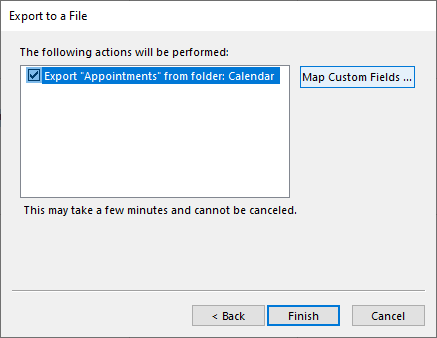
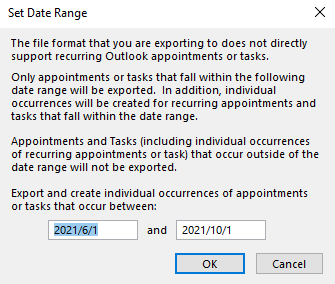
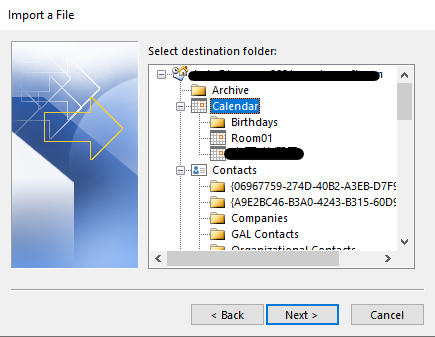
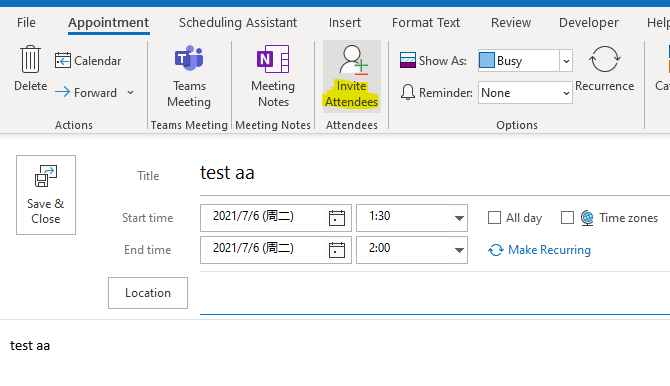
If your steps is same with mine or the issue still exists after you perform same tests, in order to avoid the interference of the orginal .csv file itself, it's recommended to create a new .csv file and re-import it to check if the issue has any differences.
If your issue has any update, please feel free to post back :)
Update:
I understand that you would like to import a .csv file to your calendar only and set the reminder directly for the attendee who is based on your file, is it right? If so, please first understand the premise of setting a reminder for others is sending a meeting invitation to them, and according to my tests , it couldn't send the meeting invitation automatically through importing the .csv file to Outlook only in spite of there's "required attendee" in .csv file, so we need to add the attendee mannually as I mentioned above.
For your requirement, I think the vba script may be helpful, due to here we mainly focus on general issues on Outlook desktop client and know little about script, if you are interested about it , you could try to research the information about outlook and excel script. Also, when you need relevant assistance about script development, you could also post your script issue in dedicated development forum . I have also researched and tested a lot about it and found a script, which could work when you add an attendee only, for your reference:
Create .csv like below:

Run the script in Excel (Alt + F11)(Notice: we need to add the reference to run it via Tools>Reference >check the outlook object ):
Option Explicit

Sub AddAppointments()

  Dim myoutlook As Object
  Dim r As Long
  Dim myapt As Object


  Const olAppointmentItem = 1
  Const olBusy = 2
  Const olMeeting = 1


  Set myoutlook = CreateObject("Outlook.Application")


  r = 2

  Do Until Trim$(Cells(r, 1).Value) = ""
    Set myapt = myoutlook.CreateItem(olAppointmentItem)
    With myapt
      .Subject = Cells(r, 1).Value
      .Start = Cells(r, 2).Value + Cells(r, 3).Value
      .Recipients.Add Cells(r, 7).Value
      .MeetingStatus = olMeeting
        .BusyStatus = olBusy

      If Cells(r, 6).Value > 0 Then
        .ReminderSet = True
        .ReminderMinutesBeforeStart = Cells(r, 6).Value
      Else
        .ReminderSet = False
      End If
      .Save
      r = r + 1
      .Send
    End With
  Loop
End Sub
Hope it could be helpful to you.
If the response is helpful, please click "Accept Answer" and upvote it.
Note: Please follow the steps in our documentation to enable e-mail notifications if you want to receive the related email notification for this thread.
Hi Jade,
thanks for your response. my steps are the same with yours except the last step.
The reason for me to import calender by csv is in order not to add attendees mannually, but per my understanding of your steps, we need to add attendee and send the invitaiton one by one after importing calender ?
I want to add the attendees by this impoted csv file instead of mannual inviting, is it doable?
I suppose you can understand Chinese, here is what I really want:
我希望通过日历导入的方式,导入一系列未来需要提醒的日历事件,这些提醒不仅能提醒我自己,同时也能提醒他人。而他人是通过导入的方式直接添加而不是手工添加,因为导入的模板里是有“必须参会者”这一列的。
Hi @Sarah Zeng ,
Due to the word limit in comment, I have updated my answer above, please klindly check the part of "Update" :)
Hi Jade,
I used your script to run it in VBA, but still I cannot send the appointment to others, only myself can received the reminder. I don't know what's wrong. have you ever tried to invite more than 1 attendees?
I changed this code from
.Recipients.Add Cells(r, 7).Value
to .Recipients.Add (@qq.com)
then it works.
and we can add more than .Recipients.Add (@qq.com) if we want to add more than 1 attendees.
thanks a lot!
Hi @Sarah Zeng ,
Glad to see your issue has been resolved, I have indeed tested on my environment and it could work normally there, but I'm not sure why it couldn't work for you.
Anyway thanks for your kind sharing! Have a nice day :)