Laptop model: Lenovo Thinkbook ITL 15 Gen 2
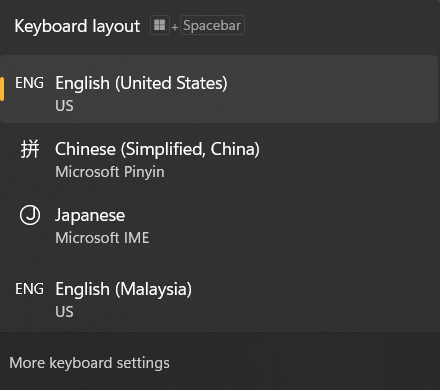
My keyboard shows 2 English language in the layout. This is annoying when I cycle through the language using alt+shift key.
Here's the screenshot of the keyboard layout
And here's the screen shot of the settings
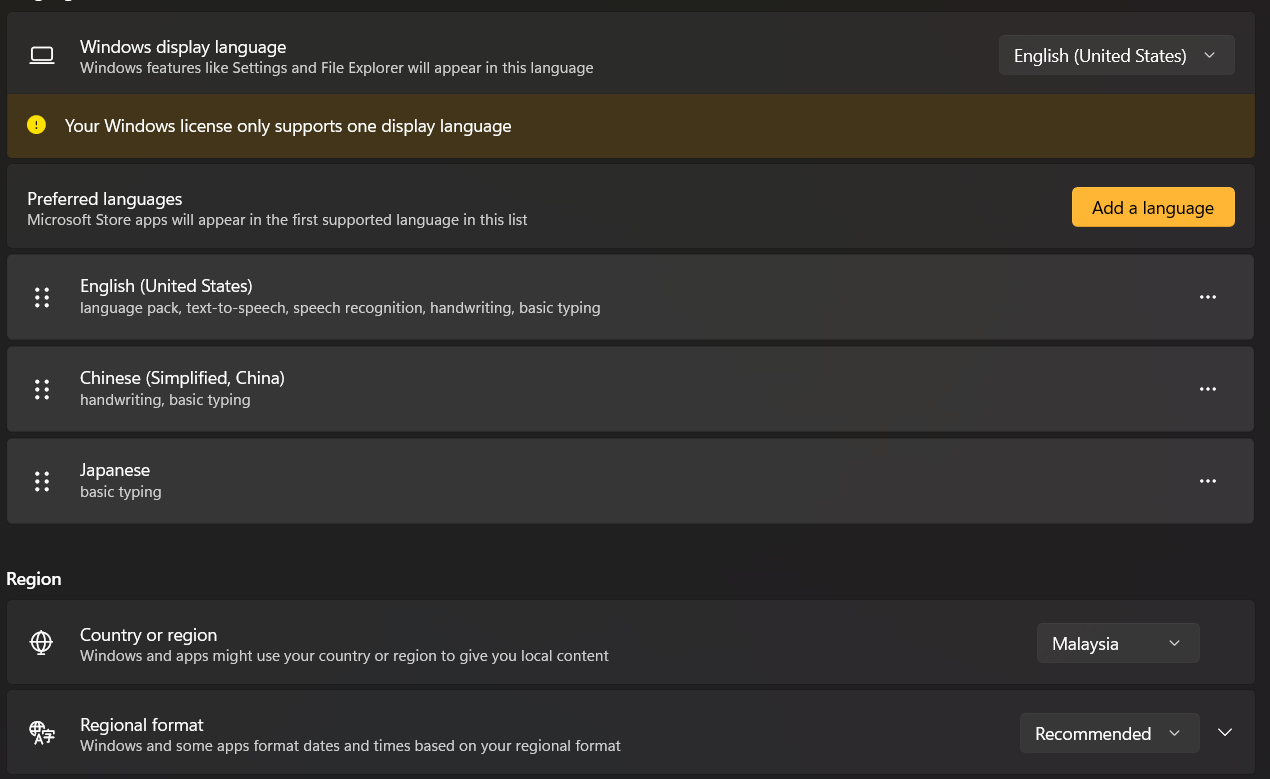
As you can see from the setting screenshot, there's only 3 keyboards that are turned on.
But for some unknown reason, the keyboard layout shows 4.
I have tried installing English (Malaysia) and remove it, which successfully fixed the keyboard layout back to 3 (English (US), Chinese (Simplified) and Japanese).
But the problem rearises when I restarted the computer. The layout somehow shows 4 languages again (English (US), Chinese (Simplified), Japanese, English (Malaysia)).
I also have tried switching to English (Malaysia) instead of English (United States), again the keyboard layout is back to 3 (English (Malaysia), Chinese (Simplified), Japanese).
But and again, the problem rearises when I restarted the computer. The layout shows 4 languages (English (Malaysia), Chinese (Simplified), Japanese, English (US)).
Please help me fix this problem. I appreciate your help.
Side note: I also found that it is not possible to switch my display language to English (Malaysia) while I was trying to fix this issue. There's just no option given to switch the display language.
' cx='32' cy='32' r='32' /%3E%3Ctext x='50%25' y='55%25' dominant-baseline='middle' text-anchor='middle' fill='%23FFF' %3EA%3C/text%3E%3C/svg%3E)

