Bug with desktop icons after updating to W11 24H2

Anonymous
2024-12-06T15:41:51+00:00

Hi everyone, I'd like to ask a question to find out if I'm the only one affected by this ‘bug’ and if it can be fixed.

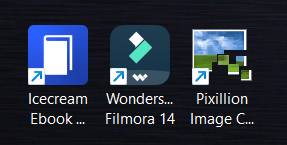
On my laptop, I've upgraded to Windows 11 24H2, and I've noticed that as well as having moved my icons on the desktop anywhere, their size has changed! I have the impression that they are squashed (they are less wide) as you can see in this screen.

https://i.ibb.co/p3fbr9c/image-1-1.png

What is disturbing is that the names of the shortcuts/folders are not displayed in enter, which is aesthetically ugly.

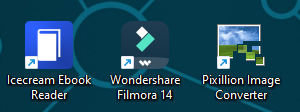
Whereas on Windows 11 23H2 on my other computer, the icons are not overwritten like that and the names are in full as you can see on this screen.

https://i.ibb.co/64nTkMM/Capture-d-cran-2024-12-06-163948.png

So I wanted to know if it's a bug, a feature or a setting that needs to be changed...

Thanks !

Windows for home | Windows 11 | Windows update

Locked Question. This question was migrated from the Microsoft Support Community. You can vote on whether it's helpful, but you can't add comments or replies or follow the question.

0 comments No comments
Answer accepted by question author
DaveM121 946.1K Reputation points Independent Advisor
2024-12-06T16:47:46+00:00

Thank you for the screenshot

Open the registry editor again, it will still be on the same page.

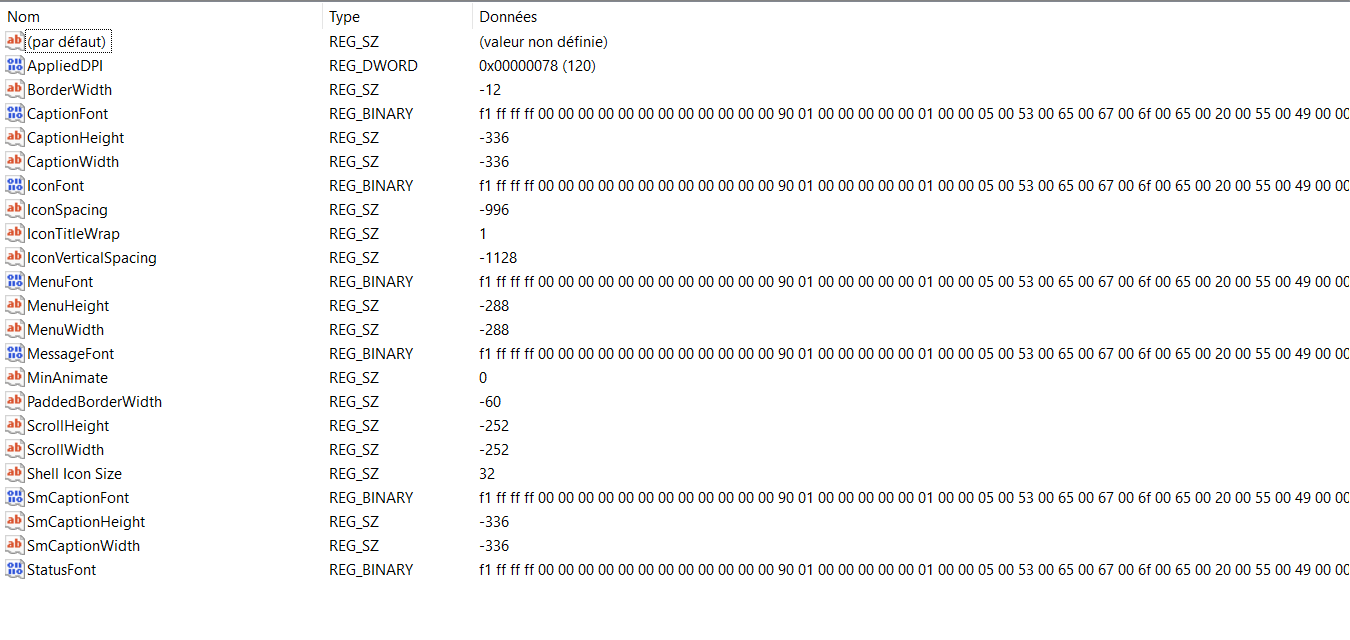
Double click IconSpacing in the right hand pane, then set its Value Data to this minus value and click OK: -1128

Close the registry editor and restart your PC to apply the change to see if that resolves the problem.

.

Was this answer helpful?

1 person found this answer helpful.
0 comments No comments

2 additional answers

Sort by: Newest
  1. Anonymous
    2024-12-06T16:42:47+00:00

    Thank you for your prompt reply!

    Here is the screenshot you requested:

    https://i.ibb.co/7X0kRw5/clipboard-image-1733503136.png

    Tell me if you want to see the hexadecimal values in full

    Was this answer helpful?

    0 comments No comments
  2. DaveM121 946.1K Reputation points Independent Advisor
    2024-12-06T16:13:52+00:00

    Hi, I am Dave, I will help you with this.

    Click your Start Button, type regedit and hit Enter to open the Registry Editor

    Click View and make sure 'Address Bar' is turned on

    Paste this into the Address Bar at the top and hit Enter

    HKEY_CURRENT_USER\Control Panel\Desktop\WindowMetrics

    Please provide a screenshot of that registry editor window.

    Was this answer helpful?

    0 comments No comments