Dear William RASCAGNERES!
Welcome to the Microsoft Community!
I understand that you have encountered the problem of "vc_runtimeMinium_x64.msi" not being found.
You have tried many solutions but still cannot solve this problem directly. I personally think you can also try the following steps:
1. Download a new installation package
Use Microsoft's uninstall tool to uninstall all visual C++, the link is below
https://download.microsoft.com/download/7/E/9/7E9188C0-2511-4B01-8B4E-0A641EC2F600/MicrosoftProgram_Install_and_Uninstall.meta.diagcab
The current installation package may be damaged, resulting in the installation path not being correctly resolved. You can try to re-download the latest Visual C++ Redistributable installation package (you said that you have downloaded the X86 and X64 version installation packages according to the instructions of MVP in the original post, but just in case, you can try again):
• Download address (Microsoft official):
Latest supported Visual C++ Redistributable downloads | Microsoft Learn
• After downloading, run and follow the prompts to install.
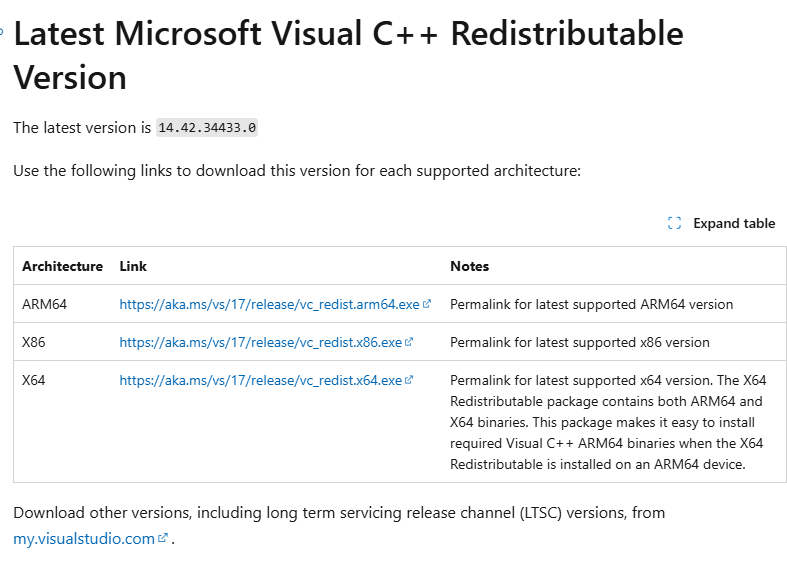
And just in case, you can download and install both the X64 and X86 versions below.
________________________________________
2. Check the original installation path
If this problem occurs during the second attempt to install, the system may still be looking for the source path of the installation file. The following methods can help solve it:
a. Use logs and manual path checks:
The installer may be trying to find the .msi file. If you know the previous installation location, you can manually specify the relevant directory. For example:
makefile
C:\Windows\Installer
Or any cached .msi installation file in the system.
b. If the installation path cannot be accurately located, uninstalling and cleaning are the simplest solutions.
________________________________________
3. Check the Windows Installer service status
Confirm whether the Windows Installer service is working properly:
a. Press Win + R, enter services.msc, and press Enter.
b. After entering the service window, find the Windows Installer service.
c. Make sure the service is started (if not, right-click and select "Start").
d. Try to install again.
________________________________________
4. Clean the registry (advanced method)
If the registry information left by the program conflicts, you can use tools to clean it:
• Download CCleaner or manually check the registry (it is recommended to back up the system before doing so).
• Clean related residual items, such as the path: HKEY_LOCAL_MACHINE\SOFTWARE\Microsoft\VisualStudio\14.0
Disclaimer: Generally, modifying registry subkeys or work group is intended for advanced users, administrators, and IT Professionals. It can help fix some problems, however, serious problems might occur if you modify the registry incorrectly. Therefore, make sure that you follow these steps carefully. For further protection, back up the registry before you modify it. Then, you can restore the registry if a problem occurs. For more information about how to back up and restore the registry, click How to back up and restore the registry in Windows - Microsoft Support to view the article.
If the above steps do not work, I suggest you try downloading the following Windows .Net desktop executable files to run the missing components.
Download .NET 8.0 (Linux, macOS, and Windows)
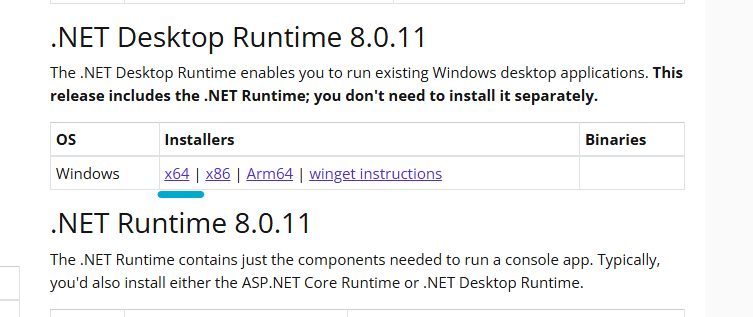
I hope above information can help you. If you have any questions, please feel free to let me know. Tell me the results. I'm looking forward to hearing from you.
Thank you for your understanding and support!
I wish you all the best in the new year 2025~
Best regards,
Yang.Z - MSFT | Microsoft Community Support Specialist
' cx='32' cy='32' r='32' /%3E%3Ctext x='50%25' y='55%25' dominant-baseline='middle' text-anchor='middle' fill='%23FFF' %3EA%3C/text%3E%3C/svg%3E)
