How to perform RDP shadowing from Win10 Pro to another Win10 Pro

Tan Eng Hong 1 Reputation point
2020-12-07T10:59:35.07+00:00

I recently setup a Win10 Pro system for my son's virtual classes. With kids being kids, I would like to monitor his screen activity from time to time just to make sure he's not on another screen while his class is going on.

I've been reading a couple threads but still can't get RDP shadowing to work.

mstsc /v:<new_system_IP> works.
mstsc /v:<new_system_IP> /shadow:1 /noconsentprompt /control returns "This computer name is invalid."

I've opened firewall ports 443,49152-65535 on both our systems but still no go. Is there any detailed walkthrough on how to setup RDP shadowing for home network?

Windows for business | Windows Client for IT Pros | User experience | Remote desktop services and terminal services
Windows for business | Windows Client for IT Pros | User experience | Other

3 answers

Sort by: Most helpful
  1. Mike Gugel 1 Reputation point
    2022-09-22T19:49:55.003+00:00

    Hi, I've found some steps to accomplish this after having the same problems of "This computer name is invalid." & "Access denied'.

    Instead of trying to initiate the rdp session from your remote computer, what you need to do is first rdp to an admin account on the box having the session you wish to shadow, then execute the shadow command from there e.g.

    1. Follow directions above re: group policy and file sharing
    2. RDP to remote IP with admin account credentials
    3. Start a command prompt as administrator
    4. Run "mstsc /shadow:1 /noconsentprompt /control"
    • note: you no longer need the computer name/ip since it's now local execution)

    Was this answer helpful?


  2. zorrox19 1 Reputation point
    2021-04-28T18:19:22.793+00:00

    Hey did you find a Solution?

    Was this answer helpful?


  3. Anonymous
    2020-12-08T06:19:24.347+00:00

    Hello @Tan Eng Hong

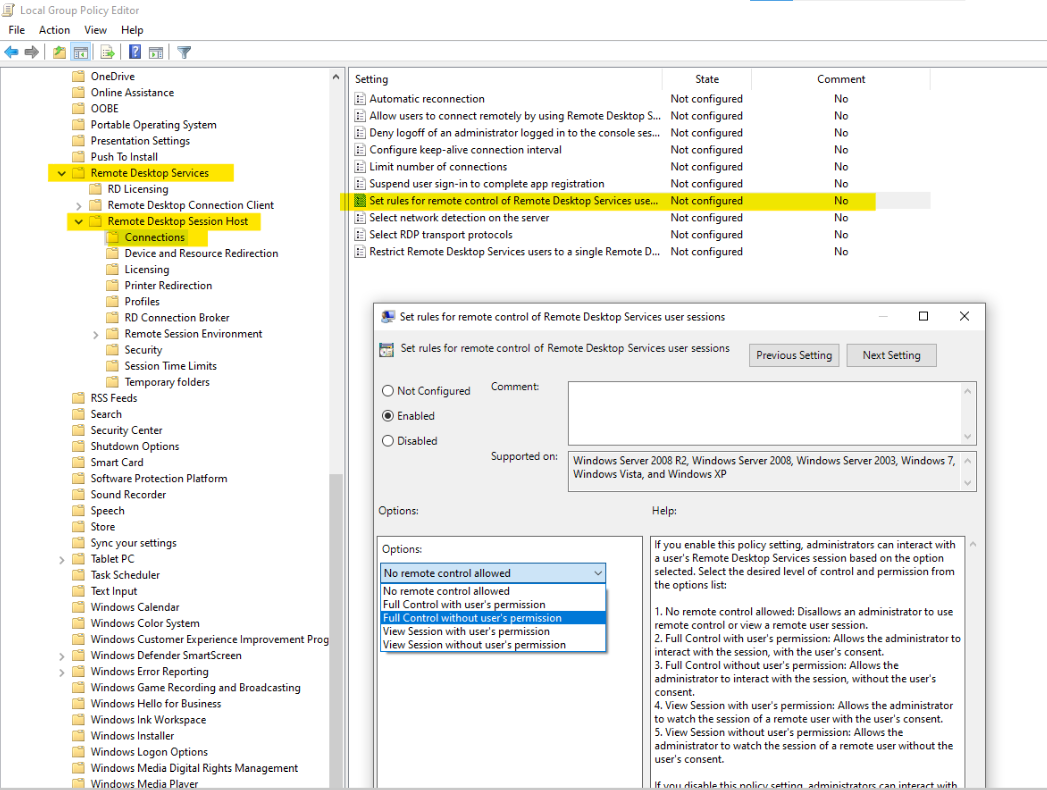
    Did you configure the remote desktop shadowing in the Group policy ?

    Policy path:
    Computer Configuration -> Policies -> Administrative Templates -> Windows components -> Remote Desktop Services -> Remote Session Host -> Connections and called Set rules for remote control of Remote Desktop Services user sessions.

    45973-image.png

    Here is the detailed walkthrough for your reference.

    Keep me posted how it goes. Thank you and have a great day!

    ----------

    If the Answer is helpful, please click "Accept Answer" and upvote it.
    Note: Please follow the steps in our documentation to enable e-mail notifications if you want to receive the related email notification for this thread.

    Best Regards
    Karlie

    Was this answer helpful?


Your answer

Answers can be marked as 'Accepted' by the question author and 'Recommended' by moderators, which helps users know the answer solved the author's problem.