Microsoft 365 and Office | Office Online Server
Microsoft on-premises server product that runs Office Online.

This browser is no longer supported.
Upgrade to Microsoft Edge to take advantage of the latest features, security updates, and technical support.
' cx='32' cy='32' r='32' /%3E%3Ctext x='50%25' y='55%25' dominant-baseline='middle' text-anchor='middle' fill='%23FFF' %3EAB%3C/text%3E%3C/svg%3E)
Hi,
We are using SharePoint. And we would like to disable the two factor authentication for only one or two users.
Thanks in Advance
Microsoft on-premises server product that runs Office Online.
A group of Microsoft Products and technologies used for sharing and managing content, knowledge, and applications.
' cx='32' cy='32' r='32' /%3E%3Ctext x='50%25' y='55%25' dominant-baseline='middle' text-anchor='middle' fill='%23FFF' %3ERG%3C/text%3E%3C/svg%3E)
Has any body got this to work. my MFA is off, on all users, it still requires MFA log in. Is there a fix ?
Brand New O365 user. MFA Shut off. (On all users) yet logging in, with this new user still requires MFA Setup.
suggestions ? comments ?
' cx='32' cy='32' r='32' /%3E%3Ctext x='50%25' y='55%25' dominant-baseline='middle' text-anchor='middle' fill='%23FFF' %3EHG%3C/text%3E%3C/svg%3E)
Multi factor authentication is off for the user. The user had 2 factor using authenticator app, and now he lost the phone with that app. He can't login now
This comment has been deleted due to a violation of our Code of Conduct. The comment was manually reported or identified through automated detection before action was taken. Please refer to our Code of Conduct for more information.
' cx='32' cy='32' r='32' /%3E%3Ctext x='50%25' y='55%25' dominant-baseline='middle' text-anchor='middle' fill='%23FFF' %3EED%3C/text%3E%3C/svg%3E)
@Ashwin Barfa
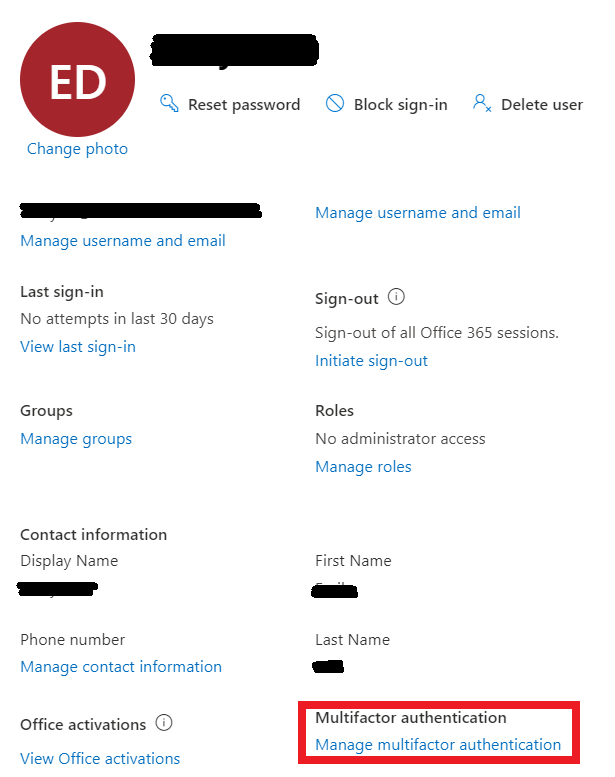
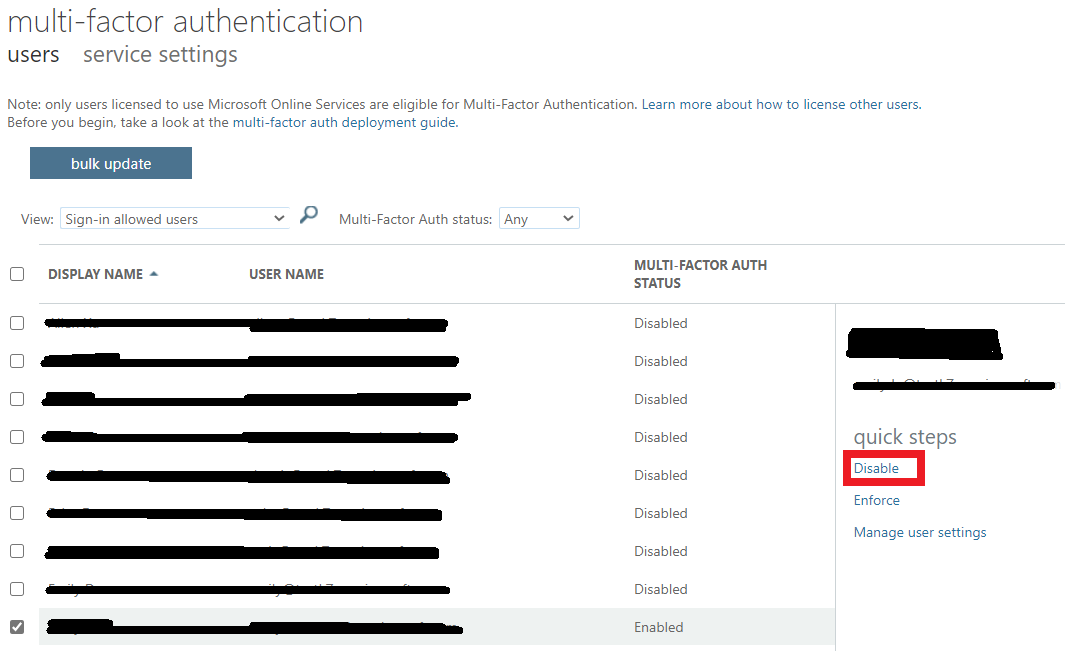
Go to Microsoft 365 admin center -> Users -> Active users -> Select the user -> Manage multifactor authentication -> Select the user -> Disable multi-factor authentication.
If an Answer is helpful, please click "Accept Answer" and upvote it.
Note: Please follow the steps in our documentation to enable e-mail notifications if you want to receive the related email notification for this thread.
Thanks @Emily Du-MSFT ,
As per your Steps we checked Multi-Factor Authentication, and It we already "Disabled".

Actually this is a guest user for which we are facing the issue.
When we are trying to access the SharePoint Site we are getting the below error.

Can you let us know How we can avoid this.
For a guest user, due to the security consideration of sites, Microsoft does not support disabling multi-factor authentication.
If an Answer is helpful, please click "Accept Answer" and upvote it.
Note: Please follow the steps in our documentation to enable e-mail notifications if you want to receive the related email notification for this thread.
' cx='32' cy='32' r='32' /%3E%3Ctext x='50%25' y='55%25' dominant-baseline='middle' text-anchor='middle' fill='%23FFF' %3EB3%3C/text%3E%3C/svg%3E)
Thank you for the posting ..., may please let know how to where to locate to :
Microsoft 365 admin center -> Users -> Active users ->... to disable Microsoft 365 personal installing on 3 PCs ... ?
' cx='32' cy='32' r='32' /%3E%3Ctext x='50%25' y='55%25' dominant-baseline='middle' text-anchor='middle' fill='%23FFF' %3EA%3C/text%3E%3C/svg%3E)
I tried the steps but its still asking for 2FA while logging, now what should I do?
' cx='32' cy='32' r='32' /%3E%3Ctext x='50%25' y='55%25' dominant-baseline='middle' text-anchor='middle' fill='%23FFF' %3EAP%3C/text%3E%3C/svg%3E)
same,
it was already disabled but still asks for two-step verification for every user.
' cx='32' cy='32' r='32' /%3E%3Ctext x='50%25' y='55%25' dominant-baseline='middle' text-anchor='middle' fill='%23FFF' %3ELH%3C/text%3E%3C/svg%3E)
I will just note here that I am having the same issues. It says the user is disabled for 2factor, but when you go to sign the person into the Office365 apps (E3 License) it will STILL ask for you to download an app. I also tried enabling and then disabling and still wanting 2FA
' cx='32' cy='32' r='32' /%3E%3Ctext x='50%25' y='55%25' dominant-baseline='middle' text-anchor='middle' fill='%23FFF' %3ET%3C/text%3E%3C/svg%3E)
As stated in my previous comment, this will be due to security defaults being enabled. The only way to disable 2FA for one user is to disable security defaults for the organisation in Azure Active Directory > Properties, and then re-enable 2FA on all the accounts that still require it, leaving it disabled on the ones that don't .
Actually, I just solved my own problem. New user, didn't have MFA enabled. Ienabled it and then disabled it and is now working as it should to allow a few single user sign ons to not use MFA...
' cx='32' cy='32' r='32' /%3E%3Ctext x='50%25' y='55%25' dominant-baseline='middle' text-anchor='middle' fill='%23FFF' %3EMA%3C/text%3E%3C/svg%3E)
Not working. It requires toggle off Default Security Settings in Azure Center, and Azure Center is NO MORE. So for those who have default security settings by, well, default this solution is unusable. I too have MFA disabled for all users in this dialog yet all users have MFA enforced in reality.
@Martin visit https://entra.microsoft.com/ and on the Overview page, click the Properties tab, and Security Defaults is at the bottom of the page
' cx='32' cy='32' r='32' /%3E%3Ctext x='50%25' y='55%25' dominant-baseline='middle' text-anchor='middle' fill='%23FFF' %3ESV%3C/text%3E%3C/svg%3E)

I might post a video on how to do this. But basically Mohammed's method is the correct one.
' cx='32' cy='32' r='32' /%3E%3Ctext x='50%25' y='55%25' dominant-baseline='middle' text-anchor='middle' fill='%23FFF' %3EDS%3C/text%3E%3C/svg%3E)
His method is fine, IF your problem is that the user lost his MFA token(s) and needs to recover. But it doesn't work for situations in which you just need it disabled.
' cx='32' cy='32' r='32' /%3E%3Ctext x='50%25' y='55%25' dominant-baseline='middle' text-anchor='middle' fill='%23FFF' %3EMM%3C/text%3E%3C/svg%3E)
Our issue as a business is that 85% of the users are Teams only. And of those 85%, about 95% don't understand MFA and are ALSO being asked to download an app that they don't understand.
The main reason is that the team is mostly technologically illiterate and the only time in their lives that they really use tech beyond visiting a website on their phone is to use Teams for communications.
So, right now, about 80% of our team is unreachable and turning of MFA has been an absolute nightmare.
' cx='32' cy='32' r='32' /%3E%3Ctext x='50%25' y='55%25' dominant-baseline='middle' text-anchor='middle' fill='%23FFF' %3EEL%3C/text%3E%3C/svg%3E)
There are lots of alternatives to enhance security. MS should at least check and learn from Facebook. At least for giving a option to select. Now that the option is USE it or GO OUT.
' cx='32' cy='32' r='32' /%3E%3Ctext x='50%25' y='55%25' dominant-baseline='middle' text-anchor='middle' fill='%23FFF' %3EMB%3C/text%3E%3C/svg%3E)
So some of this is really bad it does not matter how little the understand you need to teach them Cyber Security is a massive thing and just letting people get away with not securing it is not an options, MS authentication also support YubiKey and such so they just have to plug a USB in to complete authentication instead.
' cx='32' cy='32' r='32' /%3E%3Ctext x='50%25' y='55%25' dominant-baseline='middle' text-anchor='middle' fill='%23FFF' %3EAR%3C/text%3E%3C/svg%3E)
You can achieve it via a conditional access policy for single user.
' cx='32' cy='32' r='32' /%3E%3Ctext x='50%25' y='55%25' dominant-baseline='middle' text-anchor='middle' fill='%23FFF' %3EBG%3C/text%3E%3C/svg%3E)
In my experience, the complete answer to this simple question is anything but straightforward. The exact process depends on a host of various factors in your environment, including what policies in place, admin permissions of the user executing the steps, additional Azure subscriptions, whether this is for an internal or external (guest) user, whether this is for a new user or an existing user, (if it an existing user) whether MFA has already been configured on the account, and much more.
The number of variables involved is probably why it is so hard to find a clear AND accurate answer to this seemingly-simple question that works for everyone.
With that said, for smaller organizations using Microsoft 365 Basic or Premium licenses who are trying to disable MFA for a user that has already registered for it, I think this GUI-only, non-PowerShell process might answer the question:
Again, there are myriads of places to invoke policies and set other MFA-related settings, so this process will definitely not work for everyone's environment, but hopefully it provides some more clarity to someone.
' cx='32' cy='32' r='32' /%3E%3Ctext x='50%25' y='55%25' dominant-baseline='middle' text-anchor='middle' fill='%23FFF' %3EDI%3C/text%3E%3C/svg%3E)
The revoke part made it happen (and still configure step 1 and 2 ofc).