When you go to https://account.live.com, did this screen pop up?
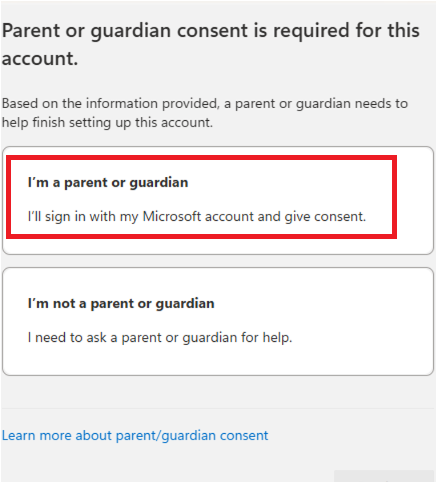
You want to choose "I am a parent or guardian", then sign into a different Microsoft account whose date of birth indicating an adult user. If you don't have one you can use, you can create a new one just for this purpose for now. It will prompt you to sign in, and give your account consent, and join your family group. Once joining the new account's family group, go to https://account.live.com/mykids.aspx sign in with the new account (adult one), you should see your "child" account listed. Click on "Edit this child's personal info" And it will let you update the date of birth for this child user.
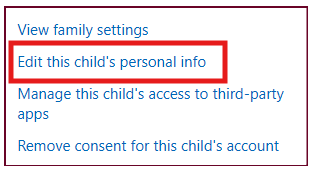
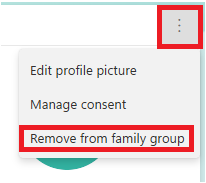
Once updated, you can then use the "Remove consent for this child's account", then go back to the family safety page, click on this child account and choose "remove from family group".
' cx='32' cy='32' r='32' /%3E%3Ctext x='50%25' y='55%25' dominant-baseline='middle' text-anchor='middle' fill='%23FFF' %3ESS%3C/text%3E%3C/svg%3E)

