Dear @David,
I hope you’re having a good day.
I'm sorry to hear you've spent more than 8 hours trying to figure this out.
One thing that may save you some time: Microsoft Planner usually does not require a separate installation like Word, Excel, or Project. In most business environments, Planner is accessed through Microsoft 365 or Microsoft Teams rather than installed as a standalone desktop application.
You can try accessing Planner directly at: https://planner.cloud.microsoft
After signing in with your work account, Planner should be available if your license includes it.
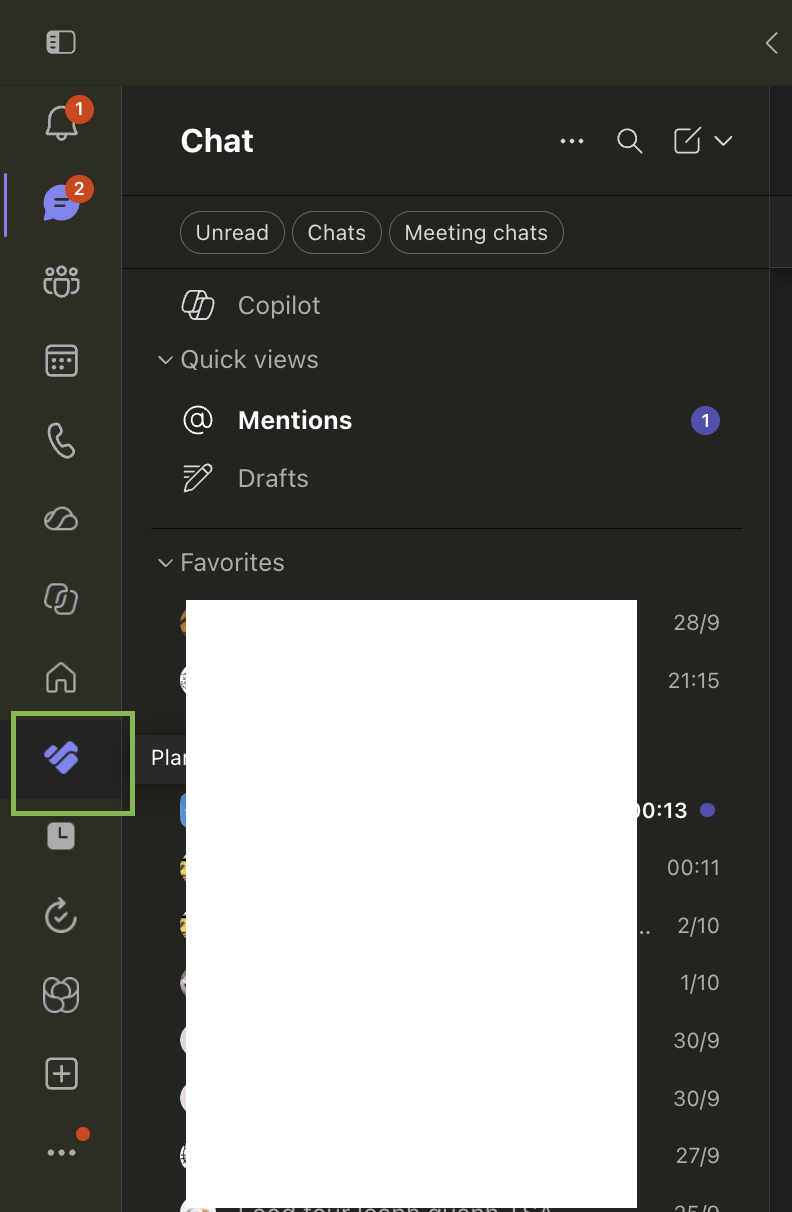
You can also use Planner from within Microsoft Teams.
For more information, see Microsoft's official documentation:
If you're still unable to access Planner, please let me know what happens when you try. For example, do you receive an error message, or is Planner simply not visible in Microsoft 365 or Teams?
I hope this information helps point you in the right direction. If you run into any issues while trying the steps, or if something still doesn’t feel quite right, please don’t hesitate to reach out again. I’ll do my best to support you however I can.
Looking forward to hearing back from you with any updates or additional details.
Warm regards,
If the answer is helpful, please select "Yes, accept answer". If you have any questions or new updates, please feel free to comment below.
' cx='32' cy='32' r='32' /%3E%3Ctext x='50%25' y='55%25' dominant-baseline='middle' text-anchor='middle' fill='%23FFF' %3EDD%3C/text%3E%3C/svg%3E)

' cx='32' cy='32' r='32' /%3E%3Ctext x='50%25' y='55%25' dominant-baseline='middle' text-anchor='middle' fill='%23FFF' %3EL%3C/text%3E%3C/svg%3E)