Hello @LAM THI NHU Y,
I'm sorry to hear that PowerPoint is not working as expected.
To help provide the most accurate and effective solution, could you please share a bit more information about your environment?
- What version of Windows are you using (Windows 10 or Windows 11)?
- Are other Microsoft 365 applications, such as Word and Excel, working normally?
- Does PowerPoint crash when opening a blank presentation, or only when opening specific files?
- Have there been any recent changes to your device, such as Windows updates, Office updates, or new software installations?
- As you mentioned that you have already tried both Quick Repair and Online Repair, may I confirm whether these were performed through Control Panel > Programs and Features > Microsoft 365 > Change?
This additional context will help us better understand your environment and determine the root cause of the issue.
In the meantime, please try the following steps to open PowerPoint in Safe Mode manually:
Before performing any troubleshooting steps, I recommend backing up all important data to a secure location to prevent any potential data loss.
- Open PowerPoint in Safe Mode by pressing Windows + R, type:
powerpnt /safe
- If PowerPoint opens in Safe Mode, disable any add-ins: File > Options > Add-ins > Manage COM Add-ins > Uncheck all > OK.
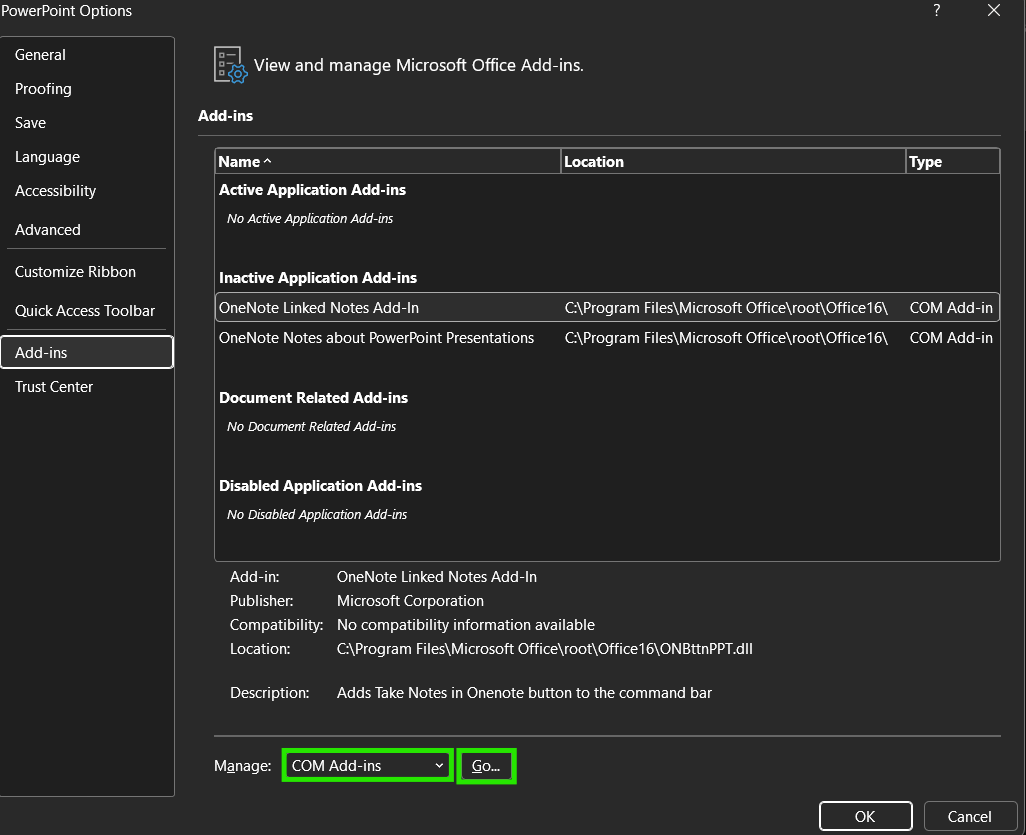
- Close PowerPoint and launch it normally to check whether the issue persists.
If the issue persists, please also try:
- Open PowerPoint in Safe Mode again.
- Navigate to File > Options > Advanced.
- Under Display, check Disable Slide Show hardware graphics acceleration.
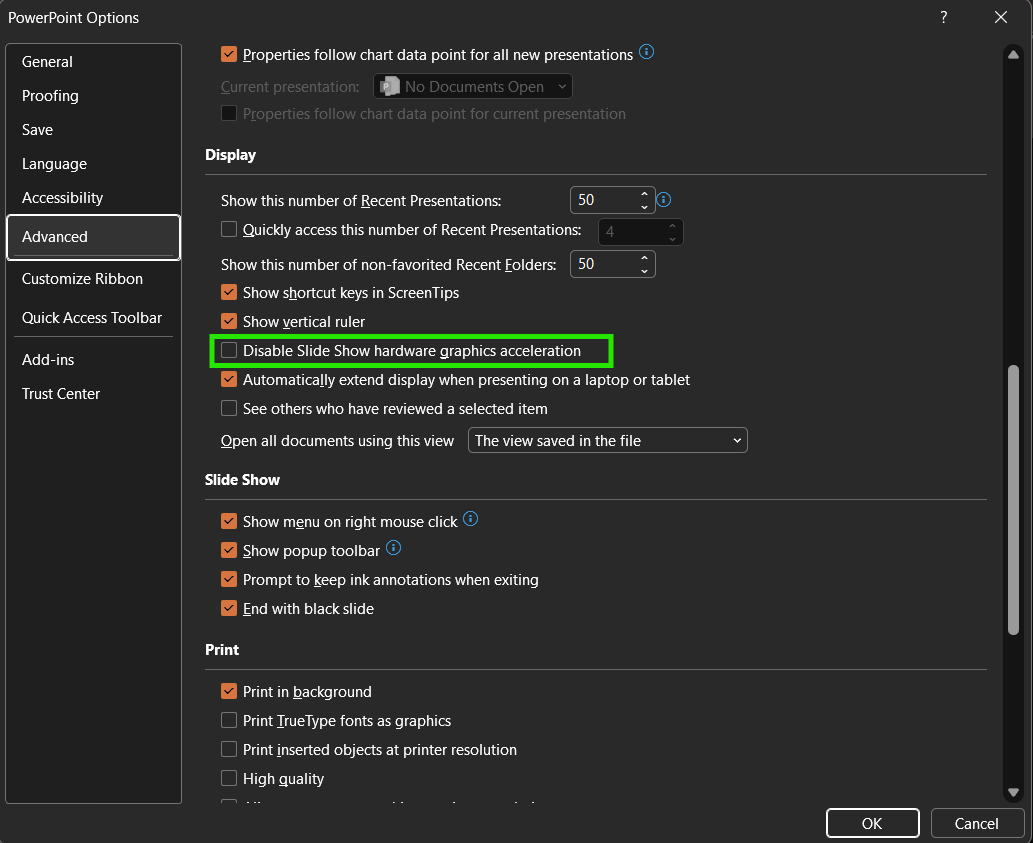
- Restart PowerPoint and test again.
Looking forward to your response so we can investigate this further and get PowerPoint working properly again.
Kind regards,
' cx='32' cy='32' r='32' /%3E%3Ctext x='50%25' y='55%25' dominant-baseline='middle' text-anchor='middle' fill='%23FFF' %3ELT%3C/text%3E%3C/svg%3E)

' cx='32' cy='32' r='32' /%3E%3Ctext x='50%25' y='55%25' dominant-baseline='middle' text-anchor='middle' fill='%23FFF' %3ERT%3C/text%3E%3C/svg%3E)