protection

Ann Martyn 0 Reputation points
2026-11-11T19:28:53.2166667+00:00

How do I know if my computer is protected from a virus etc.

Windows for home | Other | Security and privacy
0 comments No comments

2 answers

Sort by: Oldest
  1. AI answer

    2026-11-11T19:30:03.1366667+00:00

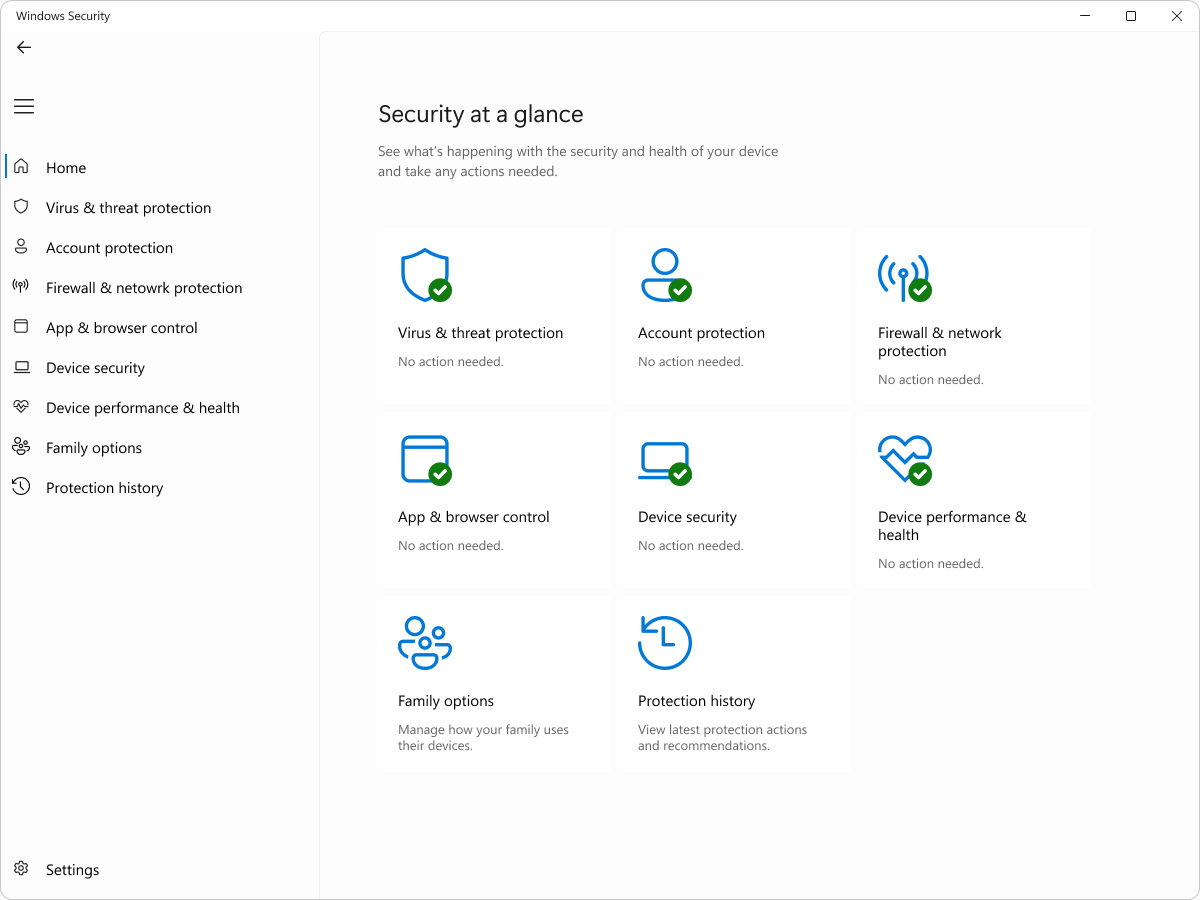
    Open Start, type Windows Security, and check that its dashboard shows green check marks; green means the device is sufficiently protected, while yellow requires a recommended action and red requires immediate attention.^1^

    Check your protection

    1. Open Windows Security
      • Select Start, type Windows Security, and open it.
      • Review every displayed protection area. Address any yellow or red indicators.
    2. Confirm antivirus protection
      • Select Virus & threat protection.
      • Under Current threats, check:
        • Whether threats are currently detected.
        • When the last scan ran.
        • What action Windows took.
      • Select Manage settings and confirm Real-time protection and Tamper Protection are on. Real-time protection scans files and programs as they are accessed; Tamper Protection prevents other applications from changing important Defender settings.^2^
    3. Update malware definitions
      • Go to Virus & threat protection → Protection updates → Check for updates.
      • This downloads the latest security intelligence used to recognize threats.^2^
    4. Run a scan
      • Start with Quick scan.
      • For a more thorough check, select Scan options → Full scan → Scan now. This checks every file and program and can take considerable time.
      • If you have a specific reason to suspect an infection, save your work and choose Microsoft Defender Antivirus (offline scan). The computer restarts and scans before normal Windows starts, making persistent malware harder to hide.^2^
    5. Review previous detections
      • Open Windows Security → Protection history.
      • Check for quarantined or removed malware, potentially unwanted applications, disabled security services, and unresolved actions.^1^
      • Also inspect Allowed threats under Virus & threat protection. If something was allowed accidentally, select it and choose Don’t allow.^2^
    6. Check the other security layers
      • Firewall & network protection: verify the firewall is enabled for the active network.
      • App & browser control: review Microsoft Defender SmartScreen protection.
      • Device security: review available features such as Secure Boot, TPM, and core isolation.^1^

    Keep the computer protected

    • Install Windows updates and restart when requested.
    • Do not ignore SmartScreen warnings for unknown applications or downloads.
    • Avoid unexpected email attachments and suspicious links.
    • Keep User Account Control enabled.
    • Do not run multiple real-time antivirus products simultaneously, because doing so can cause instability or reduced performance.^3^

    If the PC runs Windows 10, support ended on October 14, 2025. It no longer receives free security fixes, so moving to Windows 11 on supported hardware is important for continuing protection.^4^

    No status screen can guarantee that a computer has no malware, but green indicators, current security intelligence, an enabled firewall and real-time protection, a clean full scan, and no unresolved items in Protection History provide the practical checks available in Windows.


    References

    1. Windows Security App Overview | Microsoft Support
    2. Virus and Threat Protection in the Windows Security App | Microsoft Support
    3. Protect my PC from viruses | Microsoft Support
    4. Automatically fix Windows security issues | Microsoft Support
    AI-generated content may be incorrect. Read our transparency notes for more information.

    Was this answer helpful?

  2. Marcin Policht 113.2K Reputation points MVP Volunteer Moderator
    2026-11-11T19:46:55.77+00:00

    To check whether Microsoft Defender is active and protecting your Windows 11 PC, open the Start menu, type Windows Security, and open the app. Select Virus & threat protection and look for green checkmarks and status indicators confirming that protection is active.

    Under Virus & threat protection settings, click Manage settings and make sure Real-time protection, Cloud-delivered protection, Automatic sample submission, and Tamper Protection are turned on. Real-time protection continuously scans files as you use or download them, while cloud-delivered protection provides access to the latest threat intelligence. Automatic sample submission helps Microsoft analyze suspicious files, and Tamper Protection prevents unauthorized changes to security settings.

    To check for antivirus updates, look under Protection updates on the Virus & threat protection page. Check when the security intelligence was last updated, then click Check for updates to make sure Defender has the latest threat definitions.

    You can also run a manual scan. Select Quick scan to check common locations for malware. For a more thorough check, select Scan options and choose Full scan, which checks files and running programs across your drive, or Microsoft Defender Offline scan, which restarts the computer and scans for persistent malware before Windows loads.

    More at https://support.microsoft.com/en-us/windows/security/windows-security/stay-protected-with-the-windows-security-app

    The Windows Security app is a comprehensive security solution integrated into Windows, designed to protect your device and data from various threats. It includes features such as Microsoft Defender Antivirus, Windows Firewall, and Smart App Control, which work together to provide real-time protection against viruses, malware, and other security threats. The app is built into Windows, ensuring that your device is protected from the moment you start it up.

    Tip

    If you're a Microsoft 365 Family or Personal subscriber you get Microsoft Defender, our advanced security software for Windows, Mac, iOS, and Android, as part of your subscription. Learn more at Getting started with Microsoft Defender.

    One of the key benefits of the Windows Security app is its ability to provide real-time protection. Microsoft Defender Antivirus continuously scans your device for potential threats and takes immediate action to neutralize them. This proactive approach helps to prevent malware infections and keeps your device running smoothly. Additionally, the firewall feature monitors incoming and outgoing network traffic, blocking any suspicious activity to safeguard your data and privacy.

    To open the  Windows Security app  , search for it in the Start menu.

    Open Windows Security

    Screenshot of Windows Security - Home pane.


    If the above response helps answer your question, remember to "Accept Answer" so that others in the community facing similar issues can easily find the solution. Your contribution is highly appreciated.

    hth

    Marcin

    Was this answer helpful?

    0 comments No comments

Your answer

Answers can be marked as 'Accepted' by the question author and 'Recommended' by moderators, which helps users know the answer solved the author's problem.