Unable to get my Project Professional 2024 product key to attach to my account

Gregory Hart 0 Reputation points
2026-11-07T14:26:53.98+00:00

I recently purchased Project Professional 2024 and was provided a license key by the retailer. I currently own Project Professional 2019 which shows in the "Products you've purchased" area of my subscriptions. When I go to redeem my new product key, it appears to accept the redemption and takes me to a download screen. When I download the 64 bit version I want and run the OfficeSetup.exe, it just keeps reinstalling the 2019 version.

How do I get my 2024 version to show up in the "Products you've purchased" section, or hide/delete the 2019 version, so the installation will install the Project Professional 2024 version?

I have worked with the retailer to uninstall all 2019 versions of software (Project, Visio), deleted all entries in the "Credential Manager", and run the Office Removal Tool. Nothing seems to help.

I've searched online and tried other recommendations, including Incognito mode.

Any help would be most appreciated.

Thanks.

Microsoft 365 and Office | Project | For home | Windows
0 comments No comments

2 answers

Sort by: Most helpful
  1. Demi Nguyen 3,030 Reputation points Independent Advisor
    2026-11-07T14:58:39.94+00:00

    Hello Gregory Hart,

    Thank you for providing the detailed information.

    Since the installer continues to install Project Professional 2019, the first point to verify is whether the Project Professional 2024 product key was fully redeemed and linked to the Microsoft account you are currently checking.

    For a new retail product key, Microsoft recommends redeeming it at www.office.com/setup or Microsoft365.com/setup while signed in with the Microsoft account you want to associate with the license. After redemption, the same account should be used to download, install, and activate the product.

    Could you please confirm the following?

    • Did you redeem the key through www.office.com/setup or Microsoft365.com/setup?
    • Did the redemption page clearly identify the product as Project Professional 2024?
    • Did you receive a confirmation email showing Project Professional 2024?
    • Do you have another Microsoft account that may have been used during the redemption?
    • If you enter the key again, does Microsoft display a message stating that the product key has already been used?

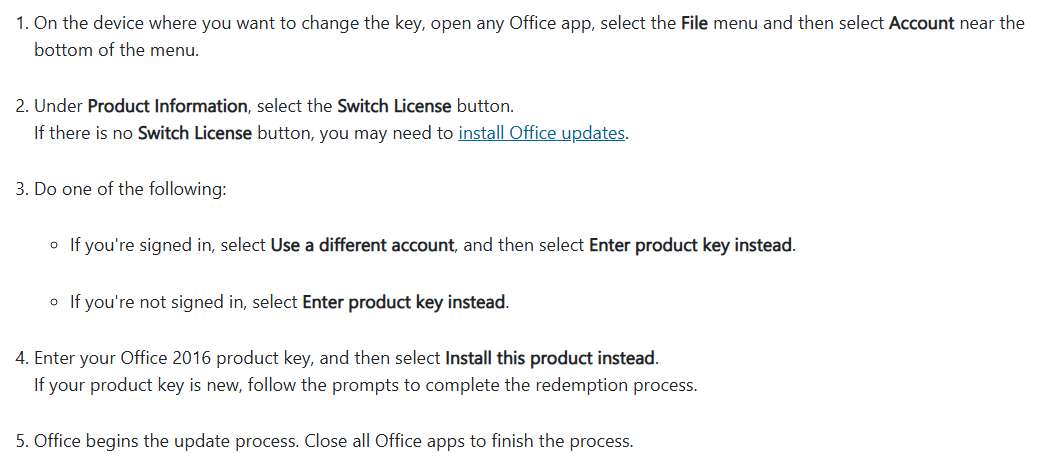
    Since your purchase included a product key, you may also try changing the license directly in Project:
    User's image

    Microsoft’s instructions for changing a product key apply to Project Professional 2024. If the Switch License option is not available, install the latest Office updates and check again: Change your Office product key | Microsoft Support

    Please note that switching the license changes the license used by the locally installed application. It may not resolve the issue if Project Professional 2024 was redeemed under another Microsoft account or if the redemption was not completed correctly.

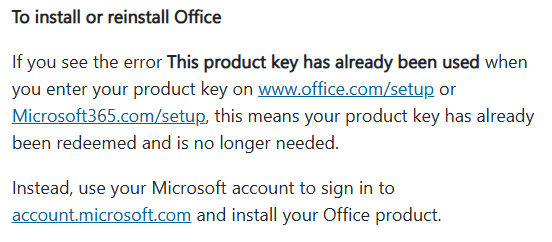
    If Microsoft reports that the key has already been used, do not continue entering the key. Instead, sign in to the Microsoft account originally used to redeem it and install the product from that account. Microsoft states that once a key has been redeemed, the linked Microsoft account is used for future installations.
    User's image

    You can refer to the following Microsoft documentation: Where to enter your Office product key | Microsoft Support

    If the key was redeemed successfully to your current Microsoft account but Project Professional 2024 still does not appear under Products you’ve purchased, I recommend contacting Microsoft Support to have the redemption and license entitlement checked. If Microsoft cannot validate the key or confirms that it belongs to a different licensing channel, you may need to contact the retailer again.

    Please do not post the full product key publicly.

    I hope this information helps.

    Best regards,

    Was this answer helpful?


  2. AI answer

    2026-11-07T14:27:47.4+00:00

    The next step is to verify that Project Professional 2024 became an entitlement on the exact Microsoft account used during redemption; if it is absent, reinstalling or deleting Project 2019 will not correct the key-to-account association.

    1. Check the redeemed entitlement

    1. Open the Microsoft account Services & subscriptions page:
      https://account.microsoft.com/services
    2. Sign in with the same personal Microsoft account used when the 2024 key appeared to redeem successfully.
    3. Look specifically for Project Professional 2024 under Products you’ve purchased.
    4. If you use more than one Microsoft account, sign out and check each plausible account. A redeemed retail key is linked to the account used during redemption and is subsequently installed using that account, not by entering the key again.^1^

    There is no need to hide or delete Project 2019. When both products are listed, select Install specifically beside Project Professional 2024, then use Other options to choose 64-bit. Microsoft’s Project instructions explicitly require locating the desired Project version in the owned-products list before selecting its installer.^2^

    Since the Office Removal Tool, Credential Manager cleanup, reinstallations, and private browsing have already been tried, repeating those actions will not address a missing online entitlement.

    2. If Project Professional 2024 is not listed

    Determine which licensing channel the retailer sold:

    • Retail one-time purchase: The key should be redeemed at https://microsoft365.com/setup, after signing in with a personal Microsoft account. Successful redemption links Project to that account once.^2^
    • Microsoft Workplace Discount Program: Project Professional purchased through an employer uses a different process. Start Project, select I don’t want to sign in or create an account in the setup window, and enter the key there. This type may not follow the normal retail account-association flow.^3^
    • Volume-license edition: This is not installed from a personal Microsoft account. The organization must deploy Project Professional 2024 using the Office Deployment Tool and its volume-licensing configuration.^4^

    Ask the retailer to state in writing whether the supplied key is Retail, Workplace Discount Program, or Volume License. The wording “Project Professional” alone does not identify the channel.

    If the retailer confirms it is a normal retail key but Project 2024 remains absent:

    1. Try redeeming it once more at https://microsoft365.com/setup while signed into the intended account.
    2. If it reports This product key has already been used, the key has already been attached to an account; check other accounts or contact Microsoft Support to identify the account-association problem.^5^
    3. If it reports that the key is invalid, blocked, or not intended for the region, return to the retailer. Microsoft advises requesting a refund when a separately sold key is blocked, unauthorized, or stops working.^6^
    4. If redemption completes without an error but the entitlement still does not appear, contact Microsoft Support with the purchase receipt, retailer name, redemption date, exact product description, and screenshots of the redemption result and Services & subscriptions page. Do not post the product key publicly.

    3. After the entitlement appears

    1. Return to https://account.microsoft.com/services.
    2. Find Project Professional 2024, not the 2019 entry.
    3. Select Install → Other options → 64-bit → Install.
    4. Run the newly downloaded installer.
    5. Open Project and check File → Account to confirm that the displayed product is Project Professional 2024.

    If other Office, Project, or Visio products remain installed, they must use the same 32/64-bit architecture. Compatibility can also depend on installation technology and update channel.^7^


    References

    1. "This product key has already been used" error in Office | Microsoft Support
    2. Install Project | Microsoft Support
    3. Where to enter your Office product key | Microsoft Support
    4. Deployment guide for Project
    5. Get help with product key errors on Office.com/setup | Microsoft Support
    6. "Product key is not valid" error when activating Office | Microsoft Support
    7. Supported scenarios for installing different versions of Office, Project, and Visio on the same computer
    AI-generated content may be incorrect. Read our transparency notes for more information.

    Was this answer helpful?

Your answer

Answers can be marked as 'Accepted' by the question author and 'Recommended' by moderators, which helps users know the answer solved the author's problem.