Dear Jerry Dunaway,
I performed additional testing in Microsoft Project to better understand the difference between a basic date calculation in Excel and the Duration calculation in Project.
Based on my testing, the key point is that the standard Duration field in Microsoft Project represents scheduled working duration rather than a simple calendar-date difference. Project calculates duration according to the applicable working calendar, including which days and times are considered working or nonworking. Change a task duration
For example, I tested a task using the following configuration:
- Start: April 6, 2026
- Finish: April 21, 2026
- Project Calendar: Standard
- Working days: Monday through Friday
- Working time: 8:00 AM–12:00 PM and 1:00 PM–5:00 PM
- Hours per day: 8
- Hours per week: 40
- Task mode: Auto Scheduled
With this configuration, Microsoft Project calculated the task as 10 days of working duration.
This also explains why changing Hours per day to 8 does not make the Duration field equivalent to a basic calendar-day calculation in Excel. That setting determines how Project converts duration units between hours and days; the task itself is still scheduled according to its applicable working calendar.
Regarding your question about a “calendar days” option, current versions of Project do not provide “Calendar Days” as a separate default Duration column or as a separate choice under the default duration-unit setting. By default the Duration field is in working days so I don't understand what you mean by "Calendar days" column. There is no "calendar days" field displayed as a column in Project. If you want the Duration field to be in calendar days, enter the value as "Xed", which means, "X" elapsed (calendar) days.
If your goal is specifically to reproduce an Excel-style calendar-date calculation while still keeping Project's normal Duration available, another option is to create a custom Duration field and display it next to the standard Duration field.
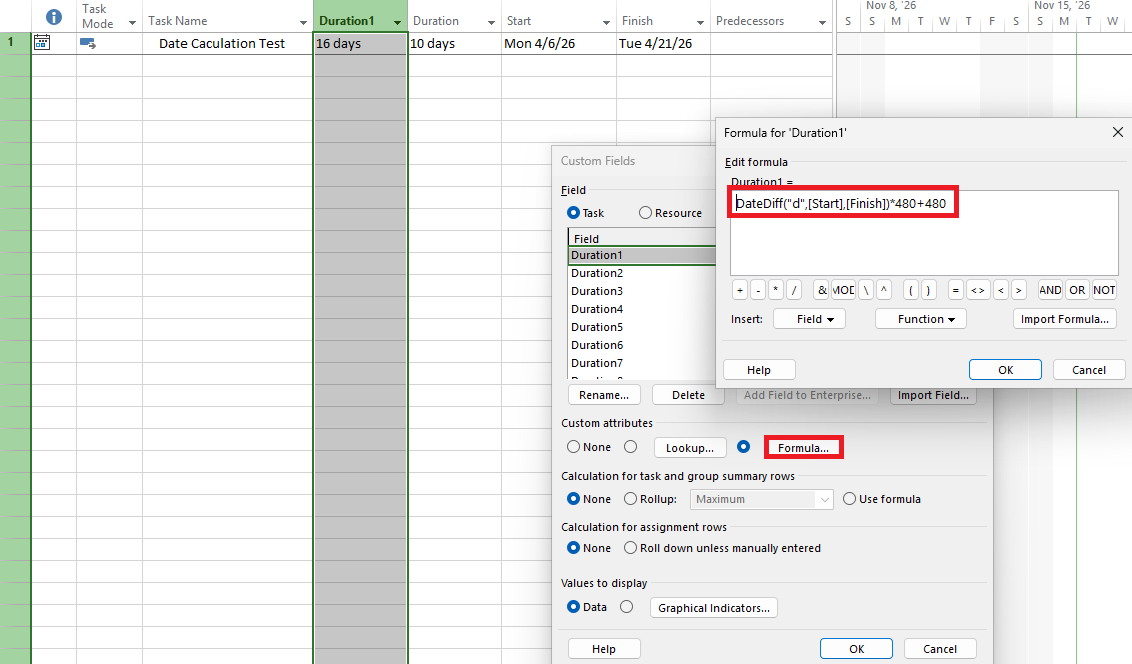
For example, under Project > Custom Fields, select a task field with Type = Duration, select Duration1, and use the following formula: DateDiff("d",[Start],[Finish])*480+480
Here, 480 represents 8 hours × 60 minutes. This version counts the Start and Finish dates inclusively. For example, April 6 through April 21 would be represented as 16 calendar dates, while the normal Project Duration in my test was 10 working days.
If your Excel calculation instead uses a straightforward Finish - Start calculation and does not count both boundary dates inclusively, use: DateDiff("d",[Start],[Finish])*480
Using April 6 and April 21 as an example, this would correspond to 15 elapsed calendar days rather than 16 inclusive calendar dates.
Therefore, there are three different calculations that can easily appear similar but produce different results:
- Project Duration: scheduled working time based on the applicable calendar
- Elapsed duration (ed): continuous elapsed duration
- Custom calendar-day calculation: difference between the Start and Finish calendar dates
Please feel free to reply below if you have any update or further concern. Thank you very much for your time and your cooperation.
If you found my response helpful, please click "Yes" on the original answer and consider upvoting it using the account that posted this question.
' cx='32' cy='32' r='32' /%3E%3Ctext x='50%25' y='55%25' dominant-baseline='middle' text-anchor='middle' fill='%23FFF' %3EJD%3C/text%3E%3C/svg%3E)

' cx='32' cy='32' r='32' /%3E%3Ctext x='50%25' y='55%25' dominant-baseline='middle' text-anchor='middle' fill='%23FFF' %3EJN%3C/text%3E%3C/svg%3E)