Hi @Mike Tolley,
Just to gently clarify before going any further, please kindly understand that this is a user-to-user community forum and is separate from Microsoft Support. As community contributors do not have access to your Microsoft 365 environment, tenant configuration, or internal service diagnostics, I am unable to investigate the issue directly within your environment.
To better understand what may be happening, could you please help confirm a few details?
- Are you using Planner in a web browser or through Microsoft Teams? If you use both, do they display the same issue?
- Does the same task show different Start and End date formats when viewed in an InPrivate/Incognito browser window?
- Does this affect every task and every plan, or only a specific plan?
From your description, this looks more like an inconsistent locale display in Planner than an incorrect task date. I would suggest trying to align the language settings of the client where you use Planner with English (United Kingdom):
- For Planner on the web: Set English (United Kingdom) as both the browser display language and the first preferred language, then fully restart the browser.
- For Planner in Microsoft Teams: Go to Settings > General > Language and regional formats, select English (United Kingdom), and then restart Teams.
After making these changes, please check whether the Start Date and End Date are displayed consistently.
If the issue persists and the Start Date and End Date still appear in different formats in both an InPrivate browser window and Teams, I would recommend involving your Microsoft 365 administrator and raising a support ticket from Microsoft 365 Admin Center > Help & Support.
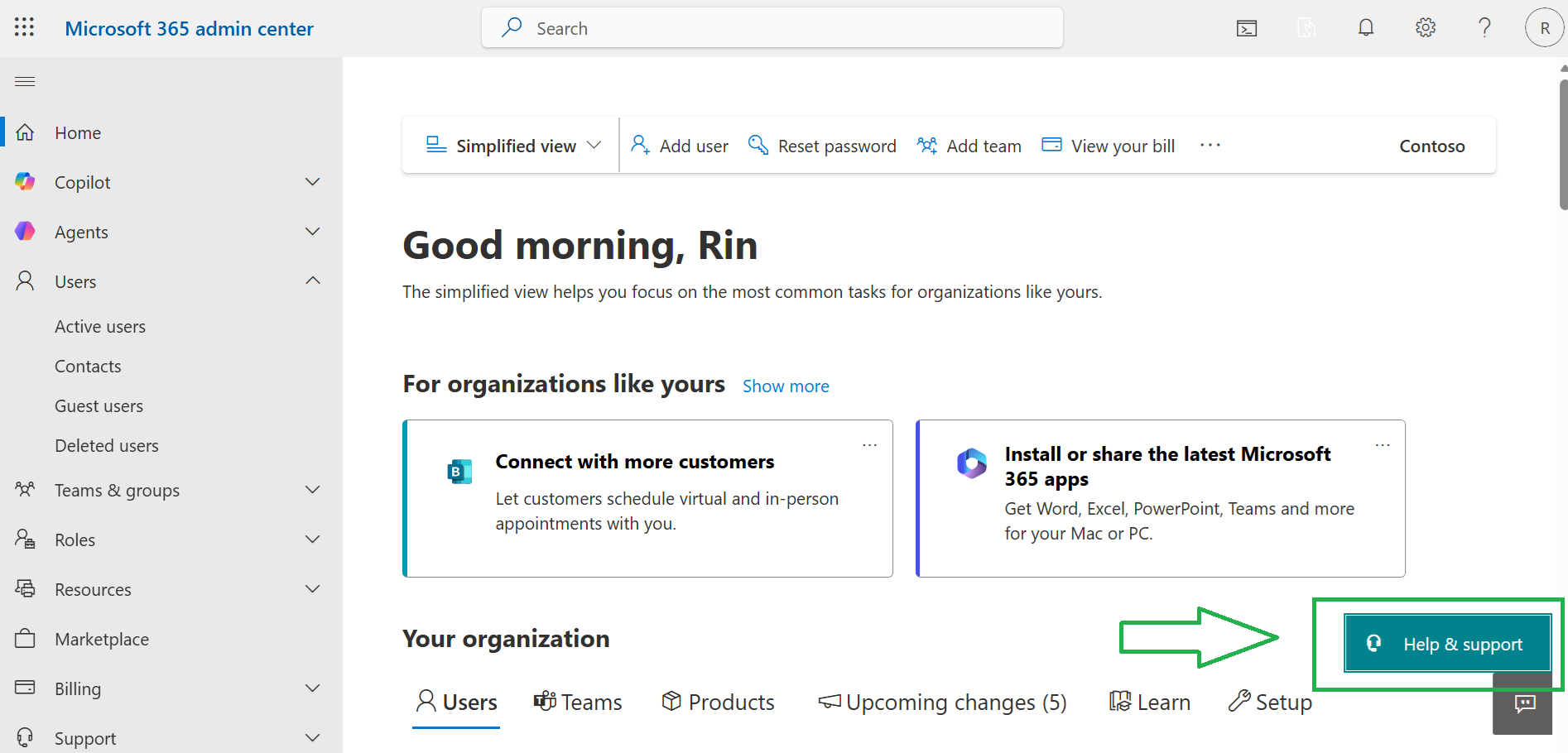
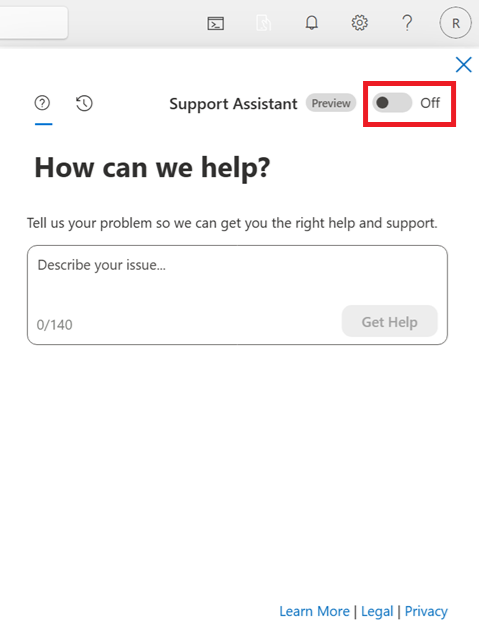
I mention this because a support engineer can perform a deeper investigation, including reviewing backend service configurations, checking for tenant-specific Planner rollout behavior, verifying synchronization status, and determining whether this may be related to a service-side display issue. They can also conduct a remote support session if necessary and work directly with you to resolve the problem. Doing so can help shorten the investigation process, improve troubleshooting efficiency, and minimize disruption to your workflow.
Please kindly review the information above, and if you have any updates or would like to discuss the issue further, please feel free to leave a comment and let me know.
Thank you for your understanding.
' cx='32' cy='32' r='32' /%3E%3Ctext x='50%25' y='55%25' dominant-baseline='middle' text-anchor='middle' fill='%23FFF' %3EMT%3C/text%3E%3C/svg%3E)

' cx='32' cy='32' r='32' /%3E%3Ctext x='50%25' y='55%25' dominant-baseline='middle' text-anchor='middle' fill='%23FFF' %3EA%3C/text%3E%3C/svg%3E)