Hi @Wittern-Keller, Laura,
Thank you for taking the time to describe the issue in such detail. I noticed that your post is categorized under For education, so may I first confirm whether you're using a school-provided Microsoft 365 account?
Based on what you described, PowerPoint appears to recognize that recording data exists on the slide, since it shows a duration and offers Retake on Current Slide. However, this does not necessarily confirm that the audio itself was captured successfully. It could be an intermittent display issue, a recording-session issue, or PowerPoint temporarily losing access to the selected microphone.
The next time this happens, please do not retake the slide immediately. First, use Play/Preview in the recording window and check whether the narration can be heard. If it plays correctly, the recording is likely present and the missing audio icon may only be a display issue. PowerPoint normally allows recorded narration to be reviewed directly from the recording window.
Before recording, please close Teams, Zoom, or any browser tab or application that may be using the microphone. This is particularly important if you use a Bluetooth headset or have more than one microphone connected. In the PowerPoint recording window, also verify that the intended microphone is selected.
If the problem continues, test PowerPoint in Safe Mode:
- Press Windows + R.
- Enter
powerpnt /safe.
- Record several slides in a new blank presentation.
If recording works consistently in Safe Mode, a PowerPoint add-in may be interfering with the recording process. In that case, you could try disabling or removing add-ins one at a time and then test again to identify whether a particular add-in is contributing to the issue (File > Options > Add ins).
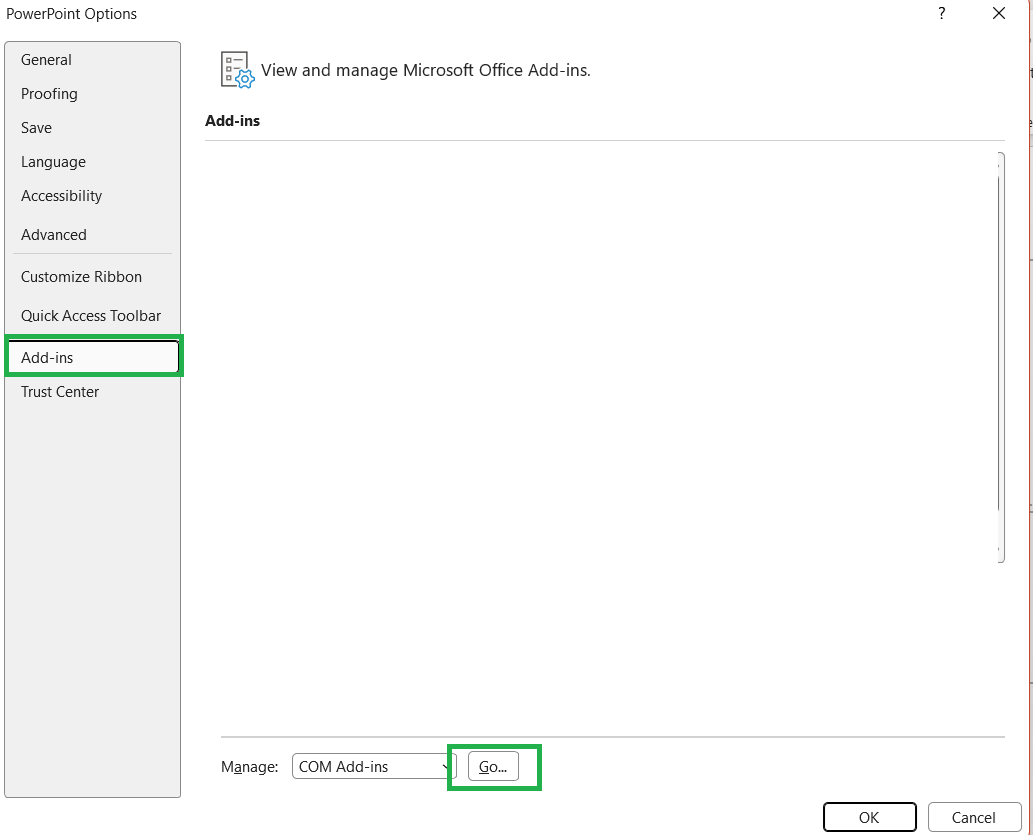
If the problem also occurs in Safe Mode, I would recommend making sure PowerPoint is fully updated and then performing an Office Quick Repair, followed by an Online Repair if necessary. Please refer to the following article: Repair an Office application
I hope you're able to give these suggestions a try. Thank you so much for taking the time.
' cx='32' cy='32' r='32' /%3E%3Ctext x='50%25' y='55%25' dominant-baseline='middle' text-anchor='middle' fill='%23FFF' %3EWK%3C/text%3E%3C/svg%3E)

' cx='32' cy='32' r='32' /%3E%3Ctext x='50%25' y='55%25' dominant-baseline='middle' text-anchor='middle' fill='%23FFF' %3EA%3C/text%3E%3C/svg%3E)