Microsoft Security | Microsoft Entra | Microsoft Entra ID
A cloud-based identity and access management service for securing user authentication and resource access

This browser is no longer supported.
Upgrade to Microsoft Edge to take advantage of the latest features, security updates, and technical support.
' cx='32' cy='32' r='32' /%3E%3Ctext x='50%25' y='55%25' dominant-baseline='middle' text-anchor='middle' fill='%23FFF' %3EDB%3C/text%3E%3C/svg%3E)
Hello,
I have a Personal computer on which I use a personal Microsoft account (let's name it DavidHome).
I have migrated the computer to Windows 10 Pro and I have created an Azure Active Directory user (using the Join this Device to Azure Active Directory, which has created an user AzureAD\DavidB..... let's name it "DavidPro").
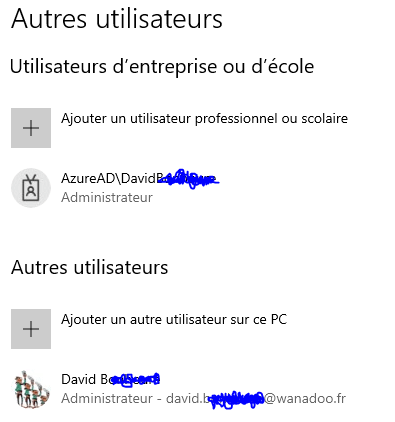
Then, I can connect to DavidPro to access my Work environment. I can switch to DavidPerso to get my Home environment. It works well, .... almost,...
Indeed, when I switch off or restart my computer from the DavidPro session, I will find on the startup screen the three users icons, corresponding to DavidPro, DavidHome, and the third one being "Other user". I click on Davidpro, type in the password or Pin Code and I connect. I can go into the Start menu, click on my DavidPro icon and can see the DavidHome icon, to switch to my DavidHome environment by typing the password. From there, I can switch back to DavidPro in the same way. This part works well.
However, when I switch off or restart my computer from the DavidHome session, I will only get two user icons at the windows startup: DavidHome and "Other User". This happens even if the DavidPro session was still opened on the comuter, and that I accept the warning for other user is connected. Then, to access the DavidPro user, I must click on the "Other User", type in my login name, and type in the password.
Whenever I chose the DavidHome icon, from a computer restart, the DavidPro icon won't be present in the Start menu. So, to switch to the DavidPro user, I must click on the "switch to other user" icon, type in my mail and password.
As a summary, the only solution that I have so far, is to always switch off my computer from the DavidPro session, and always start the first session of the day connected to DavidPro user, or I loose the DavidPro icon. That creates constraints.
Is there a way to make the DavidPro user icon always visible at the computer start ?
I couldn't find anything in the parameter/account or control panel/users account or in the Azure Active Directory panel. I suppose it may be somehere in the windows registry database
A cloud-based identity and access management service for securing user authentication and resource access
' cx='32' cy='32' r='32' /%3E%3Ctext x='50%25' y='55%25' dominant-baseline='middle' text-anchor='middle' fill='%23FFF' %3EJS%3C/text%3E%3C/svg%3E)
Hi @David Bnh
I think you can achieve what you want by opening local group policy editor.
Computer configuration > Administrative Templates > System > Logon > Enumerate local users on domain-joined computers > Enabled
That should show all accounts on the logon screen.
Kind regards,
Jamie Sabbatella
' cx='32' cy='32' r='32' /%3E%3Ctext x='50%25' y='55%25' dominant-baseline='middle' text-anchor='middle' fill='%23FFF' %3EOI%3C/text%3E%3C/svg%3E)
This is what I have looked for the last 8h of searching the internet. Thanks mate!
' cx='32' cy='32' r='32' /%3E%3Ctext x='50%25' y='55%25' dominant-baseline='middle' text-anchor='middle' fill='%23FFF' %3EG%3C/text%3E%3C/svg%3E)
Confirmed working on Windows 11 Pro
Almost exactly five years later, I experienced precisely the same issue on my HP Pavilion running Windows 11 Pro.
The computer has two separate Windows accounts: a personal Microsoft account and a Microsoft Entra ID (formerly Azure AD) work account.
Both accounts worked perfectly, but whenever I restarted Windows after using the personal account, the work account disappeared from the sign-in screen. Only the personal account and "Other user" remained visible.
The device was correctly joined to Microsoft Entra ID (AzureAdJoined: YES), and the work account itself was fully functional.
After trying several other approaches without success, I finally found this discussion.
And the solution still works! :)
I enabled the following Group Policy setting:
Computer Configuration → Administrative Templates → System → Logon → Enumerate local users on domain-joined computers
Then I ran gpupdate /force and restarted Windows.
I specifically tested the previously problematic sequence:
Work account → Restart → Personal account → Restart → Work account.
Success! The work account remained visible and selectable on the Windows sign-in screen.
Thank you, Jamie, for posting this solution back in 2021!
I can now confirm that it also works on Windows 11 Pro in November 2026. :)
Hopefully this helps others struggling with the same issue...
THX and best regards,
gallexandor
Hi Jamie,
One small detail is left :
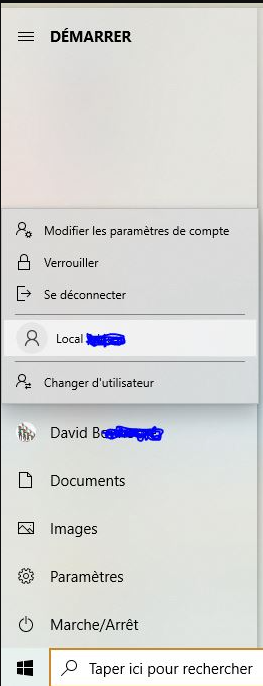
When I am connected as DavidHome, in the Start menu, I don't see the DavidPro Icon. On the picture, you can see the Local user icon that I intend to delete soon, and that has appeared after your modification but the DavidPro user icon is not there. It is not a big deal, because when I click on disconnect, I can see it in the windows open session screen, thanks to your previous modification.
Is there a way to have this DavidPro icon visible from the DavidHome session in the start menu ?
Hi David,
I think you have defeated me there, I'm not sure it can be done with online accounts. The only way I get to see it if I leave them signed in I can then quickly jump between the two.
Might be worth asking as a separate question to see if somebody else in the community knows a way. I would be keen to find out.
Jamie
Thank you anyway !
I'll post as a separate topic then
Hi Jamie,
Your answer was fast, accurate. I tried it and now my computer works exactly as expected ! Thank you so much !!
The main issue was to find the right path as my computer speaks french to me ;-) but I made it !
PS : This option has also made a local user account appear again on the logon screen. It vanished when I created the AzureActive user. My intention was to delete it anyway.
Really glad to hear it worked, thanks for the kind words :)