Ios powerpoint record function.

Joshua Atchison 20 Reputation points
2026-11-22T21:18:06.8533333+00:00

Powerpoint in Ipad does not seem to have a record function only a reherse function

This was answered as nonexistant in 2020 but my professor says thats notbtrue and it is a requirement for the assignment. Can someone show where this function is or is it still unavailable andy professor is incorrect?

Microsoft 365 and Office | PowerPoint | For education | iOS
0 comments No comments

Answer accepted by question author
Ivory 3,080 Reputation points Independent Advisor
2026-11-22T21:42:34.3733333+00:00

Hi Joshua,

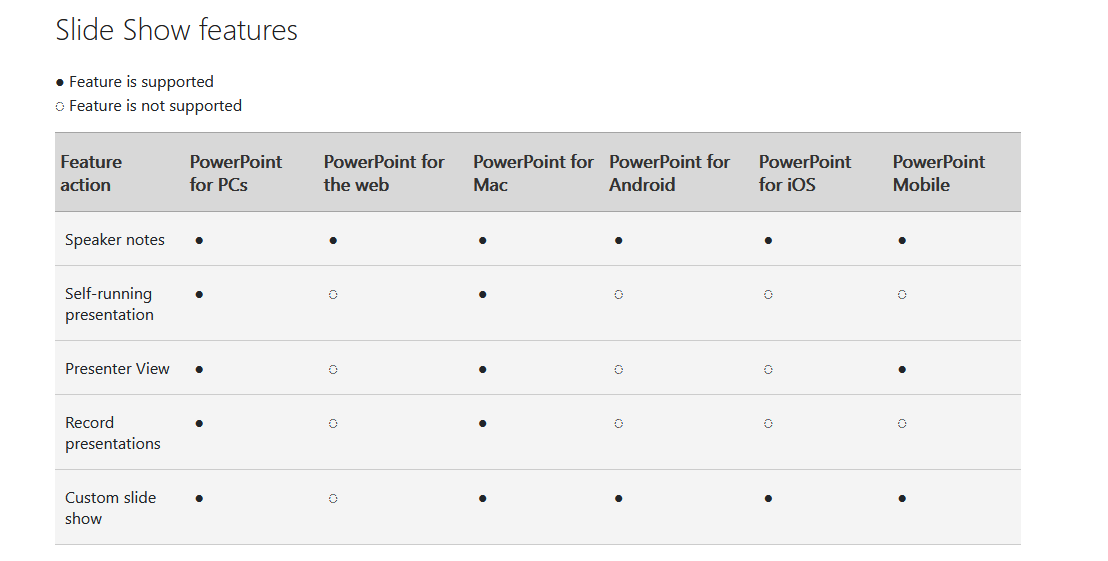
At this time, PowerPoint on iPad does not support recording directly within the app. This behavior is a known limitation of the iOS version of PowerPoint and is not related to licensing, account type, or school settings.

Here is the Microsoft Official document regarding the PowerPoint's features: Compare PowerPoint features on different platforms
User's image

If your assignment requires a recorded or narrated presentation, you can use the built-in Screen Recording feature on iPad as an alternative. This allows you to play the slideshow while recording your screen and voice. Please note that this creates a video recording of the presentation rather than embedding narration within the PowerPoint file itself.

Before you start recording, please note that:

  • Use your device in landscape orientation for the best presentation experience.
  • Consider using an external microphone, such as Apple EarPods or AirPods, to improve audio quality.
  • Enable Do Not Disturb mode to prevent notifications from appearing during the recording.
  • Keep in mind that anything displayed on the screen during recording will be captured in the final video.

Next, please enable screen recording on iPad

  1. Open Settings.
  2. Select Control Center.
  3. Add Screen Recording to your Control Center if it is not already available.

Then you can start to record your presentation

  1. Open your PowerPoint presentation and navigate to the slide where you want to begin.
  2. Start the slideshow.
  3. Open Control Center by swiping down from the top-right corner of the screen.
  4. Press and hold the Screen Recording button.
  5. Enable the Microphone option so your narration is recorded.
  6. Tap Start Recording and wait for the three-second countdown.
  7. Return to your presentation and deliver it as normal.
  8. When finished, open Control Center again and tap the recording button to stop recording.
  9. The completed recording will be saved automatically to the Photos app.

I hope this information helps. Should you have any questions or need further assistance, feel free to share them in the comments so I can continue to support you.


If the answer is helpful, please click 'Yes' and kindly upvote it.

Note: Please follow the steps in the forum documentation to enable e-mail notifications if you want to receive the related email notification for this thread. 

Was this answer helpful?

1 person found this answer helpful.
0 comments No comments

1 additional answer

Sort by: Most helpful
  1. AI answer

    2026-11-22T22:57:48.5233333+00:00

    PowerPoint for iPad does not currently include Record presentations; the assignment must be recorded with the installed Windows or Mac desktop version of PowerPoint, or through an alternative approved by the professor.

    Microsoft’s feature comparison marks Record presentations as supported on PowerPoint for Windows and Mac, but not supported on PowerPoint for iOS. It also marks the feature unsupported in PowerPoint for the web, so opening the presentation in an iPad browser will not provide it either. ^1^

    Why only Rehearse appears

    Rehearse with Coach is available on iPhone and iPad, but it is a practice and feedback tool. It evaluates delivery and produces a rehearsal report; it does not create a recorded presentation or add slide timings. ^2^

    Therefore, the missing Record button is expected and is not a setting that can be enabled on the iPad.

    Supported way to complete the assignment

    Use a Windows PC or Mac with the installed desktop PowerPoint application:

    1. Save the presentation to OneDrive or copy the .pptx file to the computer.
    2. Open it in desktop PowerPoint—not PowerPoint for the web.
    3. Select Record from the top app bar or Record tab. Depending on the desktop version, it may instead appear under Slide Show > Record.
    4. Record the narration, camera, ink, and slide timings.
    5. Open Export from the recording window and create the video file if the assignment requires an MP4.

    Microsoft documents presentation recording and video export for the supported desktop editions; the exact placement of the controls can vary by version. ^3^

    If no Windows PC or Mac is available, ask whether the school provides:

    • A computer lab or library workstation with desktop PowerPoint
    • A loaner laptop
    • Remote access to a school computer
    • Permission to submit an iPad screen recording or another video format instead

    The professor may be referring to the desktop PowerPoint feature or to a separate recording workflow, but there is no native Record presentations command to locate in the current iPad app.


    References

    1. Compare PowerPoint features on different platforms | Microsoft Support
    2. [iOS](https://support.microsoft.com/powerpoint/rehearse-your-slide-show-with-speaker-coach#frequently-asked-questions)
    3. Record your presentation | Microsoft Support
    AI-generated content may be incorrect. Read our transparency notes for more information.

    Was this answer helpful?

Your answer

Answers can be marked as 'Accepted' by the question author and 'Recommended' by moderators, which helps users know the answer solved the author's problem.