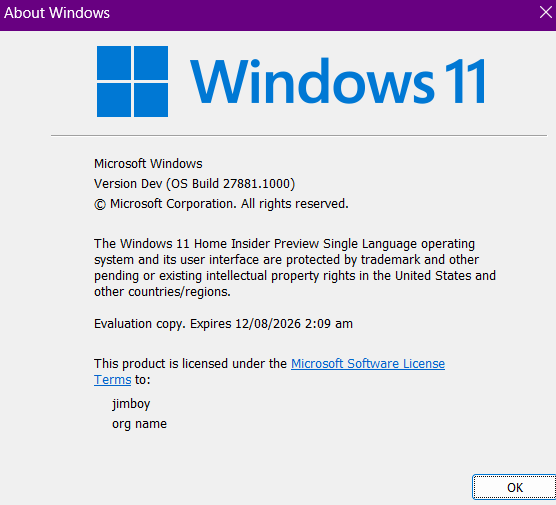
Unable to install Windows 11 Insider Preview Feature Update (28020.2207)

Jim Agustin 0 Reputation points
2026-10-15T15:36:03.6566667+00:00

Hello,

There was a Windows Insider Preview certificate renewal (Expiration: Aug 11, 2026) and I wasn't able to comply. Upon trying to install the update now, it keeps on failing - error message: The update certification has expired. Make sure your date, time, and time zone settings are correct and we'll try to install the update later. The aforementioned settings are all correct on my device.

The only troubleshoot I've done is going to settings > trouble shoot ? other troubleshoot > run. But it wasn't able to locate any error.

How do I proceed?

User's imageUser's image

Windows Insider program | Windows Insider preview | Install, activate, and Windows update
0 comments No comments

2 answers

Sort by: Newest
  1. CrazyKats 20,095 Reputation points Volunteer Moderator
    2026-10-15T16:01:53.21+00:00

    Hi Jim,

    You are on a really old build.

    I would suggest going here:

    https://www.microsoft.com/en-us/software-download/windowsinsiderpreviewiso

    Get the ISO for 28020.3171, download, then

    right click and Mount the ISO, open the folder

    and run Setup and do an in place update.

    Was this answer helpful?

    0 comments No comments

  2. AI answer

    2026-10-15T15:36:22.6666667+00:00

    Try this in order:

    1. Restart the device first.
      • Windows Update shows Secure Boot Allowed Key Exchange Key (KEK) Update as Pending restart.
      • Complete that restart, then go back to Settings > Windows Update and select Check for updates again.
    2. Recheck date, time, and time zone.
      • Go to Start > Settings > Time & language.
      • Incorrect date and time settings can cause Windows Update error 80072F8F and can prevent updates from installing correctly.
    3. Run the Windows Update troubleshooter again from the full path.
      • Go to Start > Settings > System > Troubleshoot > Other troubleshooters.
      • Next to Windows Update, select Run.
    4. Try to get the latest Insider build again.
      • Go to Settings > Windows Update.
      • Select Check for updates.
      • Insider devices download and install the latest preview build for the selected channel from there.
    5. If the initial move from a retail build to an Insider build fails, try again.
      • Microsoft notes that sometimes the initial upgrade to a Windows Insider build fails, and retrying succeeds.
    6. If the update still does not install, use the Windows 11 Installation Assistant.
    7. If Windows Update still does not offer or complete the upgrade, verify device readiness.
      • If Windows 11 is not offered or installation does not proceed, one possible reason is a hardware compatibility issue.
      • Use the PC Health Check app to verify the device meets Windows 11 requirements.
    8. If the device is enrolled in Windows Insider, confirm Insider settings.
      • Go to Settings > Windows Update > Windows Insider Program.
      • Ensure the device is still linked to the Insider Program and then check for updates again.
      • Optional diagnostic data may be required to receive Insider Preview builds.

    References:

    AI-generated content may be incorrect. Read our transparency notes for more information.

    Was this answer helpful?

Your answer

Answers can be marked as 'Accepted' by the question author and 'Recommended' by moderators, which helps users know the answer solved the author's problem.