My Windows installation has some problems related to Windows Update. I suspect that some update files may be corrupted or that the Windows installation itself might be a modified or unofficial copy.
Initially, I had Windows 10, but I upgraded to Windows 11 at a repair shop. Unfortunately, the technician did not do a proper job. Because of this, I encountered an issue where I could not increase or decrease my system's screen brightness. I checked Device Manager and found that my system was using Microsoft Basic Display Adapter instead of the proper AMD Radeon graphics driver.
I managed to fix this issue by downloading and installing the official AMD Radeon graphics driver from AMD's website. After installing the correct driver, the brightness controls started working properly.
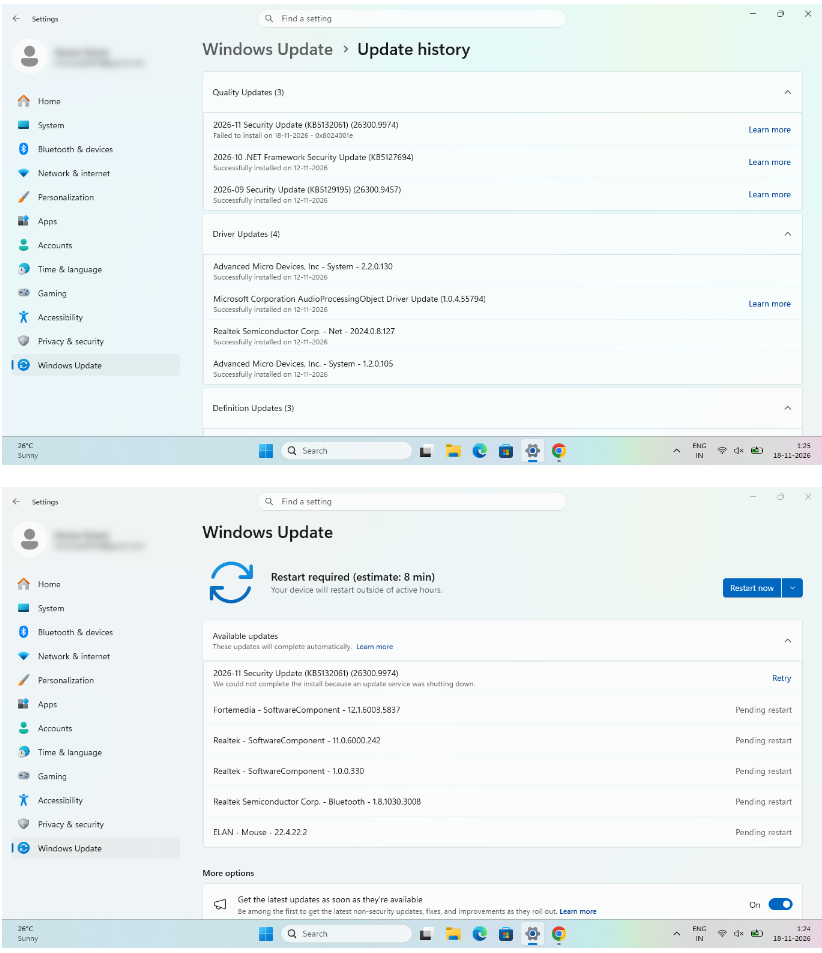
However, after resolving that issue, I encountered another problem when I tried to install the available Windows updates. There were several updates listed, including driver updates for the ELAN mouse/touchpad, media, audio, display, and other components.
The problem is that, in Windows Update History, some of these updates are shown as successfully installed, while others are marked as failed. Additionally, the Windows Update interface sometimes shows updates as pending a restart, even though I have already restarted my system.
I would like to know how to properly diagnose and fix these Windows Update issues. I will also attach screenshots of the relevant Windows Update pages, Update History, and any other information that might help you better understand the problem.
Please guide me through the troubleshooting process step by step. I want to identify the root cause of the problem and fix it without unnecessarily reinstalling Windows or causing any additional issues.
' cx='32' cy='32' r='32' /%3E%3Ctext x='50%25' y='55%25' dominant-baseline='middle' text-anchor='middle' fill='%23FFF' %3EGK%3C/text%3E%3C/svg%3E)

