Microsoft 365 and Office | Install, redeem, activate | For home | MacOS
Processes in Microsoft 365 for setting up Office apps, redeeming product keys, and activating licenses.

This browser is no longer supported.
Upgrade to Microsoft Edge to take advantage of the latest features, security updates, and technical support.
' cx='32' cy='32' r='32' /%3E%3Ctext x='50%25' y='55%25' dominant-baseline='middle' text-anchor='middle' fill='%23FFF' %3ESS%3C/text%3E%3C/svg%3E)
How do I transfer my Microsoft 365 subscription to a new computer?
Processes in Microsoft 365 for setting up Office apps, redeeming product keys, and activating licenses.
' cx='32' cy='32' r='32' /%3E%3Ctext x='50%25' y='55%25' dominant-baseline='middle' text-anchor='middle' fill='%23FFF' %3EMP%3C/text%3E%3C/svg%3E)
In short, just install the apps on your new computer from https://www.office.com. Sign in by using your Microsoft account you used to purchase the subscription, then click on Apps on the left. Finally, click on "Install apps". This will now download the installer file. Once downloaded, click on the file to install.
It's also a good idea to uninstall Microsoft 365 from your old laptop to free up the license. You can do this through the Control Panel or Settings.
Here are the details:
Go to m365.cloud.microsoft/apps. If you're not already signed in, select Sign in, and then select the Install apps drop-down.
Note
If you're using Microsoft 365 operated by 21 Vianet, sign in with your work or school account to login.partner.microsoftonline.cn.
If you're using Microsoft 365 Germany, sign in with your work or school account to portal.office.de.
Sign in with the account you associated with this version of Microsoft 365 or Office. This account can be a Microsoft account, or work or school account.
After signing in, follow the steps that match the type of account you signed in with.
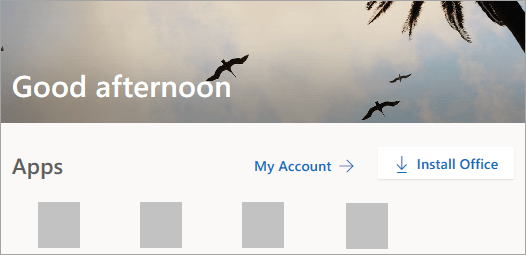
You signed in with a Microsoft account 
You signed in with a work or school account
1. From the Microsoft 365 **Apps** page select **Install apps**. (Or, you might need to select **Apps** from the left navigation pane, and then select **Install apps**.)
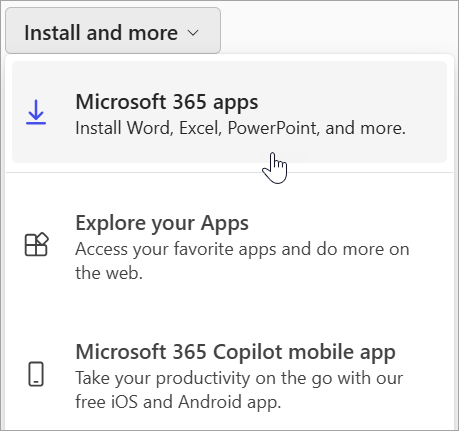
1. Select **Microsoft 365 apps** to begin the download.
**Note**
**Don't see an install option after signing in?** There could be an issue with your account. Select the **Need help?** tab from above and review the issues listed in the section **Account questions**.
Follow the instructions below to complete installing your Microsoft 365 apps.
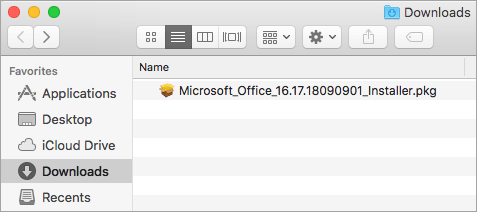
Once the download has completed, open Finder, go to Downloads, and double-click Microsoft Office installer.pkg file (the name might vary slightly).
Tip
If you see an error that says the Microsoft Office installer.pkg can't be opened because it is from an unidentified developer, wait 10 seconds and move the downloaded file to your desktop. Hold Control + click the file to launch the installer.
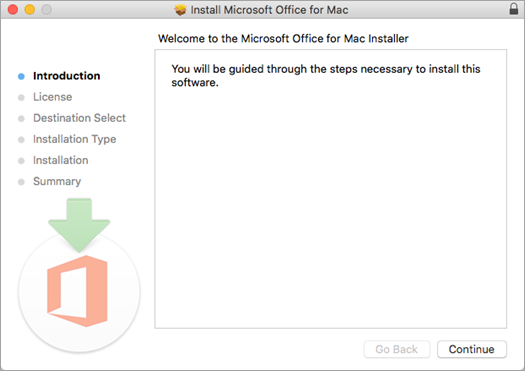
On the first installation screen, select Continue to begin the installation process.
Review the software license agreement, and then click Continue.
Select Agree to agree to the terms of the software license agreement.
Choose how you want to install Microsoft 365 and click Continue.
Review the disk space requirements or change your install location, and then click Install.
Note
If you want to only install specific Microsoft 365 apps and not the entire suite, click the Customize button and uncheck the programs you don't want.
Enter your Mac login password, if prompted, and then click Install Software. (This is the password that you use to log in to your Mac.)

The software begins to install. Click Close when the installation is finished. If Microsoft 365 installation fails, see What to try if you can't install or activate Office for Mac.


If the above response helps answer your question, remember to "Accept Answer" so that others in the community facing similar issues can easily find the solution. Your contribution is highly appreciated.
hth
Marcin