[Update: Solution found. See edit at the bottom]
Hi all,
Running Windows 11 Enterprise, 25H2 (Build 26200.9457)
Windows Feature Experience Pack 1000.26100.360.0
Hoping to find a way to change a new (to me) behavior of the Snipping tool in Windows 11. The behavior when using the Windows Snipping shortcut (Win+Shift+S) has changed for me, and I have not been able to find a way to change it back.
Previously, using the shortcut would darken the screen, allowing you to select an area of the screen to capture. Upon releasing the mouse, the selected area would be immediately captured without further prompts, and copied to the clipboard (per the settings in Windows)
Now, when I use the shortcut, select an area, then release the mouse, I am instead presented with a new "editing bar" (I'm not sure what it's officially called) underneath the selected area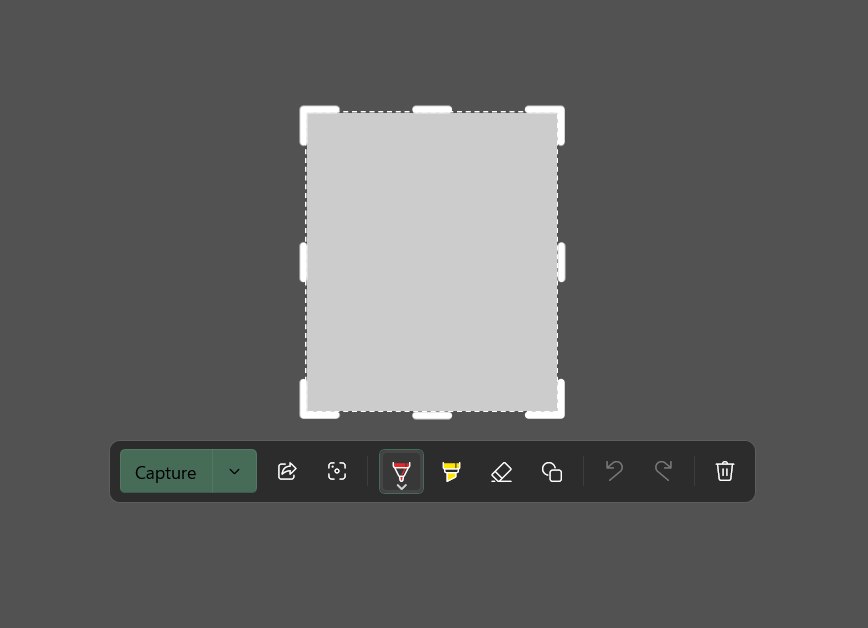
I then need to manually click the Capture button for the selection to be captured as normal.
End-Goal: I'd like to return the functionality of the Snipping shortcut (Win+Shift+S) to its previous behavior so that the selection is captured immediately upon selecting the area on the screen.
Does anyone know if it is possible to revert this change, and if so, how?
Thank you!
[Edit]: I managed to figure out the solution a few minutes after posting this, and perhaps this'll help others in the future.
It turns out that the Snipping Tool has a feature called Quick Markup, which I inadvertently enabled without realizing it.
Notably, this setting cannot be enabled/disabled until you start a new capture. But once you do, the option is in the toolbar that appears at the top of the screen, before you select the area to capture:
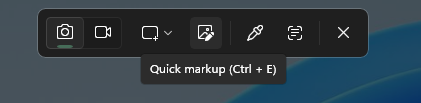
Best guess is that I accidentally enabled this via the shortcut (Ctrl+E). This setting needs to be changeable in the Snipping Tool itself, without having to first start a new capture, and look for it in the toolbar, because it can be difficult to find unless you know where it is located to begin with.
I hope this helps others in the future.
' cx='32' cy='32' r='32' /%3E%3Ctext x='50%25' y='55%25' dominant-baseline='middle' text-anchor='middle' fill='%23FFF' %3EDB%3C/text%3E%3C/svg%3E)
